Workflow Templates
Purpose
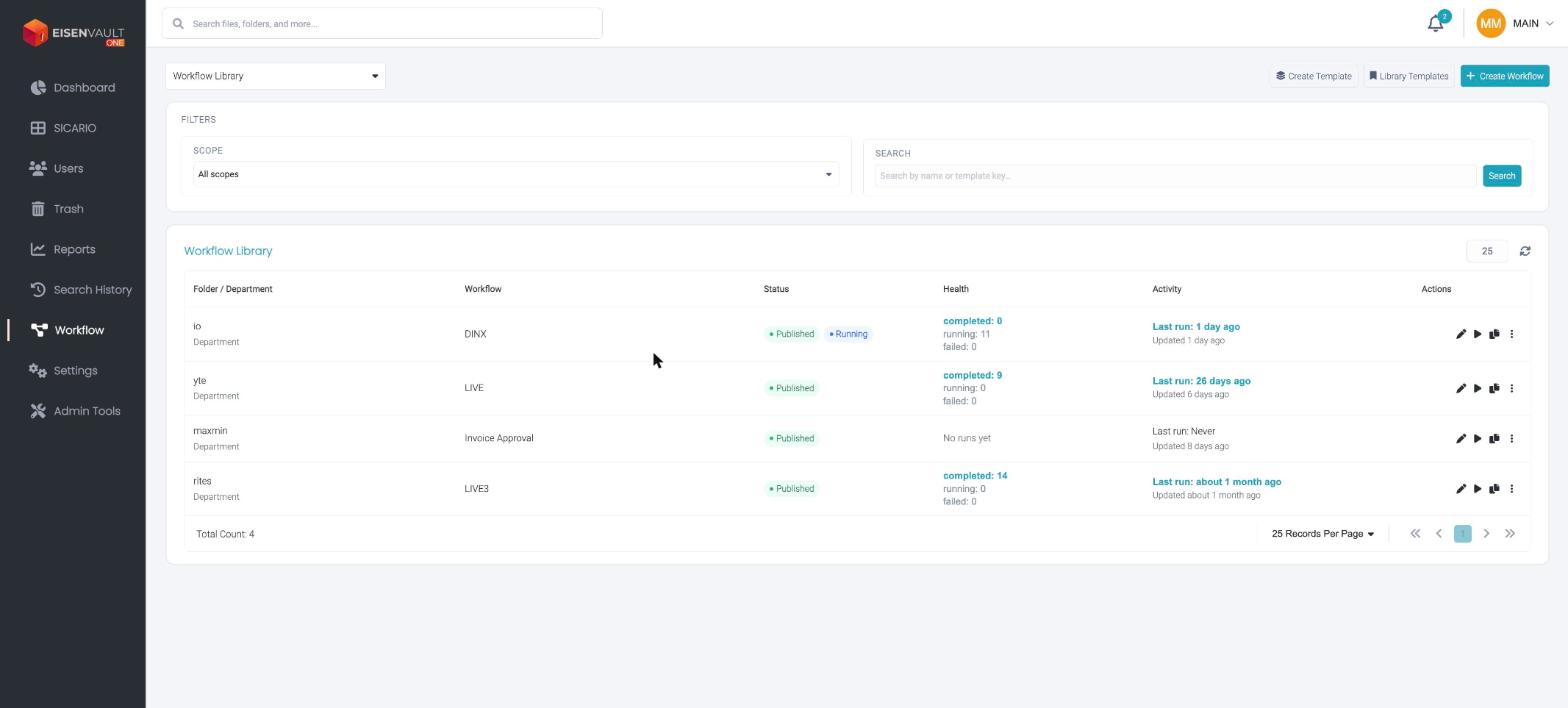
Browse and manage workflow templates in the Workflow Library view of the Workflows page. Published templates can run automatically on file uploads when attached to a department or folder scope. Draft templates remain editable until you publish them.
Prerequisites
- You are signed in to EisenVault One.
- Workflow features are enabled in your environment.
- Your account has permission to view or manage workflow templates.
Before You Begin
There are two kinds of reusable workflow, and they are reached from different buttons.
| Button | What it makes |
|---|---|
| Create Template | A blueprint — the structure only. Folders, users, and files are filled in later, when you deploy it. |
| Library Templates | Opens the blueprints already saved, ready to fill in and deploy. |
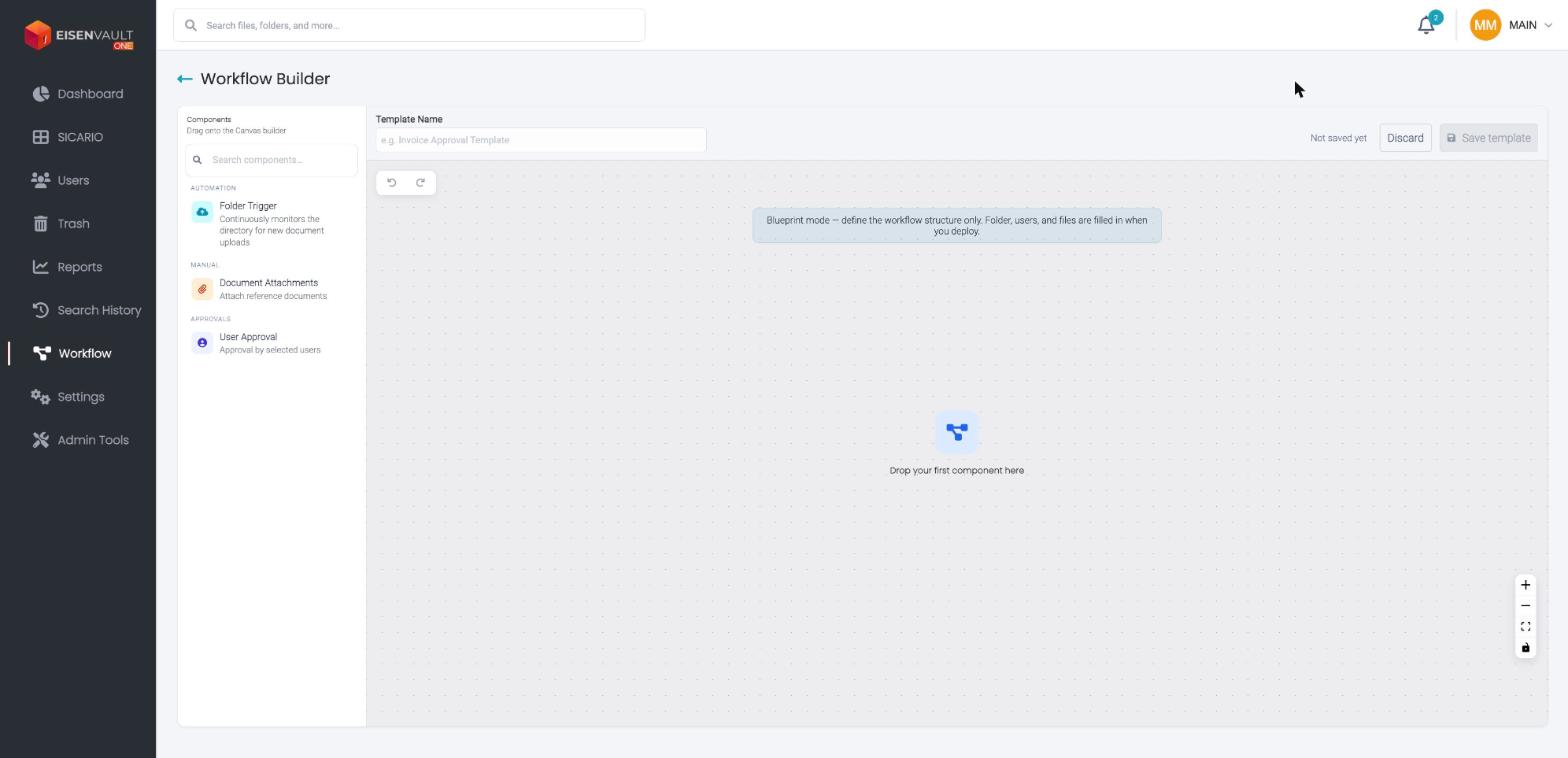
Create Template opens the builder in Blueprint mode. The name field becomes Template Name, a banner explains Blueprint mode — define the workflow structure only. Folder, users, and files are filled in when you deploy, and the action button is Save template.
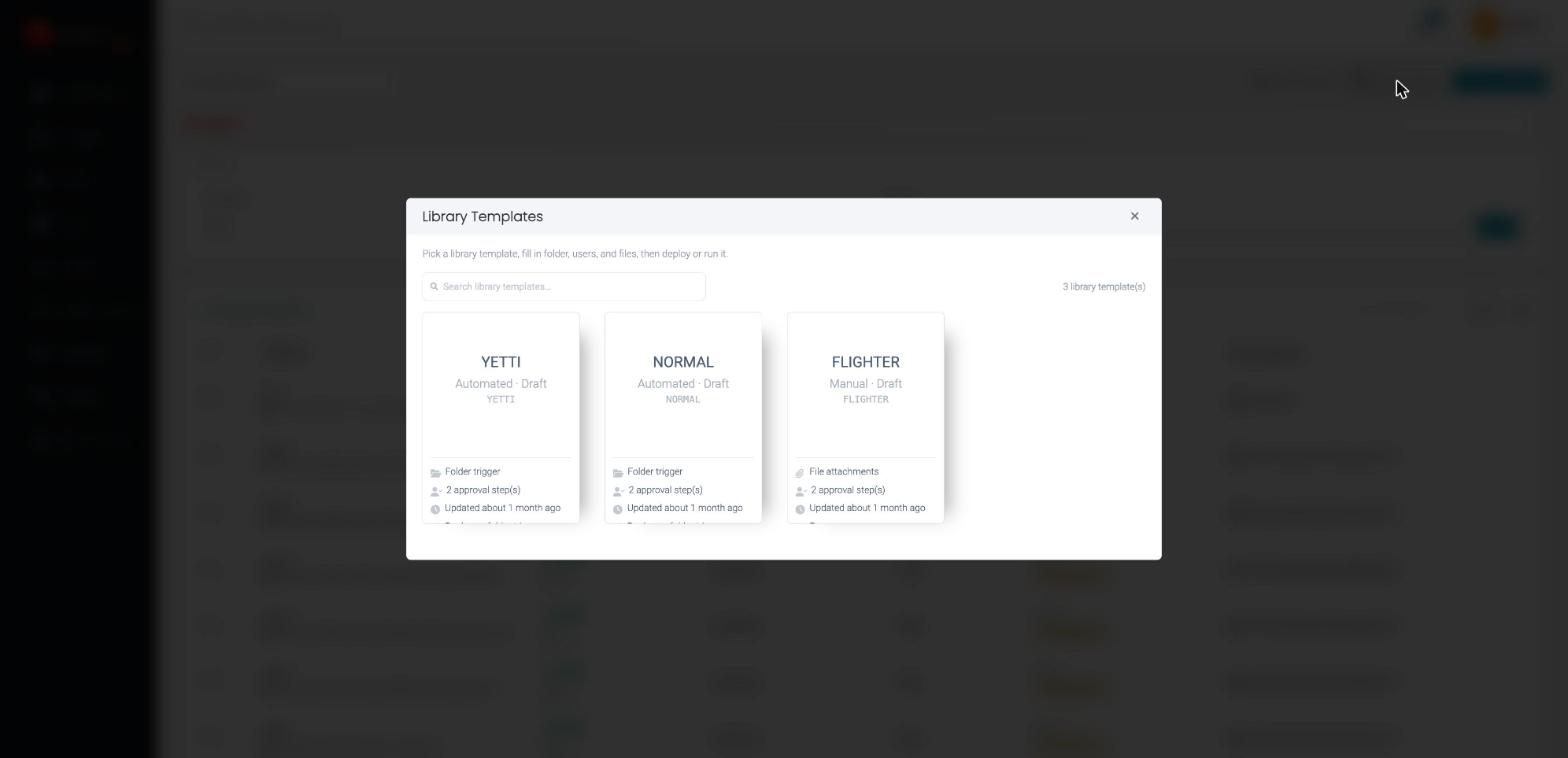
Library Templates opens a dialog: Pick a library template, fill in folder, users, and files, then deploy or run it. Search across saved blueprints, and the count is shown on the right.
If nothing has been saved yet it reads No library templates yet — Create a template to save a reusable workflow structure without binding folders, users, or files.
To design a workflow bound to real folders and people instead, click + Create Workflow to open the Workflow Builder.
Open the Templates Tab
- Sign in to EisenVault One.
- Click Workflow in the left navigation.
- Confirm the dropdown at the top left shows Workflow Library.
Search and Filter Templates
Use the toolbar above the template list to narrow results:
| Control | Options |
|---|---|
| Search | Search by workflow name or template key |
| Scope | All scopes, Department, or Folder |
Click the refresh icon to reload the list after changes.
Template List Columns
Each row in the template table shows:
| Column | Description |
|---|---|
| Workflow | Template name and description or key |
| Scope | Where the template is attached — for example Folder or Department |
| Version | Current template version (for example v1) |
| Status | Published, Draft, or Archived |
| Last updated | When the template was last modified |
| Actions | Row menu for template actions |
Manage Templates
Open the actions menu (three dots) on a template row to:
- Edit — open the template in the Workflow Builder.
- Clone — create a copy of the template.
- Archive — move the template out of active use.
You can also open a template by clicking its name to review versions and configuration.
Publish a Template
- Open a draft template in the workflow builder.
- Review approval steps, approvers, scope, and rules.
- Publish the template when it is ready for production use.
After publishing, the template appears with Published status and can execute automatically when files are uploaded to its attached department or folder scope.
Example Walkthrough
-
Open Workflow. The page opens on the Workflow Library.
-
Use the Scope filter or the search box to find a specific template.
- Open the row actions menu to Edit, Clone, or Archive a template.
- Click Create Template to save a reusable blueprint, or + Create Workflow to build a workflow bound to real folders and people.
Expected Result
- The template list reflects your search and filter choices.
- Published templates are available for automated execution on upload.
- Draft templates can be edited until published.
- Version numbers update when template definitions change.
Troubleshooting
If the Workflow Library shows Could not refresh list, Failed to load workflows, or an HTTP 421 error, the workflow template API did not return data. Summary cards may show dashes and the table may be empty.
Try Refresh, confirm create_edit_approvals or view_approval_flow permission, and ask your administrator to verify the workflow service on the deployment. See also Workflow Runs — Troubleshooting.