Share a Document Externally
Purpose
Send people outside EisenVault One a private, expiring link to one or more documents.
Prerequisites
- You are signed in to EisenVault One.
- You can see the Share action on the document.
Before You Begin
- Only files can be shared. If you select only folders, Share is unavailable. If you select files and folders together, a warning says the folders are excluded and only the files are shared.
- Every link has an expiry date and time, and it must be in the future.
- Recipients receive the link by email.
| Setting | What it does |
|---|---|
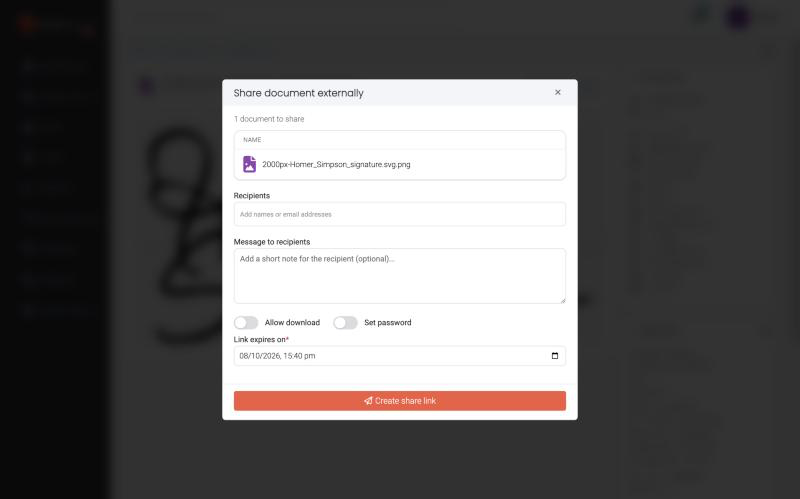
| Recipients | The names or email addresses to invite. |
| Message to recipients | An optional note included in the email. |
| Allow download | When off, recipients can view the document but not download it. |
| Set password | Recipients must enter a password (at least 4 characters) before they can open the link. Share the password with them separately. |
| Link expires on | The date and time the link stops working. Required. |
Share a Document
-
Open the document preview page and click Share under File Actions. In the document library you can also select several files and use Share from the toolbar.
-
Check the list of documents at the top of the dialog.
- Add Recipients, and optionally a Message to recipients.
- Turn on Allow download or Set password if needed.
- Set Link expires on.
- Click Create share link.
What Recipients See
- Recipients open the link from the email.
- If you set a password, they must enter it first.
- They see the shared documents, preview them, and download them only if you allowed it.
Review and Revoke Shares
- The regular user dashboard can show an External Share widget (it may be hidden in some environments) listing documents you shared in the last 30 days, with the number of recipients for each. Open it for the full list for a chosen date range. You can filter by name, recipient email, and Status.
- Each share has a status: Active, Expired, or Revoked.
- To stop a link early, click Revoke beside it and confirm. Recipients can then no longer open the document. Copy Link copies the share link again.
- Sharing, viewing, and revoking are recorded in the document's audit trail as Shared document, Viewed External Share, and Revoked External Share. See View & Export Audit Trails.
Expected Result
- Recipients get an email with a private link.
- The link stops working at the expiry time, or when you revoke it.