How Effective Permissions Are Calculated
Purpose
This page explains how EisenVault One determines a user’s effective permissions, so you can predict access outcomes and troubleshoot unexpected behavior.
Note: This action may require administrator privileges.
Effective Permissions Are Additive
Users can receive permissions through multiple paths:
- Direct role assignments (for global roles)
- Group membership
- Nested group membership (subgroups)
- Content role assignments on the same content item
When a user ends up with multiple permission sets that apply to the same context, EisenVault One combines them. Practically, this means:
- If the user has permission A through one path, and permission B through another path, the user ends up with both A and B.
One Role Per Entity Per Content Item (But Multiple Paths)
On a specific content item (department/folder/document), the system generally expects one role per user and one role per group.
However, a user can still end up with multiple role-derived permission sets for that same content item because they belong to multiple groups that each have a role on that content.
Common Scenarios
A user is in two groups with different roles on the same folder
Example:
- Group A grants create permissions.
- Group B grants approval permissions.
- A user belongs to both groups.
Result:
- The user gets create + approval permissions (the union of both).
Demonstration screenshots use redacted sample names from a staging tenant.
-
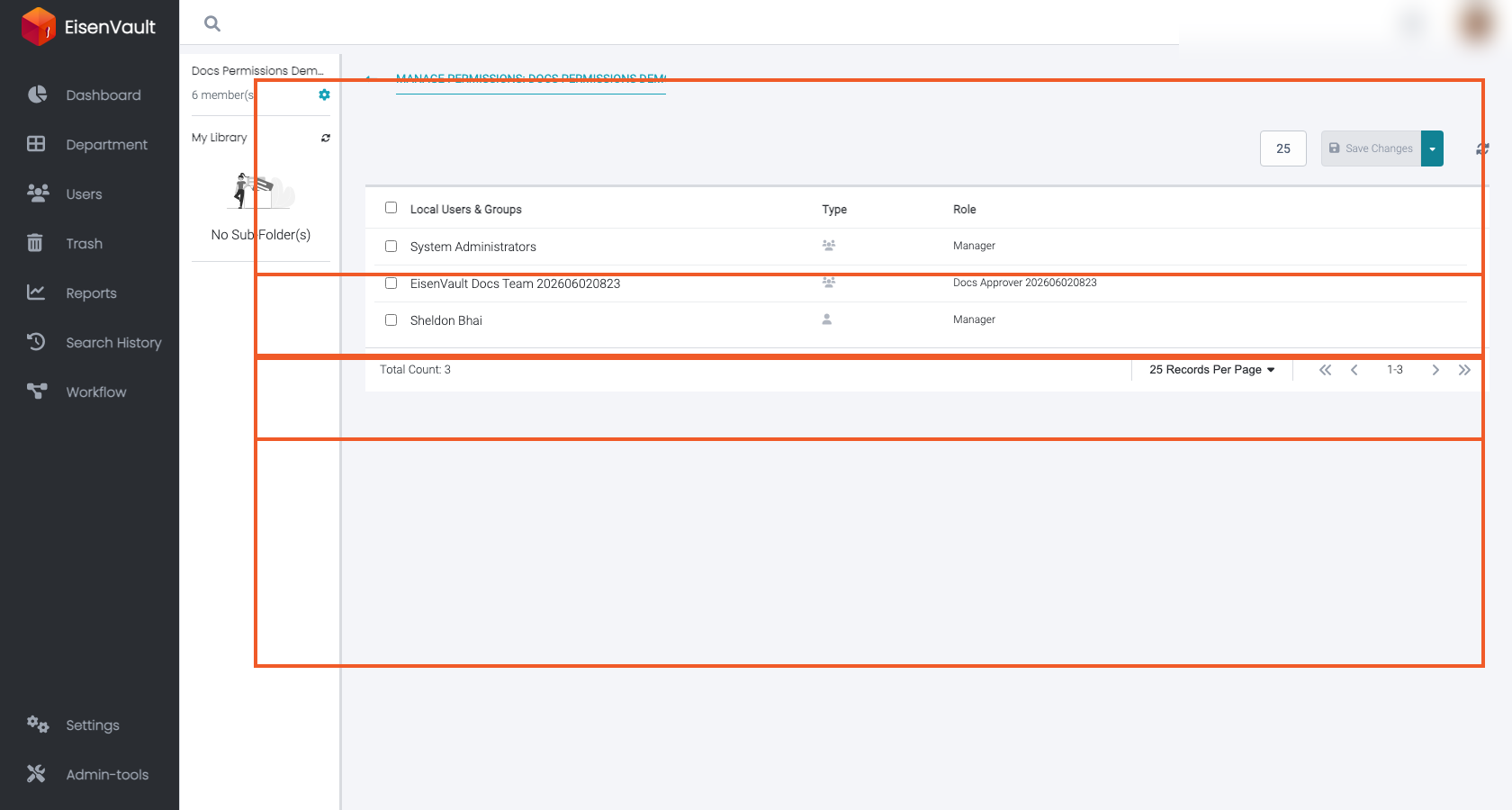
On a folder or department, assign different content roles to different groups. The example below shows two group assignments on the same content item.
-
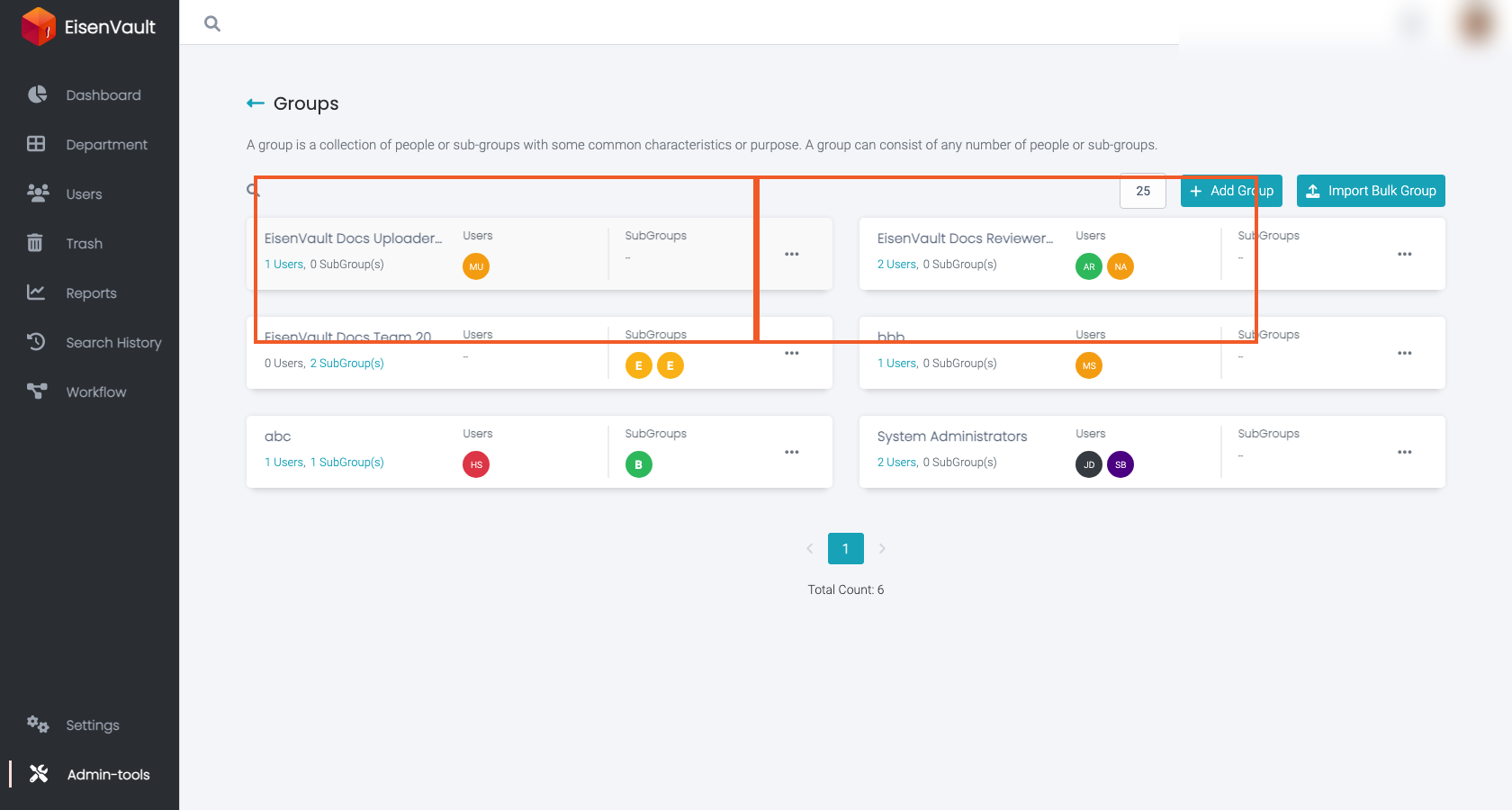
Confirm the user belongs to both groups. Group membership is managed separately from content role assignment.
A user has access to a subfolder but not the parent
If a user can view a child folder/document but does not have view permissions on its parent folder(s), the UI still needs a way for the user to navigate to the child.
In such cases, the system may grant limited browse visibility on ancestor folders so the user can traverse the path to the item they are allowed to access.
See also: