Miscellaneous
Purpose
Manage tenant-wide behavior that does not belong to a single functional module, including collection naming, duplicate file handling, OCR provider selection, versioning triggers, and email notification defaults.
Note: This action may require administrator privileges.
Prerequisites
- You are signed in as an administrator.
- You can open Settings from the left navigation.
- You understand the organization's preferred file versioning and duplicate-file rules.
- If using Google user credentials for OCR, you have a service-account credential available.
Before You Begin
Some settings affect daily user workflows immediately. Review duplicate file handling and versioning settings together because Increment Existing File Version requires File content changes to be enabled.
Do not place OCR service-account private keys or client emails in screenshots or documentation.
Configure Miscellaneous Settings
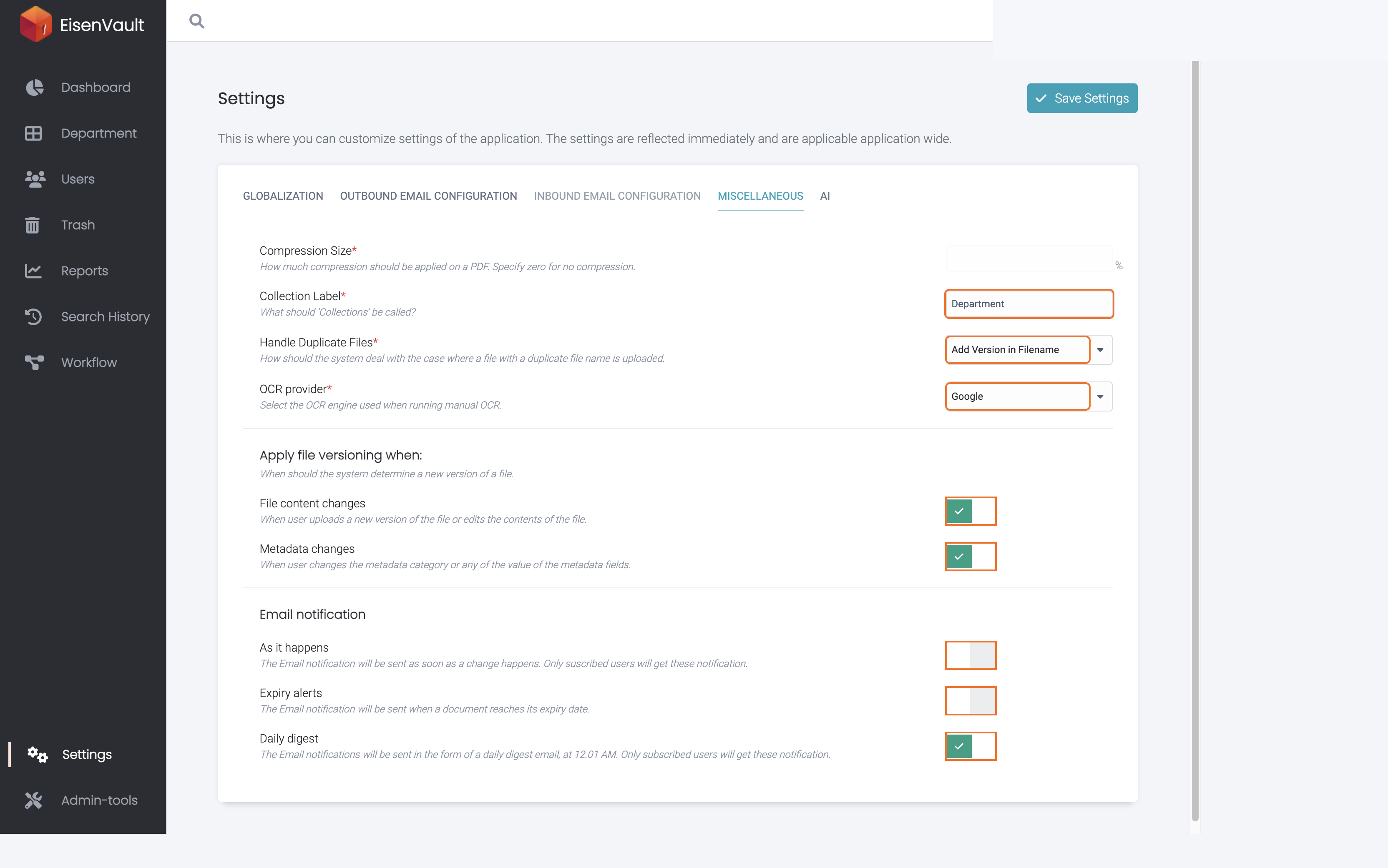
- Open Settings and select Miscellaneous.
- Review Compression Size. This control is currently disabled in the UI.
- Set Collection Label if your organization uses a different label for departments or collections.
- Choose Handle Duplicate Files:
- Add Version in Filename: Keep both files by renaming the new upload.
- Increment Existing File Version: Treat the upload as a new version of the existing file. This requires File content changes versioning to be enabled.
- Disallow Duplicates: Prevent duplicate filenames from being uploaded.
- Choose the OCR provider:
- Google: Use the platform Google OCR provider.
- Google (User Credentials): Use tenant-provided Google service-account credentials.
- Tesseract: Use Tesseract OCR.
- Under Apply file versioning when, switch on the events that should create a new file version.
- Under Email notification, switch on the notification modes your tenant should allow.
- Click Save Settings.
OCR User Credentials
If you select Google (User Credentials), EisenVault One requires:
- Project ID
- Client Email
- Private Key
Private Key ID and Client ID are optional. The credential type must be a Google service-account credential.
Email Notification Options
- As it happens sends notifications as soon as a subscribed event happens.
- Expiry alerts sends notifications when a document reaches its expiry date.
- Daily digest sends subscribed notifications as one daily digest email at 12:01 AM.
Example Walkthrough
-
Open Settings and select Miscellaneous. Use the highlighted fields and switches to configure the collection label, duplicate handling, OCR provider, versioning triggers, and email notification modes.
Expected Result
- The tenant uses the selected collection label in the navigation and related user-facing screens.
- Duplicate uploads follow the selected duplicate-file rule.
- Manual OCR uses the selected OCR provider.
- New file versions are created for the selected versioning triggers.
- Email notification modes are enabled or disabled for the tenant.