AI
Purpose
Enable or disable tenant-level AI features for document summarisation, intelligent tagging, metadata extraction, and AI search or question answering.
Note: This action may require administrator privileges.
Prerequisites
- You are signed in as an administrator.
- You can open Settings from the left navigation.
- Your organization has decided which AI features should be available to users.
Before You Begin
AI settings control whether the tenant allows these capabilities. Users may still need the appropriate roles or permissions to use an enabled feature in their own workflow.
Review the organization's data handling and AI usage policy before enabling AI features for production users.
Configure AI Settings
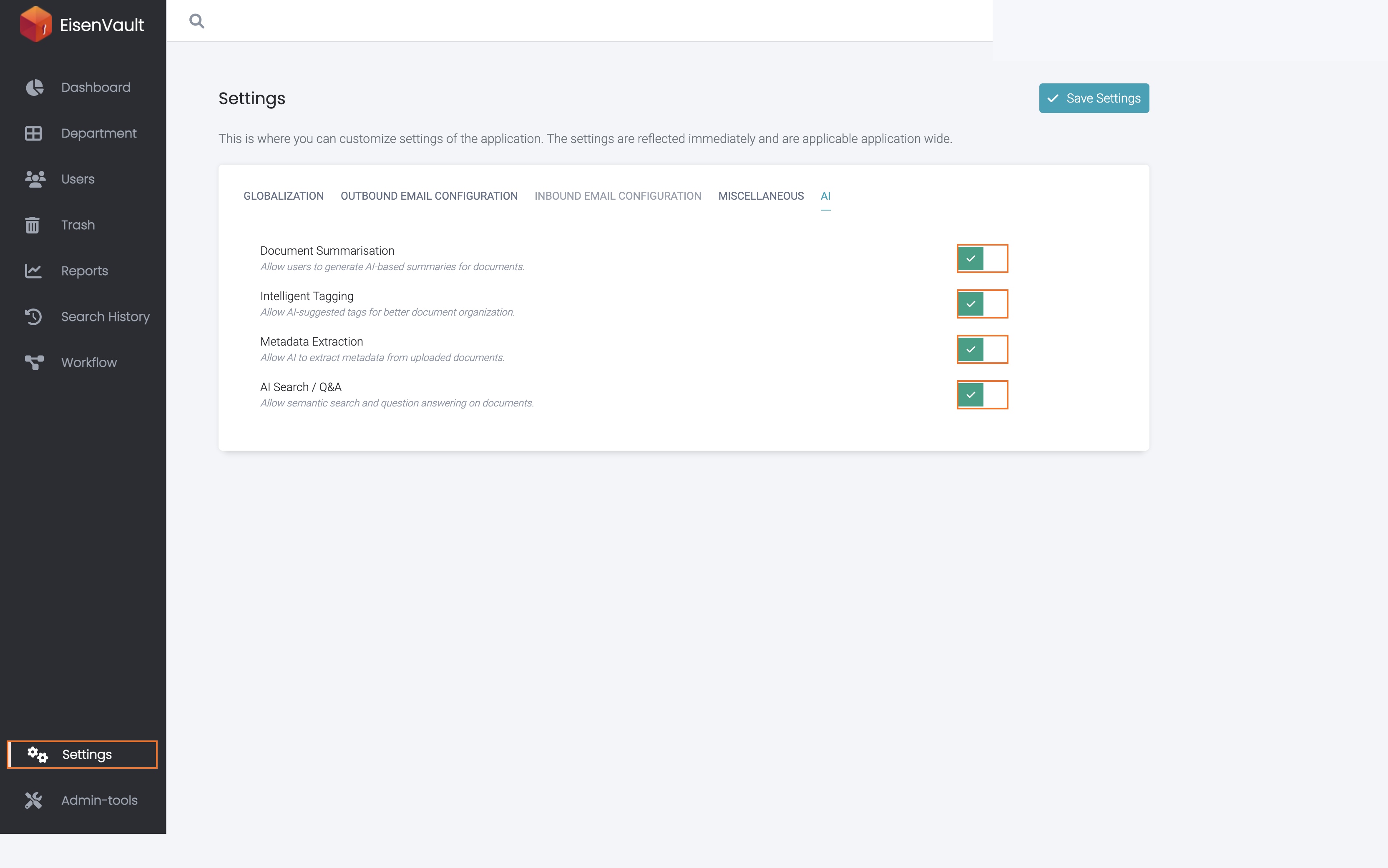
- Open Settings from the left navigation.
- Select the AI tab.
- Switch on the features the tenant should allow:
- Document Summarisation: Allow users to generate AI-based document summaries.
- Intelligent Tagging: Allow AI-suggested tags for document organization.
- Metadata Extraction: Allow AI to extract metadata from uploaded documents.
- AI Search / Q&A: Allow semantic search and question answering on documents.
- Switch off any feature that should not be available.
- Click Save Settings.
Where Users See These Features
- AI Summarize appears under File Actions on a document when Document Summarisation is on. The summary opens in a drawer.
- Metadata Extraction appears under File Actions on a file only when Metadata Extraction is on for the tenant and the user's role includes the Metadata Extraction permission. When the setting is off, users who try it see a message that it is disabled for the organization.
Example Walkthrough
-
Open Settings and select AI. Use the highlighted switches to enable or disable each AI feature, then click Save Settings.
Expected Result
- Enabled AI features become available for the tenant.
- Disabled AI features are hidden or unavailable in user workflows that depend on them.
- Role and permission configuration may still determine which users can access an enabled feature.