New Documents
Purpose
See documents that were newly uploaded (created) within the date range you select on the dashboard, and open them from a sortable list.
The New Documents overview card on the dashboard shows how many new documents fall in that range. Clicking the card opens the full New Documents Uploaded list.
Prerequisites
- You are signed in to EisenVault One.
- You have access to at least one department or folder where documents may appear.
- You can open the Dashboard from the left navigation.
Before You Begin
The user dashboard has two related areas:
- Overview cards — the row of metric cards at the top (including New Documents, Updated / Modified, Expiring Soon, and others). These cards show counts for your selected date range. New Documents is an overview card, not one of the larger widgets below.
- Widgets — panels such as Recent Activity, Bookmarks, and My Subscriptions in the lower section of the dashboard.
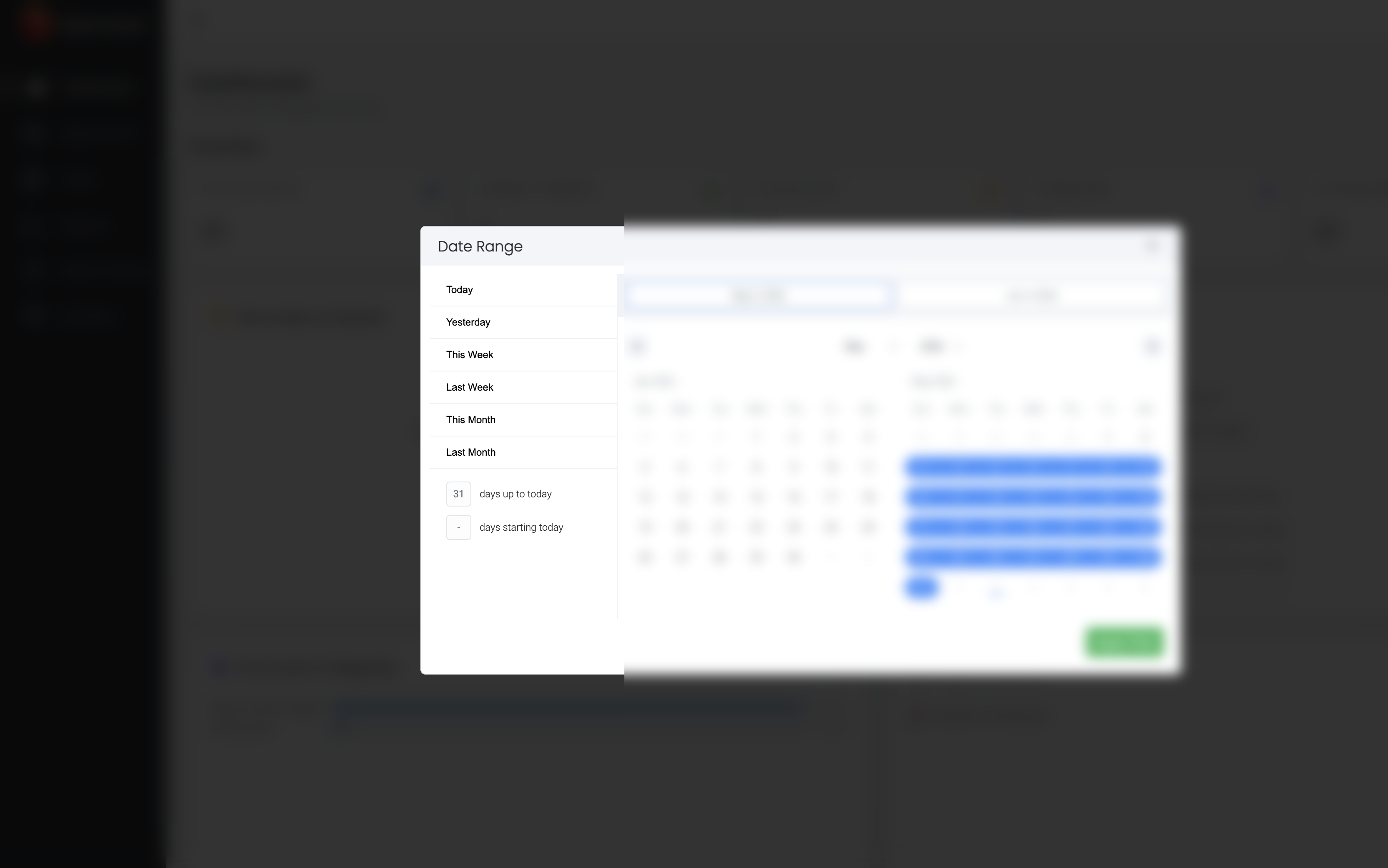
The New Documents count and list both respect the date range control on the dashboard (the date button above the overview cards). Change the range to include Today, This Month, a custom number of days, or specific start and end dates, then click Apply Filter. Overview counts refresh, and the list page uses the same range when you open it from the card.
If no documents were created in the selected period, the card shows 0 and the list page explains that nothing was uploaded in that range.
View New Documents from the Dashboard
- Open the left navigation and go to Dashboard.
- Set the date range you want to review using the date control above the Overview section, then click Apply Filter.
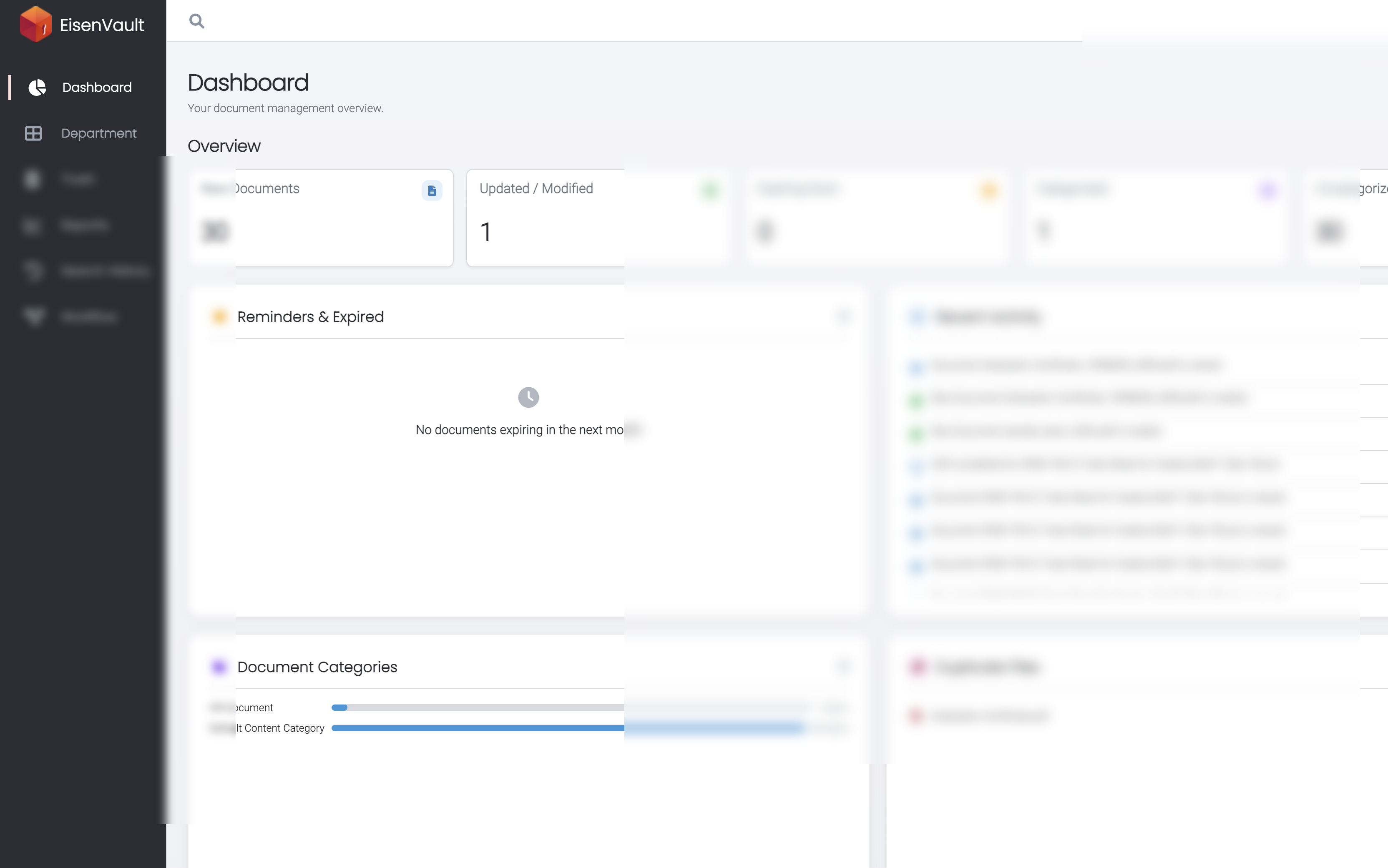
- In the Overview row, find the New Documents card and note the count.
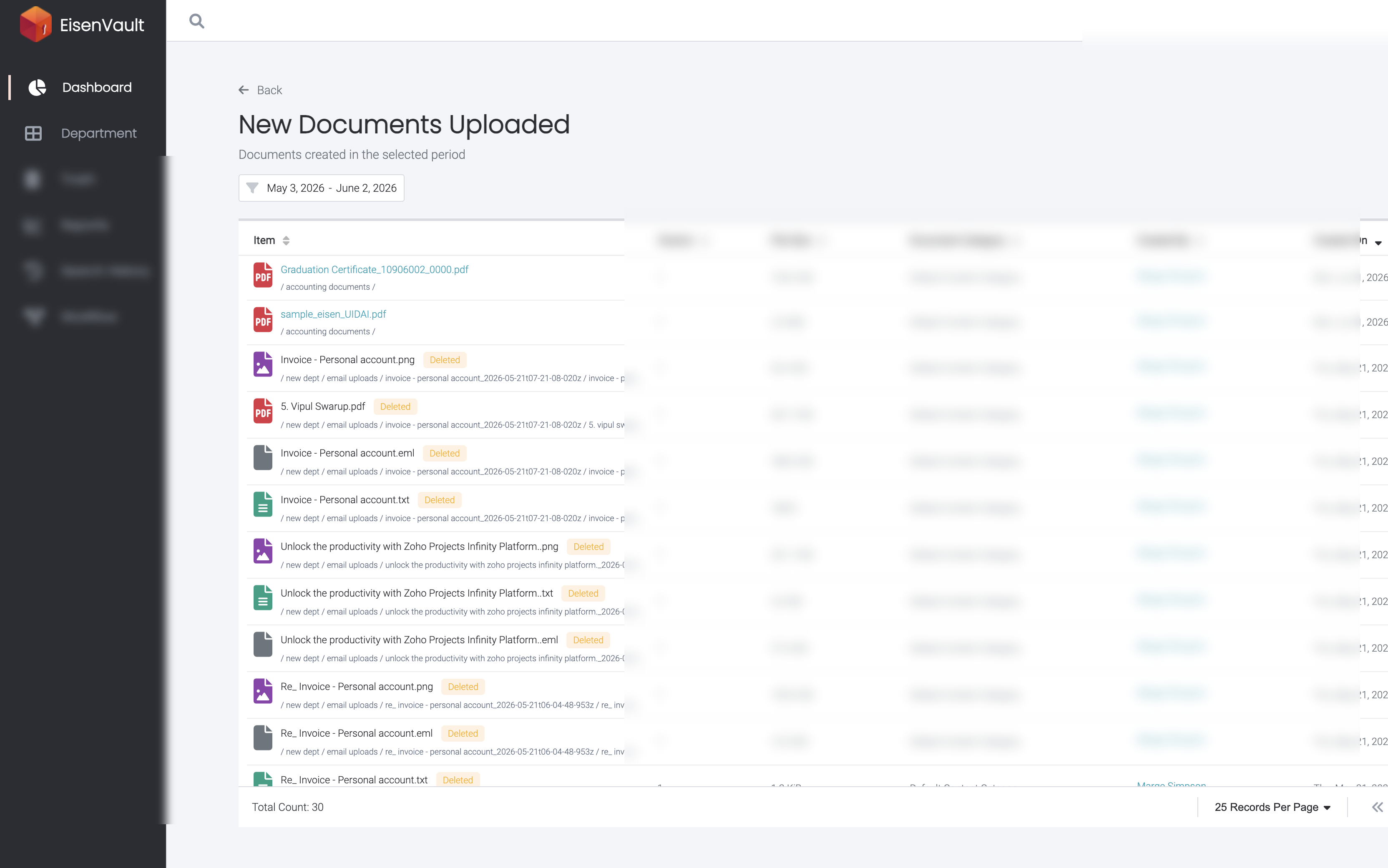
- Click the New Documents card to open the New Documents Uploaded page.
Work with the New Documents List
On the New Documents Uploaded page:
- Confirm the subtitle Documents created in selected period matches the range you chose on the dashboard.
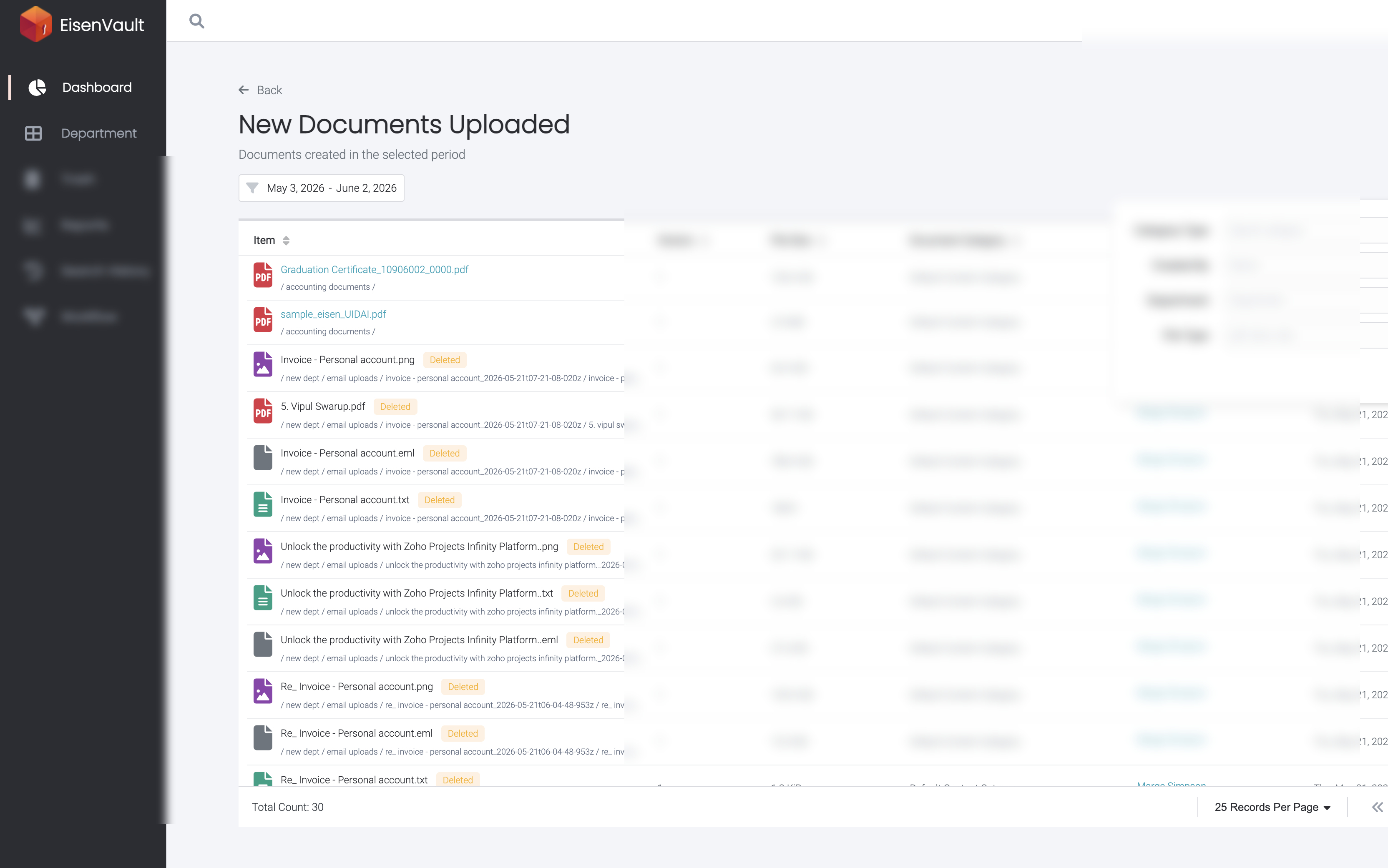
- Optionally open Filters to narrow the list by:
- Category Type
- Created By
- Department (your organization may use a custom label for this field)
- File Type (for example
pdf,docx,xlsx) - Enter filter values and click Apply, or click Clear to remove filters.
- Use the column headers to sort by Item, Version, File Size, Document Category, Created By, or Created On.
- Click a document name to open a preview, or a folder name to open that folder in the document library. Items that were deleted since upload show a Deleted badge and cannot be opened.
- Use pagination at the bottom when more than one page of results exists.
- Click Back to return to the dashboard.
See the Count Change After an Upload
Uploading a document into a folder you can access updates the New Documents count for any date range that includes the upload time (typically Today).
- On the Dashboard, set the date range to Today and click Apply Filter. Note the New Documents count before you upload (in the walkthrough below it was 0).
- Open the Accounting Documents department (or another folder where you may upload).
- Click Upload Files and add a file using Browse Files or drag and drop. See Upload Document for full upload steps.
- Wait until the file shows Uploaded in the Import Files window.
- Return to Dashboard, keep Today selected, and click Apply Filter again. The New Documents count increases by the number of files you uploaded.
Example Walkthrough
The screenshots below use a demonstration tenant. Names, email addresses, and file titles are redacted.
-
On the Dashboard, the New Documents overview card appears in the Overview row. With the default range (about the last 30 days), the count shows how many documents were created in that period.
-
Open the Date Range control to change how far back overview metrics and lists look. Choose a preset (such as This Month or Today), adjust custom day offsets, or pick dates on the calendar, then click Apply Filter.
-
Click the New Documents card. EisenVault One opens New Documents Uploaded for the same period. When documents exist in the range, the table lists file name, folder path, version, size, category, creator, and created date.
-
Open Filters to narrow a long list by category, creator, department, or file type.
-
To watch the count update after an upload, set the dashboard date range to Today, click Apply Filter, and note New Documents before uploading.
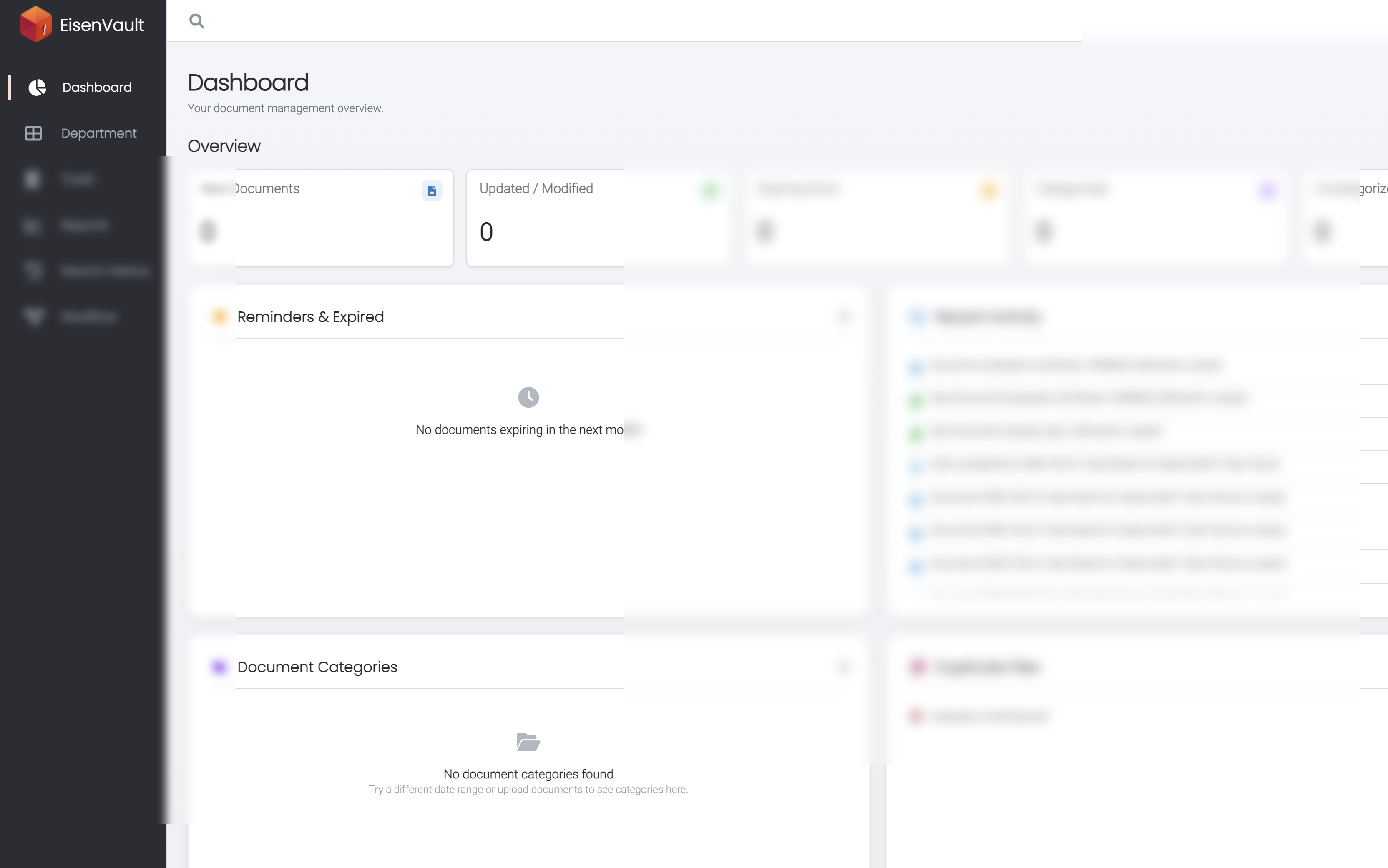
-
In Accounting Documents, click Upload Files and add
dashboard-new-doc-test.txt(or any small test file).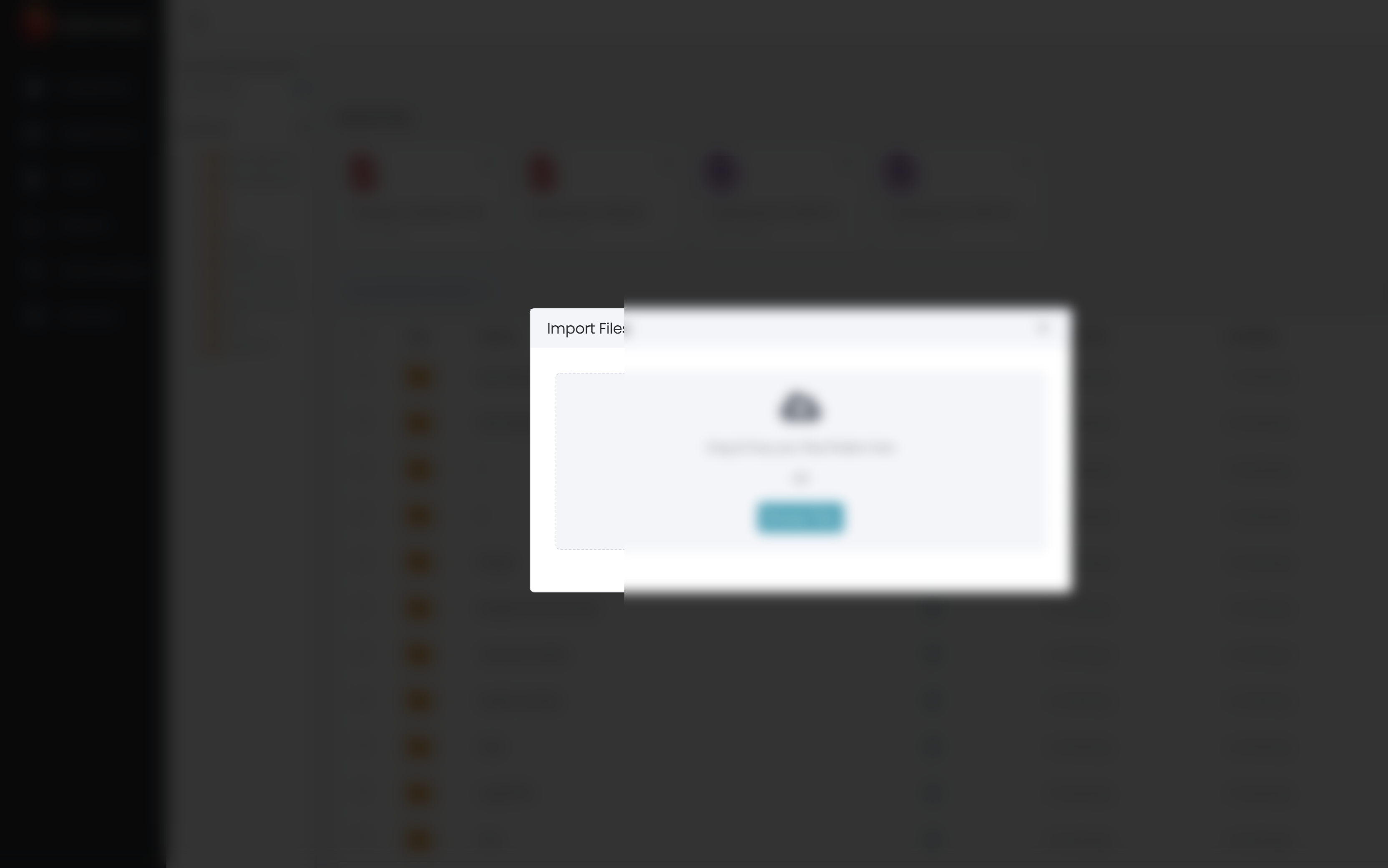
-
Wait until the upload finishes. Each file should show Uploaded before the window closes.
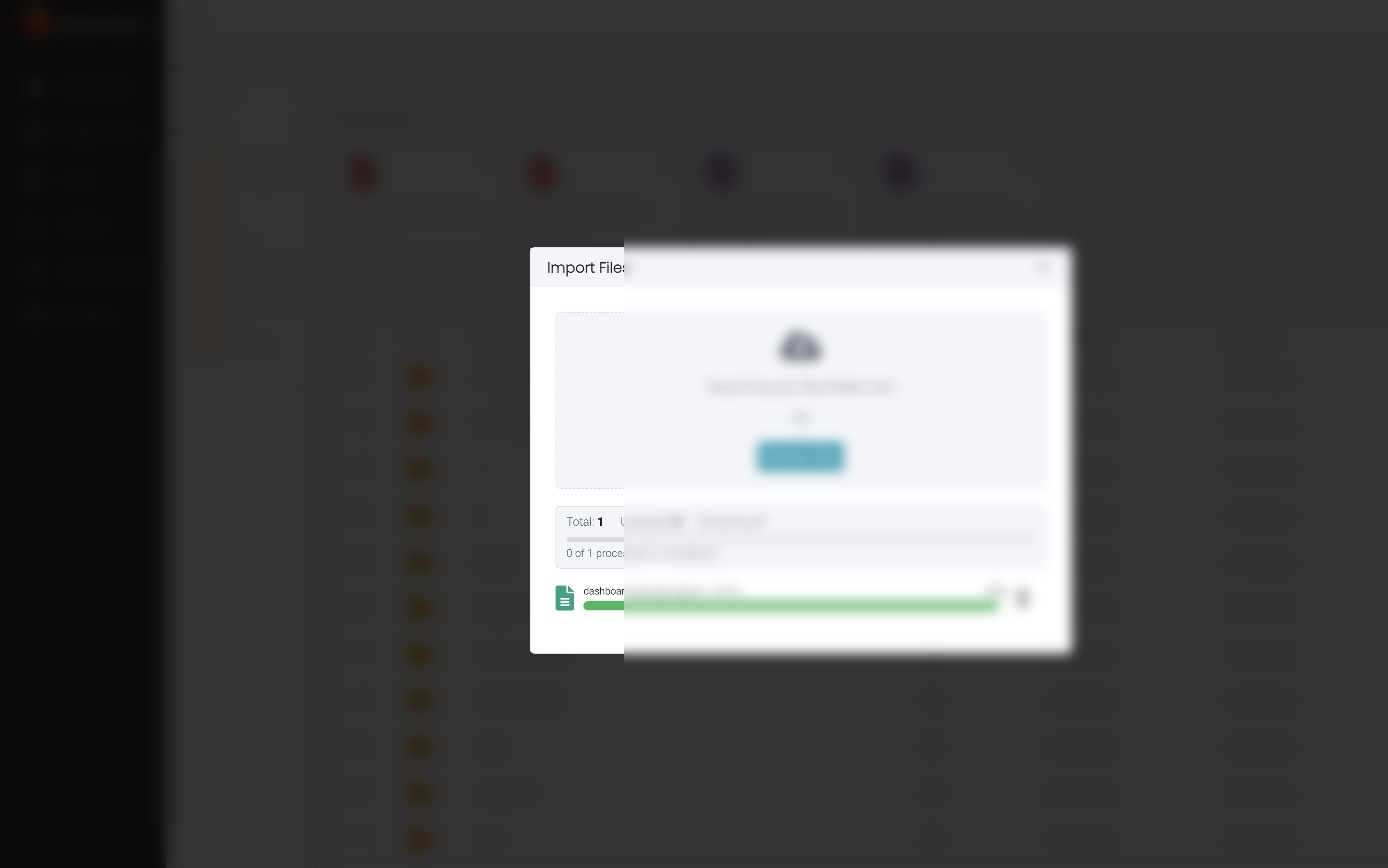
-
Return to the Dashboard, set Today again, and click Apply Filter. The New Documents count increases (from 0 to 1 in this example). Recent Activity also shows the new file.
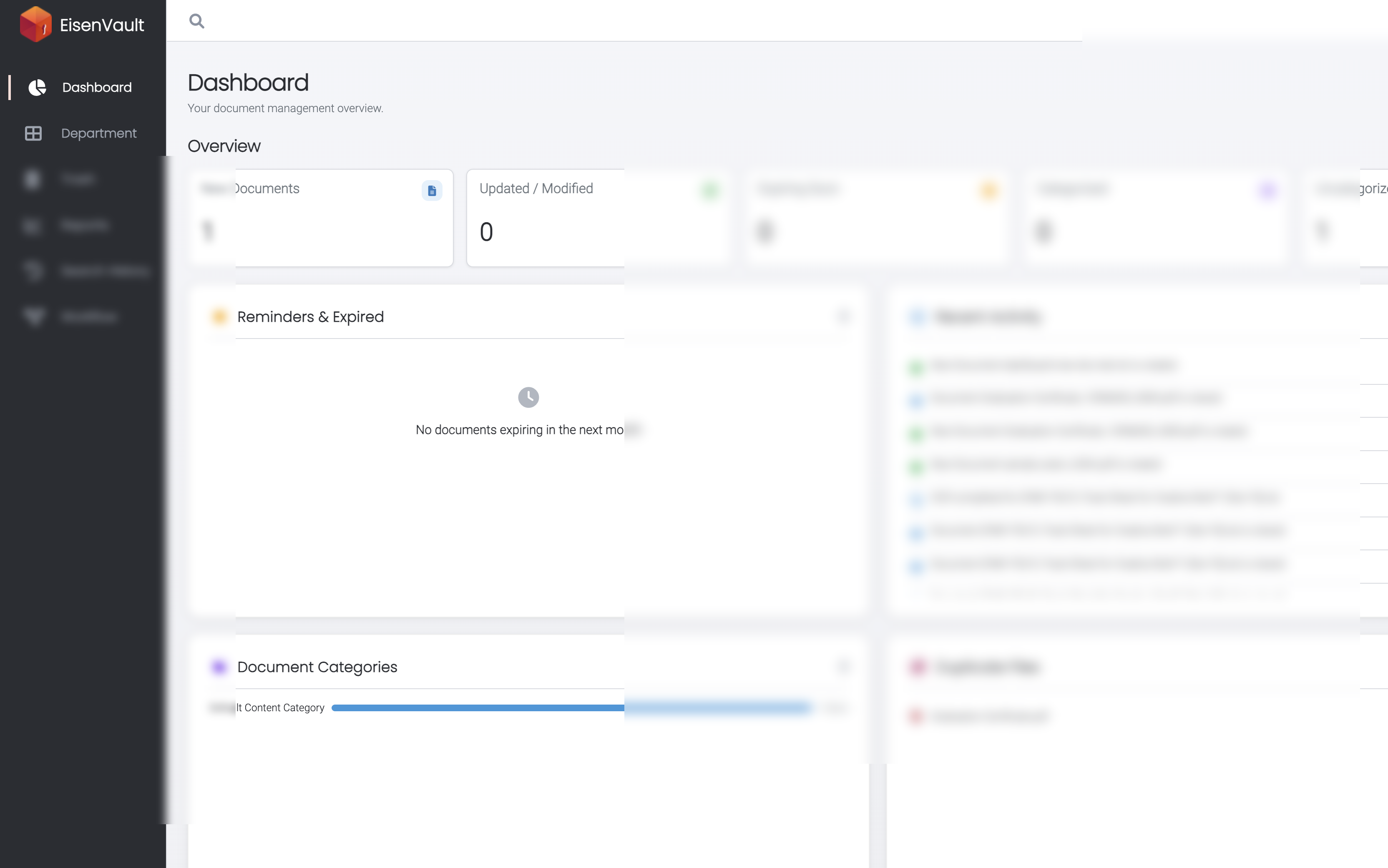
Expected Result
- The New Documents overview card shows the number of documents created in the selected date range.
- The New Documents Uploaded page lists those documents (or shows No documents in this period when the count is zero).
- Sorting, filters, and pagination update the list without leaving the page.
- Clicking an active document or folder opens it in EisenVault One.
- Uploading a document increases the New Documents count when the dashboard date range includes the upload time.
- Back returns you to the dashboard with your date range unchanged.