Navigate to a File within a Folder within a Department
Purpose
Find and open a document by moving through a department and its folders in the Explorer.
Prerequisites
- You are signed in to EisenVault One.
- You have access to the department that contains the document.
- You have permission to view the target folder and document.
Before You Begin
Departments are the top-level containers in the Explorer. A department can contain folders, subfolders, and documents. Your visible departments and folders are limited to the content you are allowed to access.
You can navigate by using the folder tree, the breadcrumb path, or the folders shown in the document library.
Navigate to a Document
- Click Department in the left navigation and select a department.
- Select the department that contains the document.
- Open the folder that contains the document. If the document is inside nested folders, continue opening folders until you reach the correct location.
- Review the document library for the file you need.
- Click the document name to open it in the viewer.
Example Walkthrough
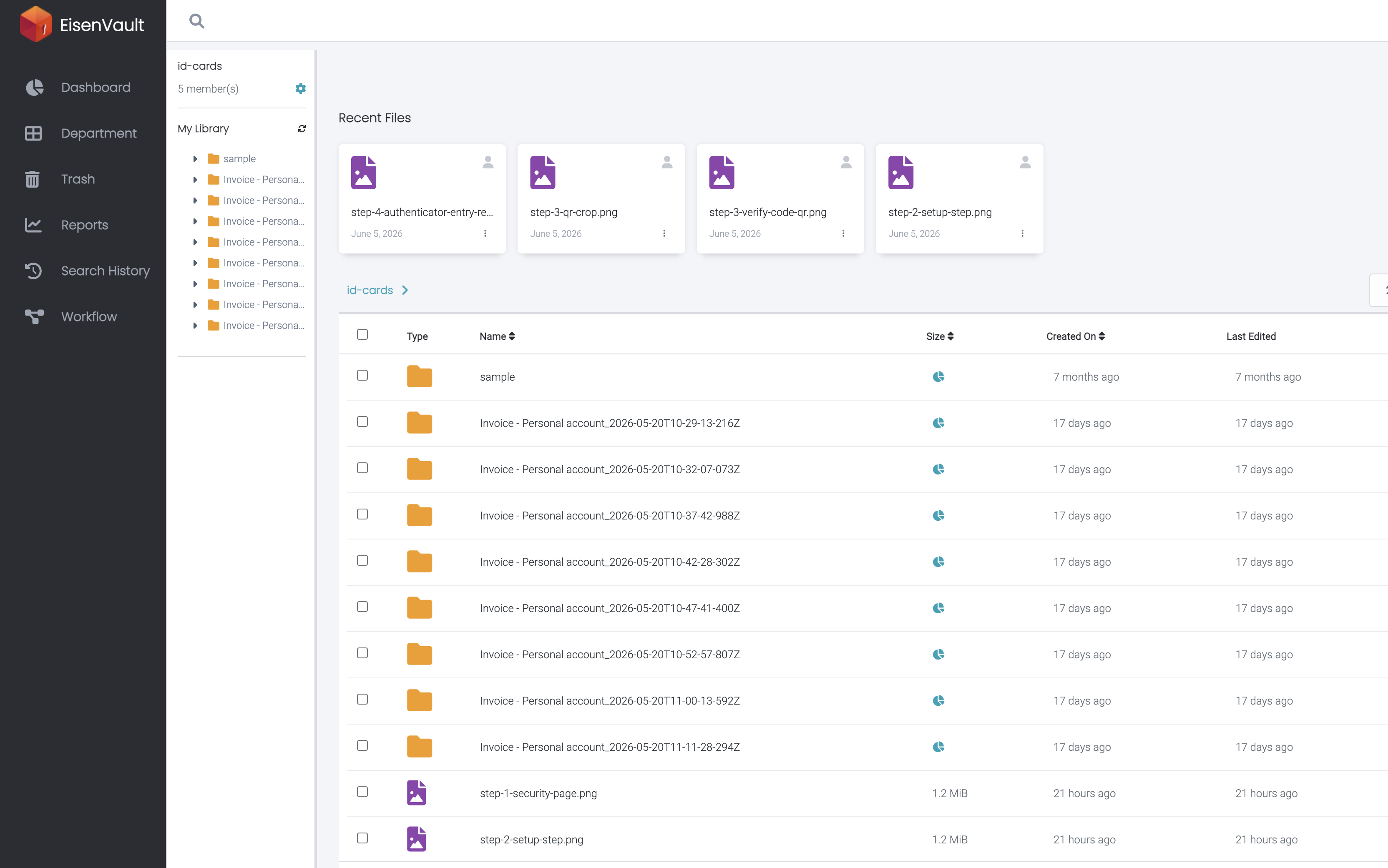
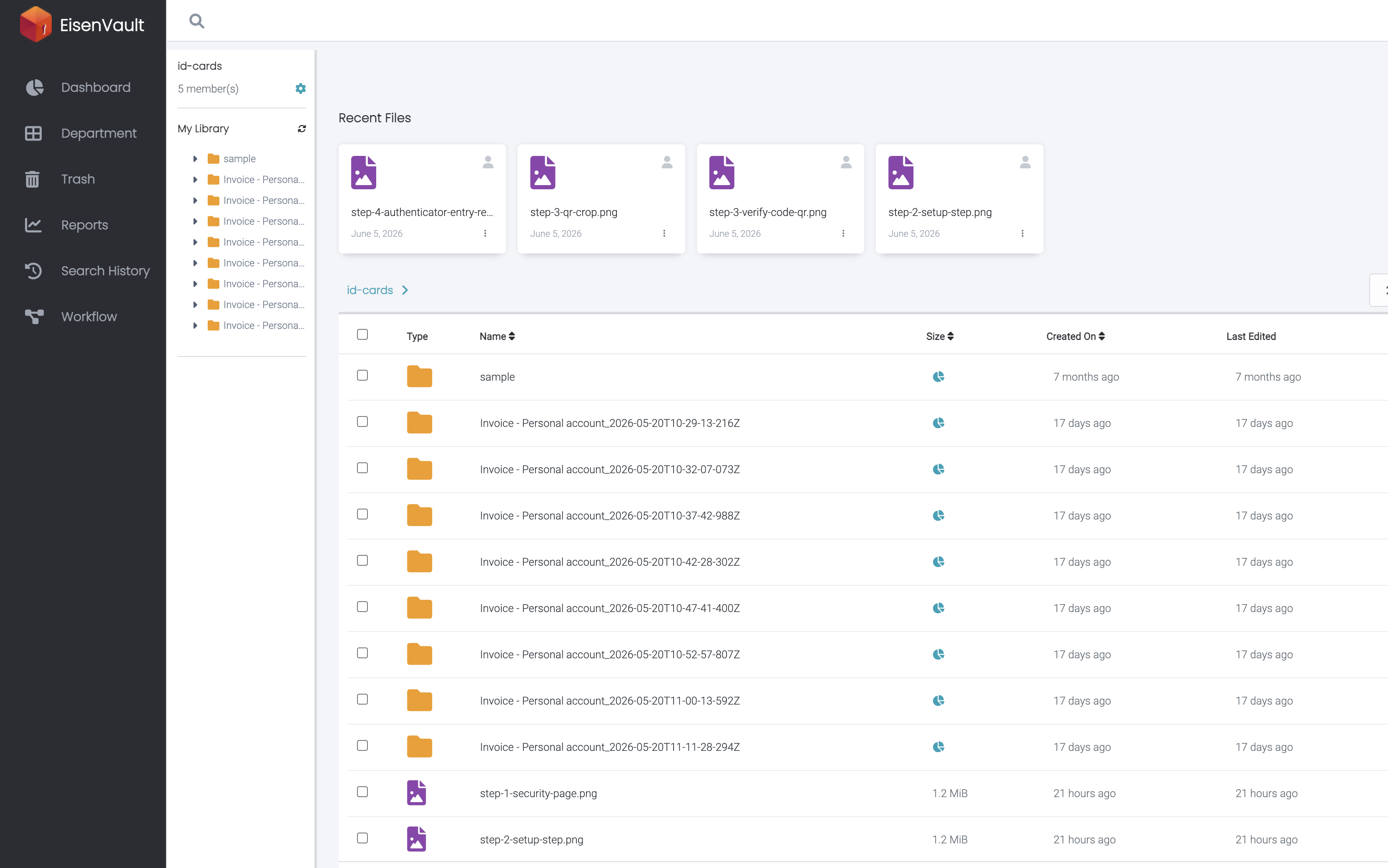
The screenshots below show navigation in the id-cards department on the staging environment.
-
Open Department from the left navigation, then select the department that contains your content.
-
Review the file list and breadcrumb path to confirm you are in the correct folder. Use the folder tree on the left or click folder names in the list to move deeper.
-
Click a document name to open it in the viewer.
Navigation Tips
- Use the breadcrumb path to move back to a parent folder without returning to the department root.
- Use sorting when a folder contains many items.
- Change the number of visible items if the document library is split across multiple pages.
- If you cannot see an expected folder or document, confirm that you are in the correct department and that you have permission to view the item.
Expected Result
- The selected document opens in the built-in viewer.
- The breadcrumb path shows where the document is stored.
- Document actions appear according to your permissions.