Manage Permissions on File
Purpose
Review and change who can access a document by assigning users or groups and content roles on that file.
Prerequisites
- You are signed in to EisenVault One.
- You can open the document.
- You have permission to manage document permissions.
Before You Begin
File permissions can be:
- Local — assigned directly on the file.
- Inherited — received from parent folders or the department.
Use local permissions when a specific file should be more restrictive or more open than its parent folder.
Manage Permissions on a File
- Navigate to the document and open it in preview.
- In the right-hand actions panel, click Manage Permissions.
- EisenVault One opens Manage Permissions for the file.
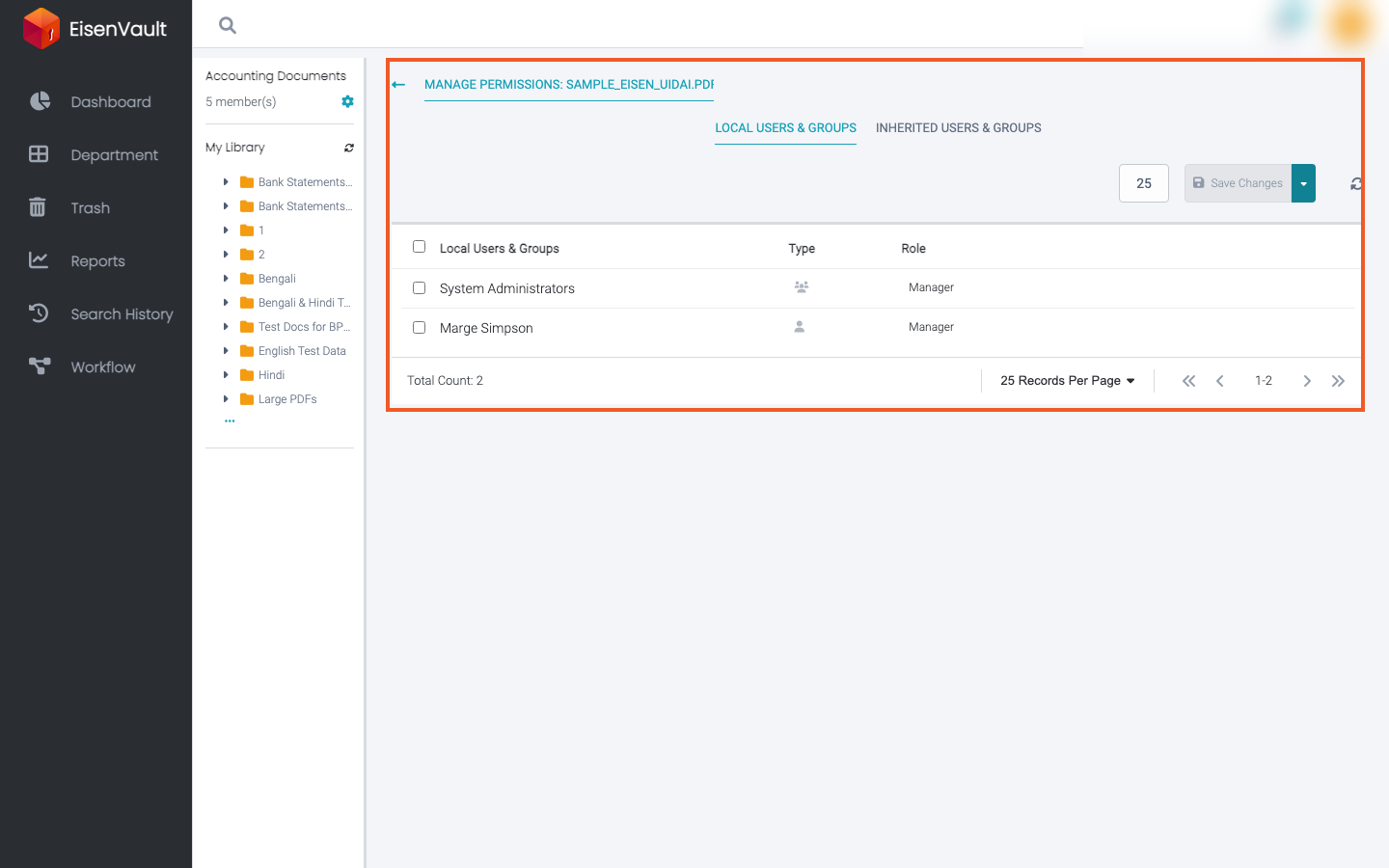
- Review the Local Users & Groups tab.
- To add access, open Add User or Group and choose Add User or Add Group.
- Select the user or group and assign a content role.
- Click Save Changes when the toolbar indicates unsaved changes.
- Open Inherited Users & Groups to review permissions inherited from parent content.
- Click Back to return to the document.
Example Walkthrough
-
Open preview and click Manage Permissions.
-
Add or update local users and groups, assign roles, and click Save Changes.
Expected Result
- Local permission changes apply to the selected file.
- Inherited permissions remain visible on the Inherited Users & Groups tab.
- Users gain or lose access according to the roles you assign.