Remove Users from Group
Purpose
Remove users from a group when they should no longer receive access through that group.
Note: This action may require administrator privileges.
Prerequisites
- You are signed in as a user administrator or system administrator.
- You can open Admin Tools > Groups.
- The group already exists and allows membership editing.
- The user is currently a direct member of the group.
Before You Begin
Removing a user from a group can reduce their effective permissions anywhere the group is assigned. If the user also receives access through another group, direct role assignment, or subgroup membership, they may still retain some or all access.
This page covers direct users in the Users tab. To remove nested group access, open the Subgroups tab and remove the subgroup instead.
Remove Users
- Open Admin Tools > Groups.
- Open the target group.
- Select the Users tab.
- Locate the user you want to remove.
- Use the row action to remove the user from the group.
- Confirm the removal when prompted.
Example Walkthrough
-
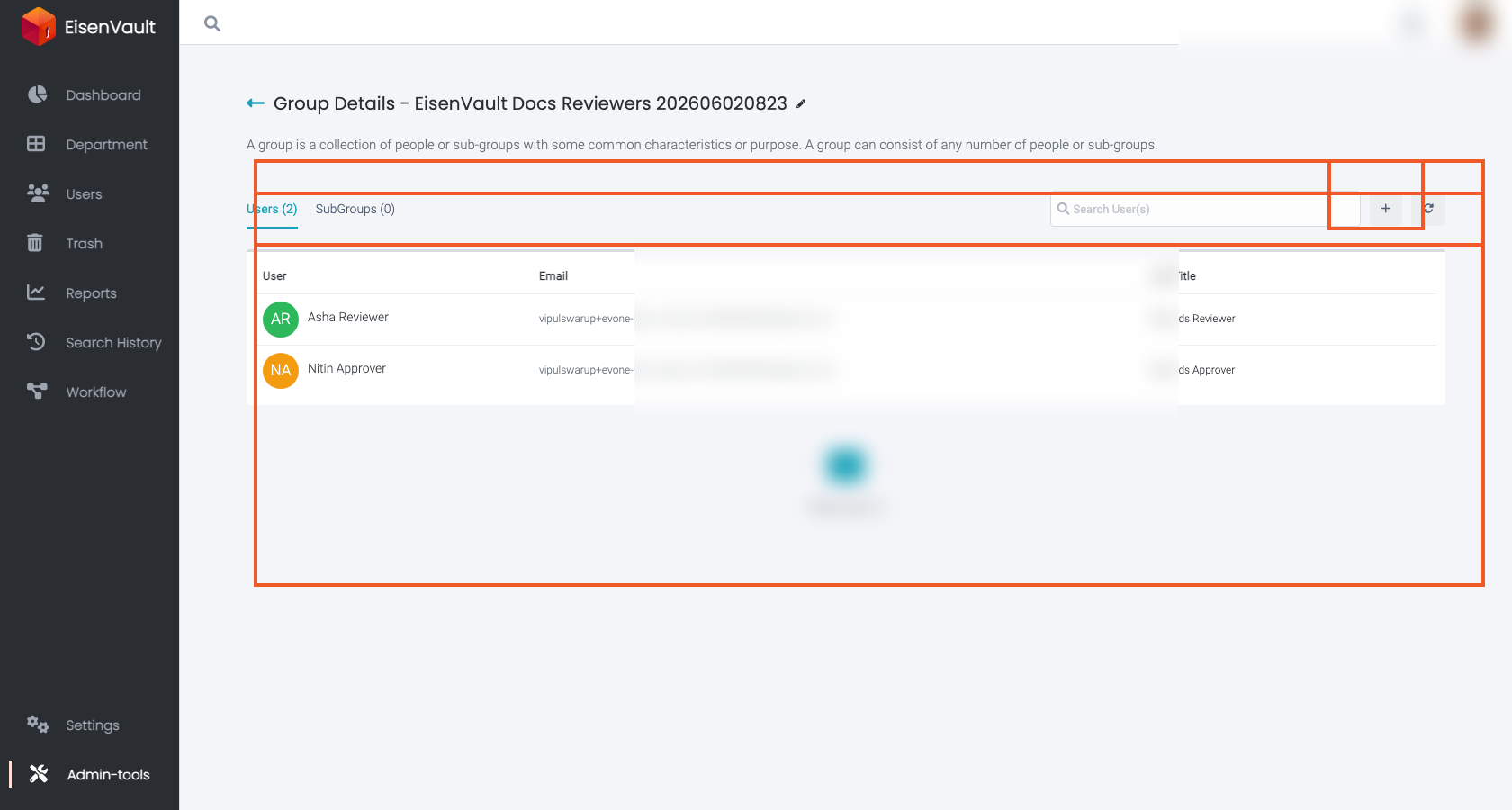
Open the group's Users tab and review the direct members.
-
Use the user row action to remove the member who should no longer belong to the group.
Expected Result
- The removed user no longer appears in the group's Users list.
- Access granted only through this group is removed from the user's effective permissions.
- Access received through other paths remains in effect.