Restore Older Version
Purpose
Make an older saved version the current version of a document again.
Prerequisites
- You are signed in to EisenVault One.
- You can open the document in preview.
- You have permission to restore versions.
- The document has at least one older version in Version History.
Before You Begin
Restoring a version does not delete newer versions. It creates a new current version based on the selected older file content.
Add a restore comment when your organization tracks why a version was rolled back.
Restore an Older Version
- Navigate to the document and open it in preview.
- Click Version History in the right-hand actions panel.
- Find the version you want to restore.
- Click the restore icon for that version.
- Optionally enter a comment.
- Click Restore Version with the version number shown on the button.
- Wait for EisenVault One to confirm the restore.
Example Walkthrough
-
Open Version History and locate the version to restore.
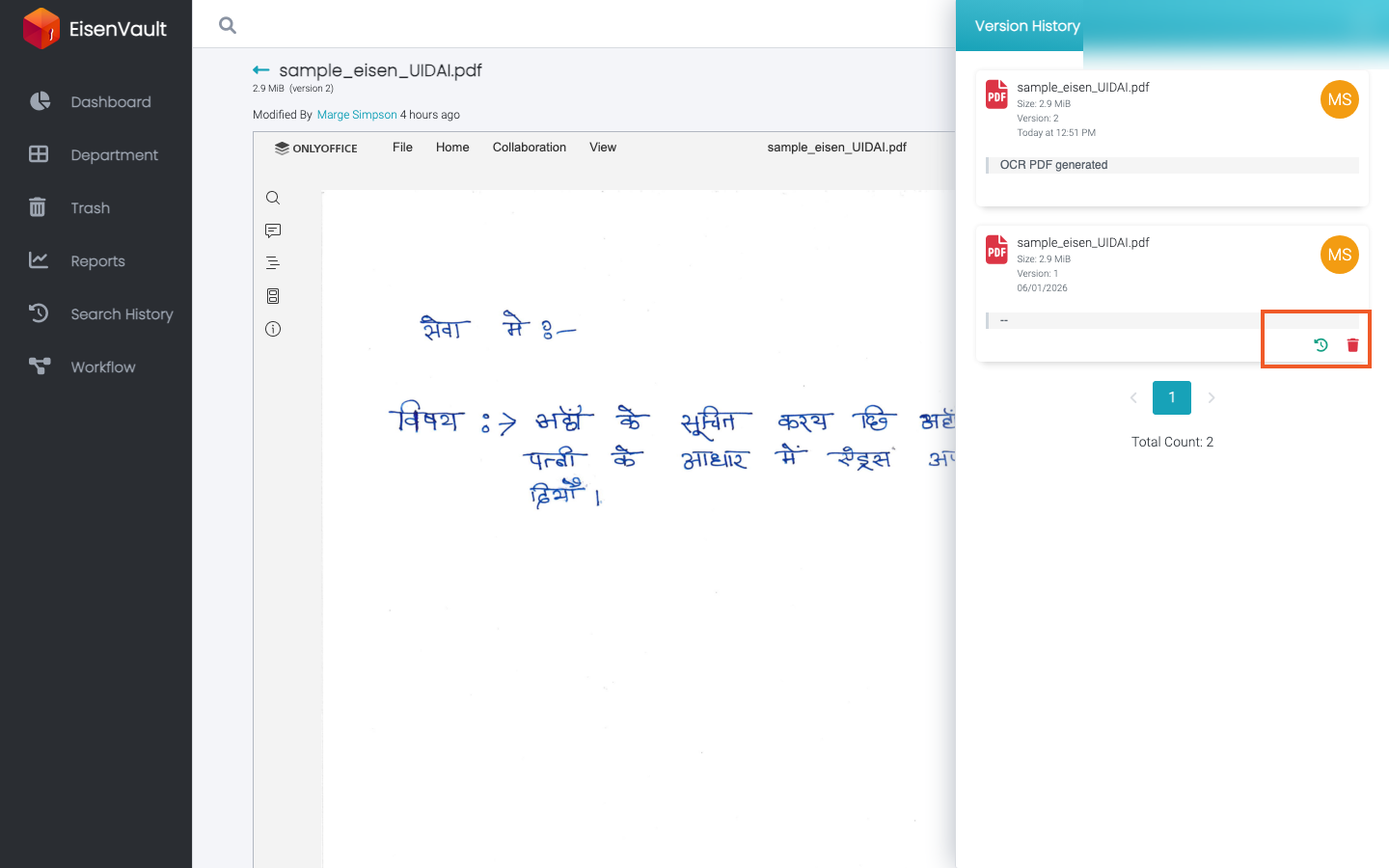
-
Click the restore icon, enter an optional comment, and click Restore Version.
Expected Result
- The selected older version becomes the current document version.
- The restored version appears at the top of Version History.
- Audit trails record the restore action when auditing is enabled.