View Folder Size
Purpose
Check how much storage a folder uses, including the documents and child folders inside it.
Prerequisites
- You are signed in to EisenVault One.
- You can open the folder you want to review.
- Your account has permission to view folder details.
Before You Begin
Folder size is calculated from the content stored inside the folder. Large folders may take longer to calculate, especially when they contain many child folders or large documents.
If the size option is not available, your deployment may hide folder storage details or your role may not include permission to view them.
View a Folder's Size
- Click Department in the left navigation and select a department.
- Navigate to the department and parent folder that contains the folder you want to inspect.
- Open the folder's options menu.
- Click View Folder Size or the equivalent size/details action.
- Review the reported size.
- Close the size window or panel when you are done.
Example Walkthrough
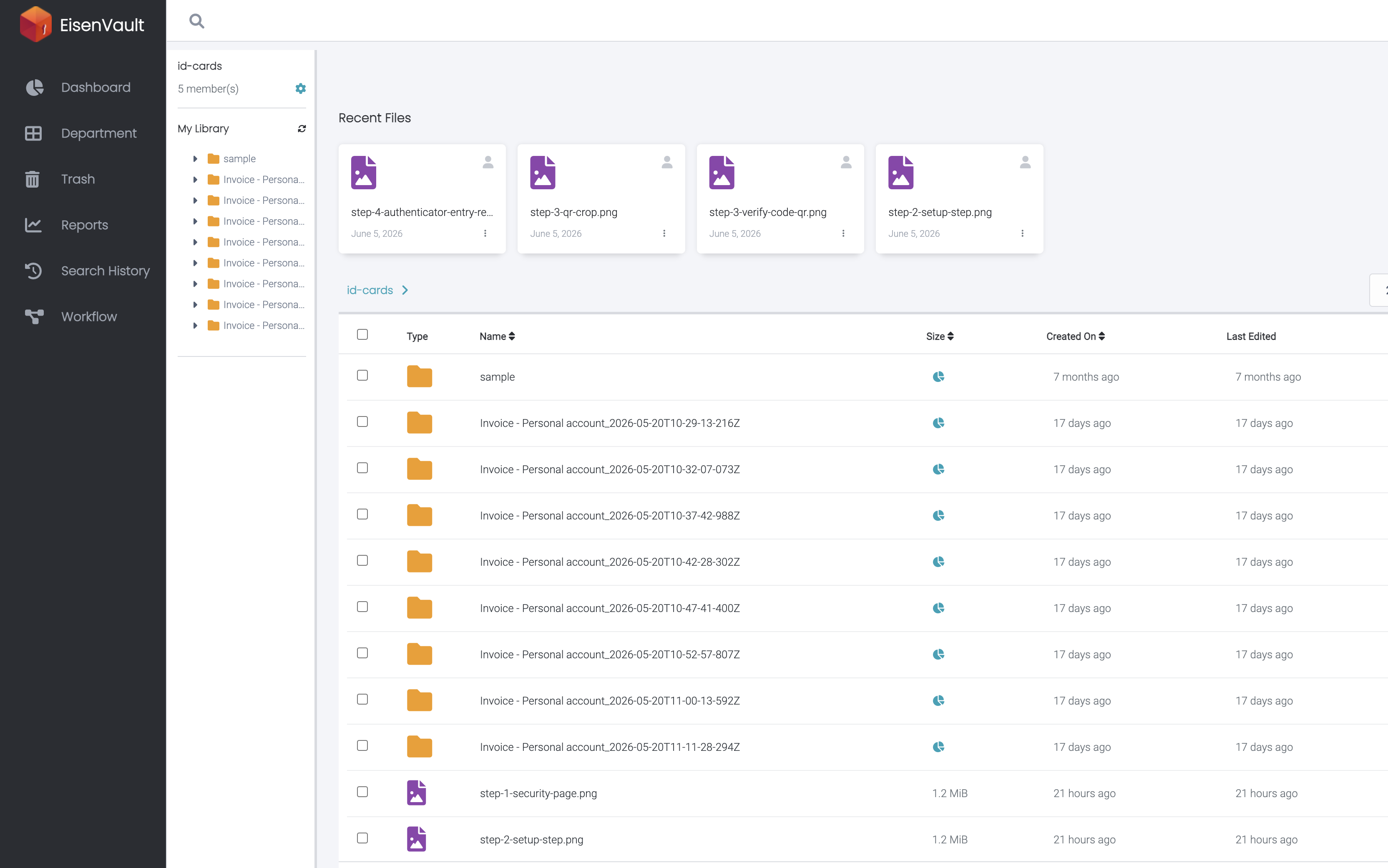
In some deployments, folder size appears as an information icon in the Size column for folders. The screenshot below shows this control in the id-cards document library.
-
Hover over or click the information icon in the Size column for a folder to view its storage size.
Expected Result
- EisenVault One displays the folder's storage size.
- The size reflects the folder content that the system can include in the calculation.
- No files or folders are changed by viewing the size.