Save a Search
Purpose
Save a keyword search and its active filters so you can rerun it later from Search History.
Prerequisites
- You are signed in to EisenVault One.
- You have run a keyword search that returned at least one result on the full Search page.
Before You Begin
The Save action appears in the search results toolbar only when:
- You are on the full Search page.
- Your keyword returns one or more matching items.
Save stores the current keyword and any filters you applied. EisenVault One shows Search saved. when the save succeeds.
Open saved searches from Search History in the left navigation. The page title is Search History and the subtitle reads Saved Searches when that translation is available.
From Search History you can:
- Click a saved search row to rerun it.
- Select rows and use Delete Selected to remove saved searches you no longer need.
If you lack permission to view search history, EisenVault One shows a permission message instead of the list.
Save a Search
- Run a keyword search on the full Search page until results appear.
- Optional: apply filters or sorting before saving.
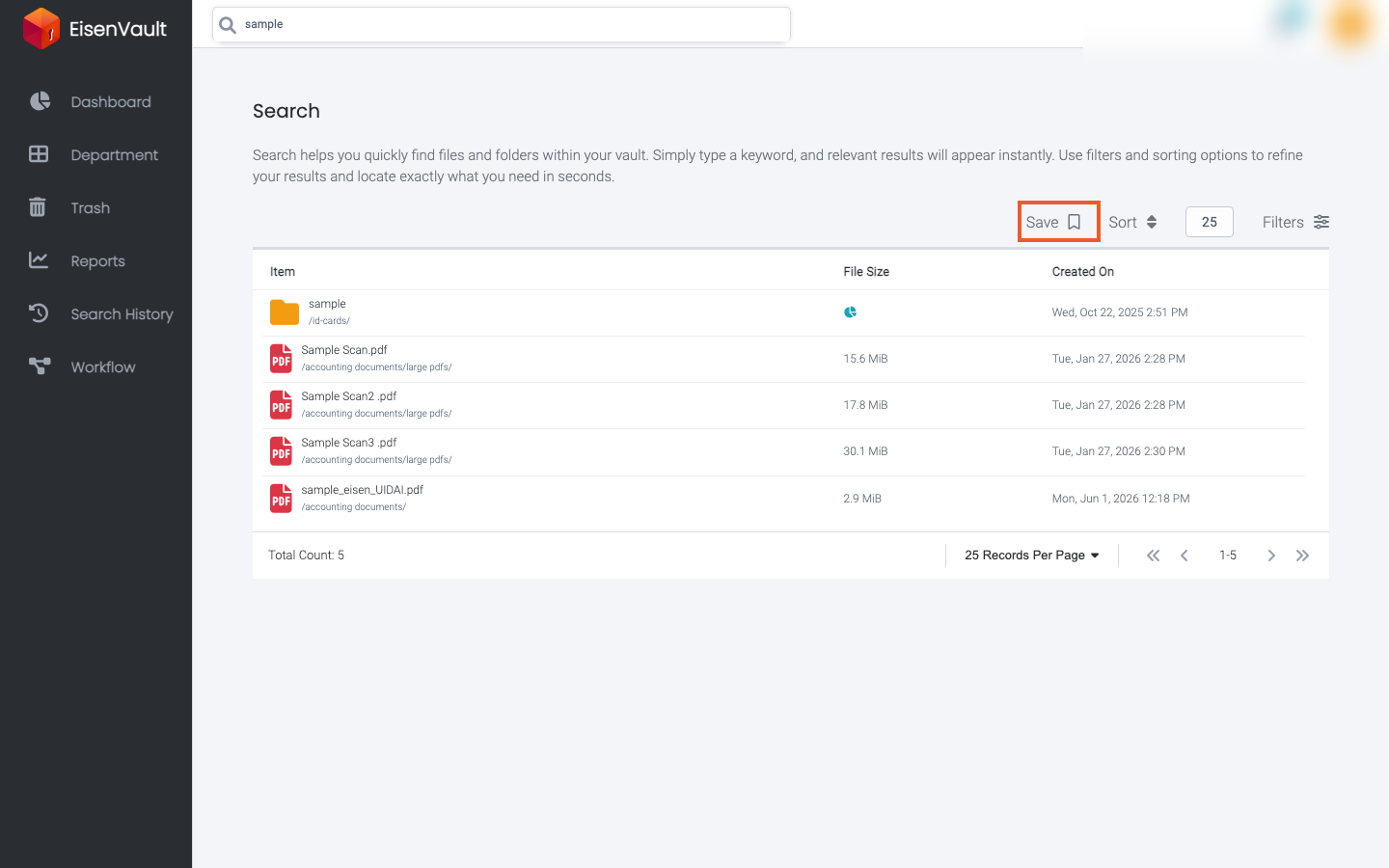
- In the results toolbar, click Save (bookmark icon).
- Wait for the Search saved. confirmation message.
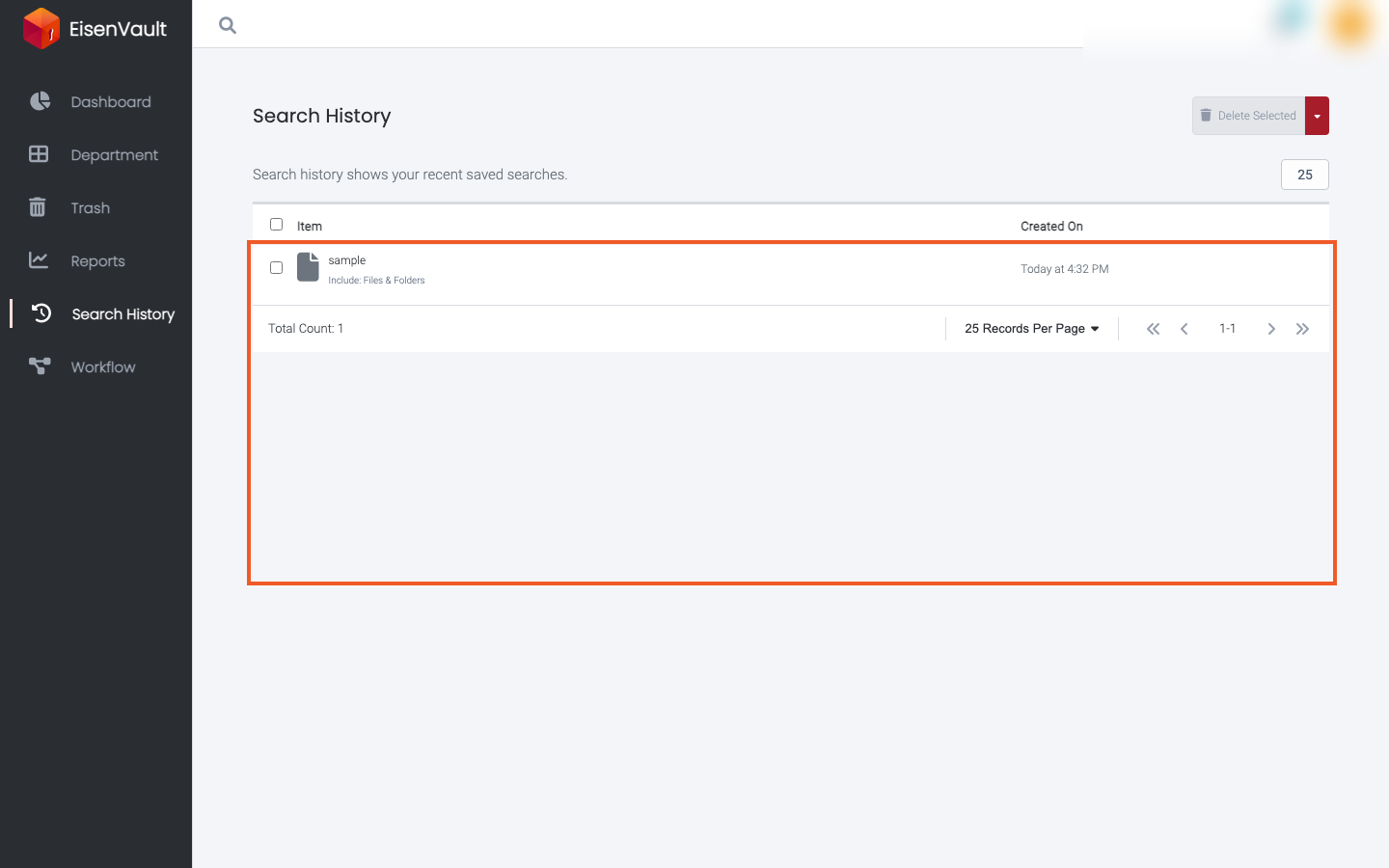
- In the left navigation, click Search History.
- Confirm your saved search appears in the list with its keyword and filter tags.
Example Walkthrough
-
On the full Search page, click Save in the results toolbar.
-
Open Search History and locate the saved entry.
-
Click the saved search row to rerun it on the search results page.
Expected Result
- EisenVault One stores the keyword and active filters as a saved search.
- The saved search appears in Search History.
- Clicking the saved search reruns the same keyword and filters.