User Usage
Purpose
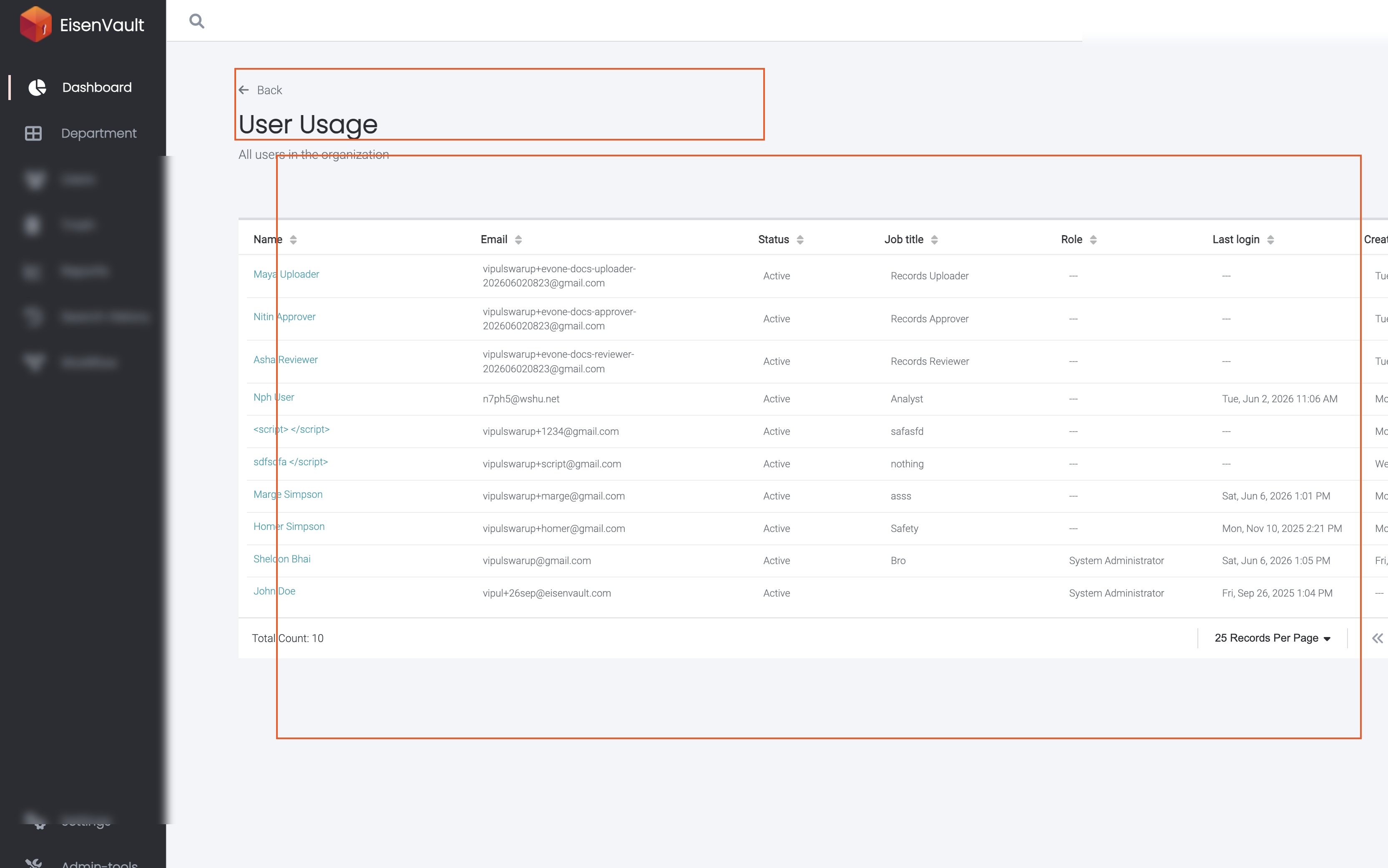
Compare how many user accounts exist against your licensed seat count. The User Usage overview card shows totals such as 10 / 5 (users versus plan limit); the User Usage list shows every account with status, role, and last login.
Note: This action may require administrator privileges.
Prerequisites
- You are signed in to EisenVault One as a system administrator.
- You can open Dashboard from the left navigation.
Before You Begin
- The denominator comes from your subscription plan (
max_users). - In some production environments EisenVault One may hide the limit and show only the user count.
- Click the User Usage card to open the directory list.
View User Usage
- Open Dashboard.
- Note the User Usage value in the second overview row.
- Click the card.
Work with the User Usage List
On the User Usage page:
- Confirm the subtitle All users in the organization.
- Sort by Name, Email, Status, Job title, Role, Last login, or Created on.
- Click a user name to open the account when permitted.
- Use pagination for larger directories.
- Click Back to return to the dashboard.
Example Walkthrough
Demonstration screenshots redact names and email addresses.
-
Click User Usage on the dashboard.
Expected Result
- The overview card summarizes seat consumption against the plan.
- The list shows every user with role and activity columns.
- Back returns to the administrator dashboard.