User Report
Purpose
Review actions performed by users and groups across departments, folders, and documents within a selected date range.
Prerequisites
- You are signed in to EisenVault One.
- Your account has permission to view the User Report.
- You can open Reports from the left navigation.
Before You Begin
The User Report lists user and group activity such as document views, uploads, permission changes, and other tracked actions. Use the User and Group toggle to switch between user-centric and group-centric views.
Filter by name, action, department, and role to narrow results to a specific person or team.
Run the User Report
- Open Reports from the left navigation.
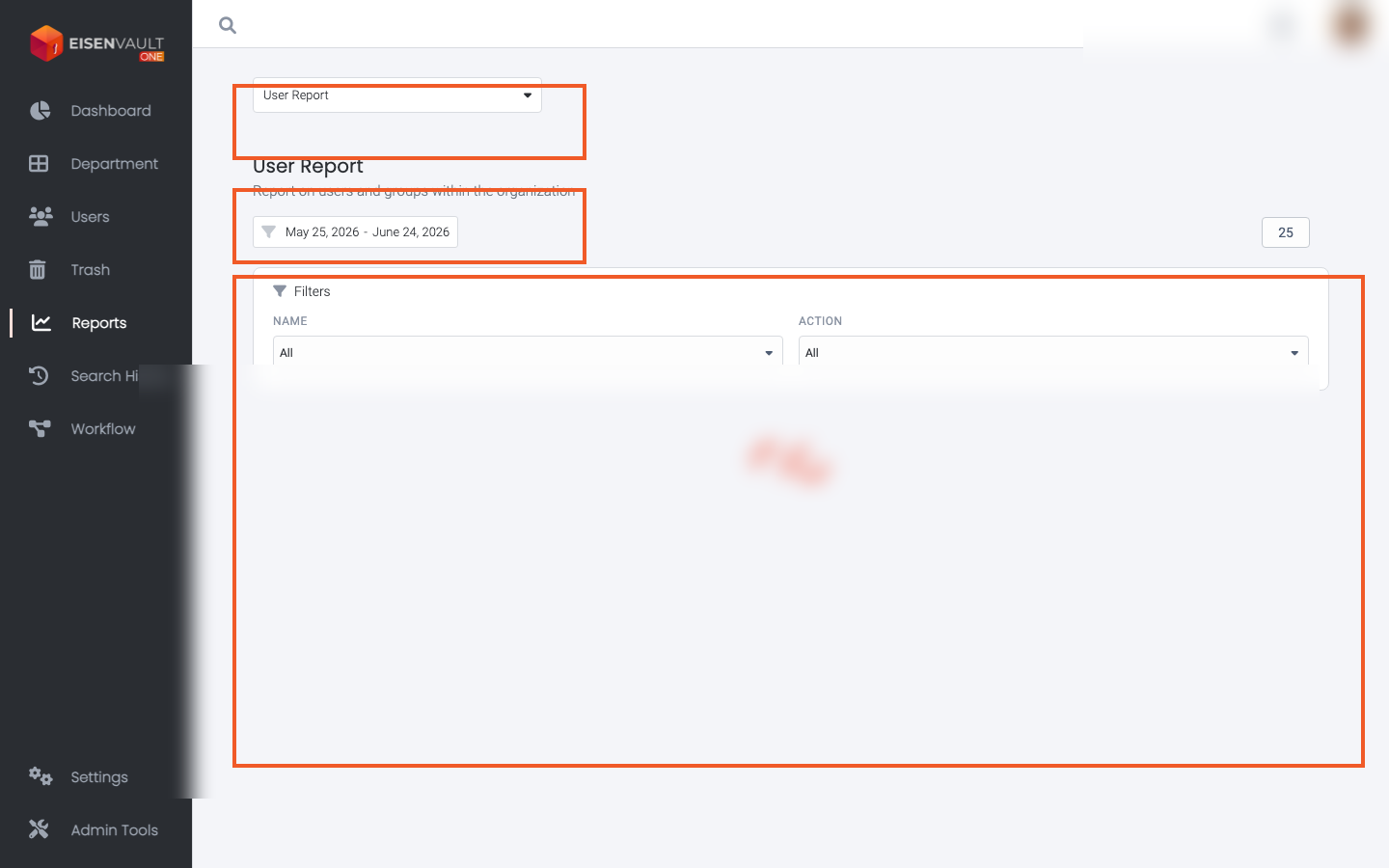
- Open the report type selector and choose User Report.
- Set the Date Range, then apply the filter.
- Expand Filters and set Name, Action, Department, or Role as needed.
- Switch between User and Group views when both are available.
- Review the results table and export when permitted.
Example Walkthrough
Demonstration screenshots use redacted names and email addresses from a staging tenant.
-
Open Reports and select User Report. The type selector, date range, and activity table are highlighted.
Expected Result
- EisenVault One lists user or group actions matching your filters.
- Switching between User and Group changes the table layout.
- Export produces a downloadable file when export is enabled.