Manage Permissions on Folder
Purpose
Review and change who can access a folder and its child content by assigning users or groups and content roles on that folder.
Prerequisites
- You are signed in to EisenVault One.
- You can open the folder in the Explorer.
- You have permission to manage folder permissions.
Before You Begin
Folder permissions affect the folder itself and can flow down to child folders and documents through inheritance.
Use local permissions when a folder should have different access from its parent department or folder.
Manage Permissions on a Folder
- Navigate to the folder in the Explorer.
- Open the folder row's options menu.
- Click Manage Permissions.
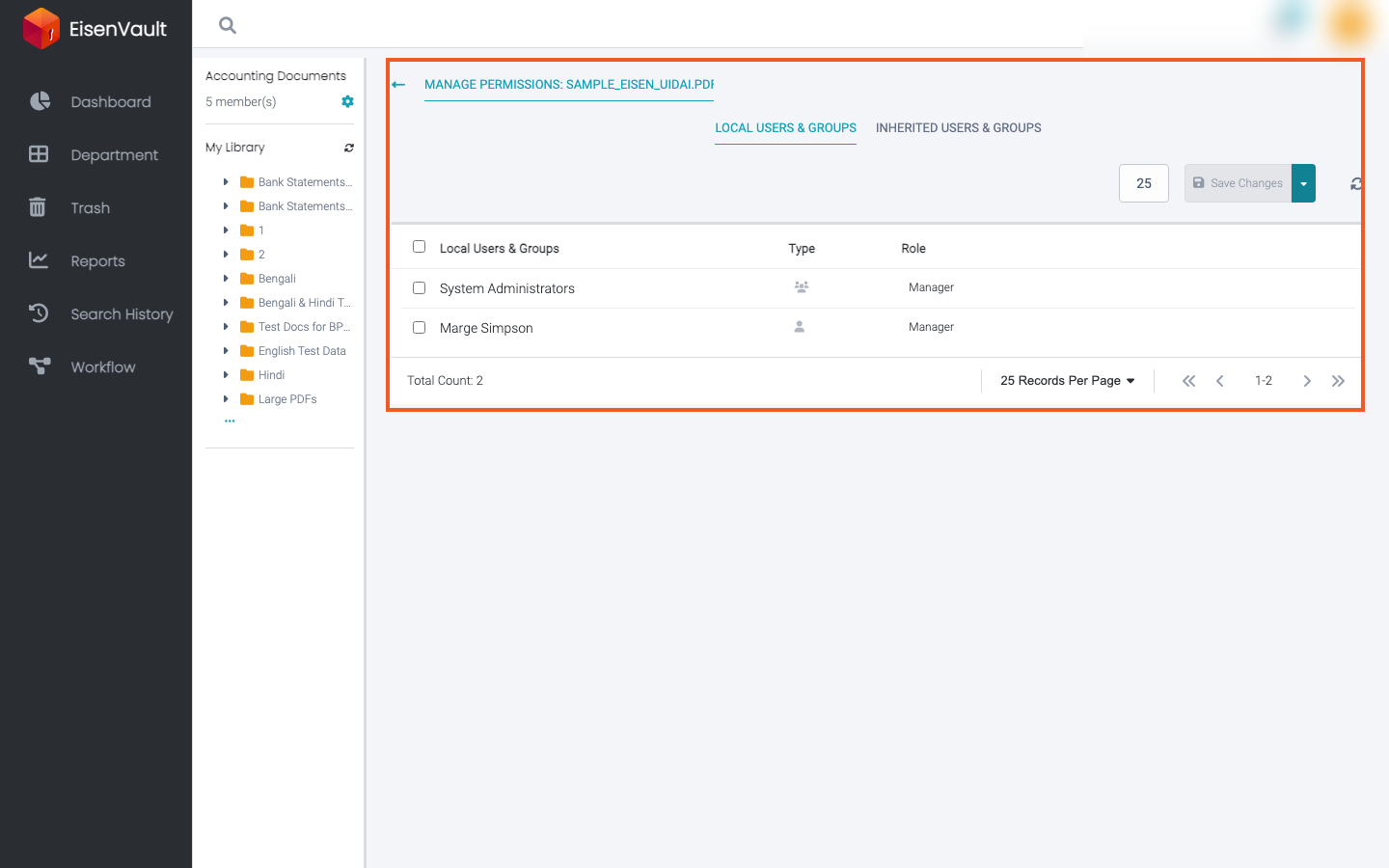
- EisenVault One opens Manage Permissions for the folder.
- Review the Local Users & Groups tab.
- To add access, open Add User or Group and choose Add User or Add Group.
- Select the user or group and assign a content role.
- Click Save Changes when the toolbar indicates unsaved changes.
- Open Inherited Users & Groups to review permissions inherited from parent content.
- Click Back to return to the Explorer.
The heading above the tabs also links to Manage Rules for the same folder. See Manage Rules on a Department or Folder.
Example Walkthrough
-
Open the folder options menu and click Manage Permissions.
-
Add or update local users and groups, assign roles, and click Save Changes.
Expected Result
- Local permission changes apply to the selected folder.
- Child items inherit permissions unless inheritance is disabled on a child item.
- Users gain or lose access according to the roles you assign.