My Subscriptions
Purpose
See folders and documents you subscribed to for change notifications. The My Subscriptions widget summarizes your subscriptions on the dashboard; the My Subscriptions list page shows details for the selected period.
Prerequisites
- You are signed in to EisenVault One.
- You can open Dashboard from the left navigation.
Before You Begin
- Subscribe from a file or folder action menu to add items here. See Subscribe.
- Click the My Subscriptions widget header to open the full list.
- When you have no subscriptions, the widget shows No folder or document subscriptions yet.
View Subscriptions on the Dashboard
- Open Dashboard.
- Find the My Subscriptions widget.
- Review subscribed items shown in the widget.
- Click the My Subscriptions header to open the list page.
Work with the My Subscriptions List
On the My Subscriptions page:
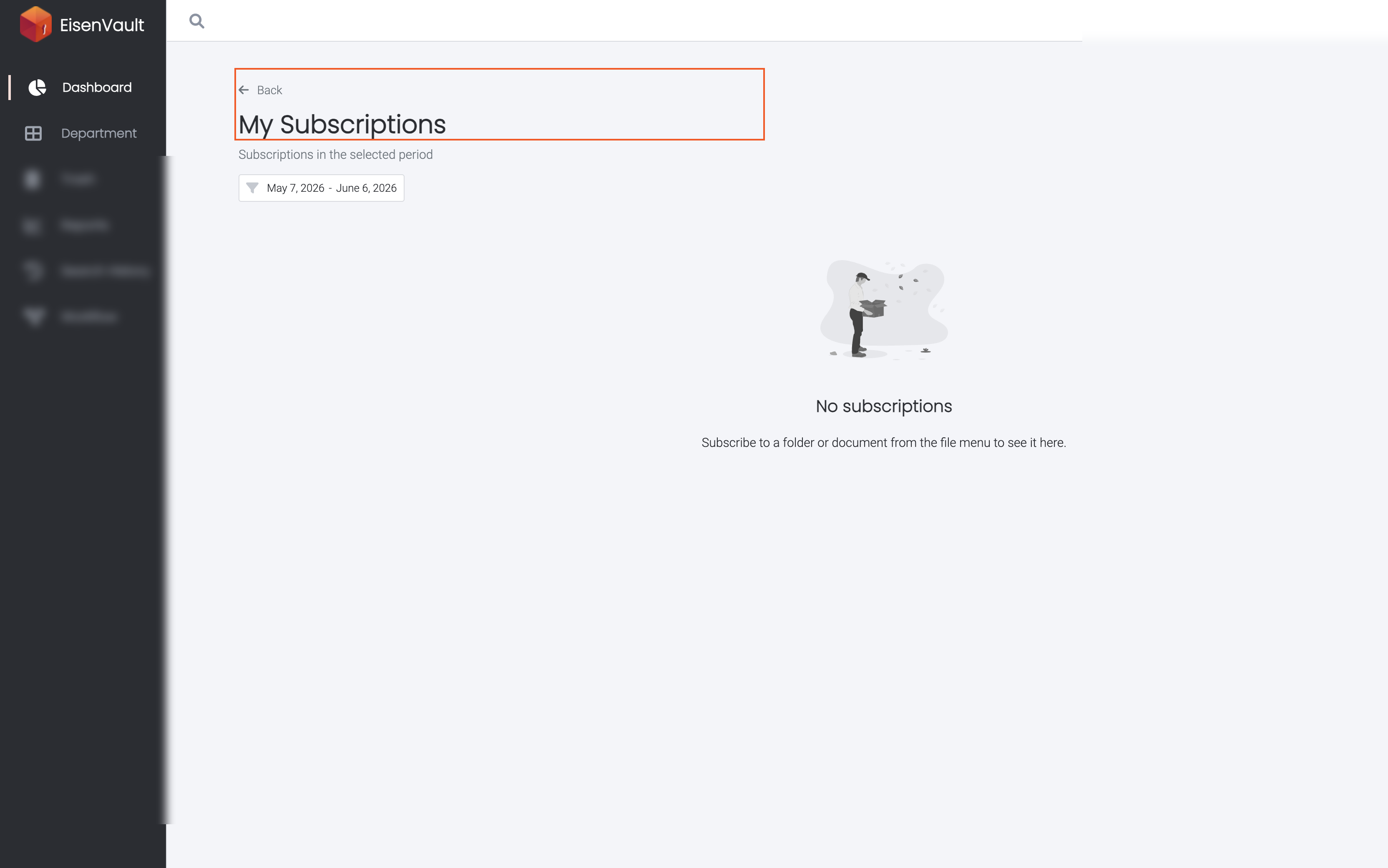
- Confirm the subtitle Subscriptions in the selected period.
- Adjust the date range filter if needed.
- Click an item to open the subscribed folder or document when available.
- Click Back to return to the dashboard.
When nothing is subscribed, EisenVault One shows No subscriptions with guidance to subscribe from the file menu.
Example Walkthrough
Demonstration screenshots use redacted data.
-
With no subscriptions yet, the list page explains how to add them.
-
After you subscribe to content, the widget and list show those folders and documents for the selected period.
Expected Result
- The widget lists subscriptions or shows an empty-state message.
- The list page supports date filtering and opens subscribed items when you still have access.
- New subscriptions appear after you subscribe from the document library.