Bulk Import of Users
Purpose
Create many user accounts at once by uploading a CSV file.
Note: This action may require administrator privileges.
Prerequisites
- You are signed in as a user administrator or system administrator.
- You have the create_user permission.
- You have a CSV file prepared in the required format.
Before You Begin
Bulk import is available from the Users page through Import Bulk User. EisenVault One validates the uploaded CSV and creates accounts from the rows it contains.
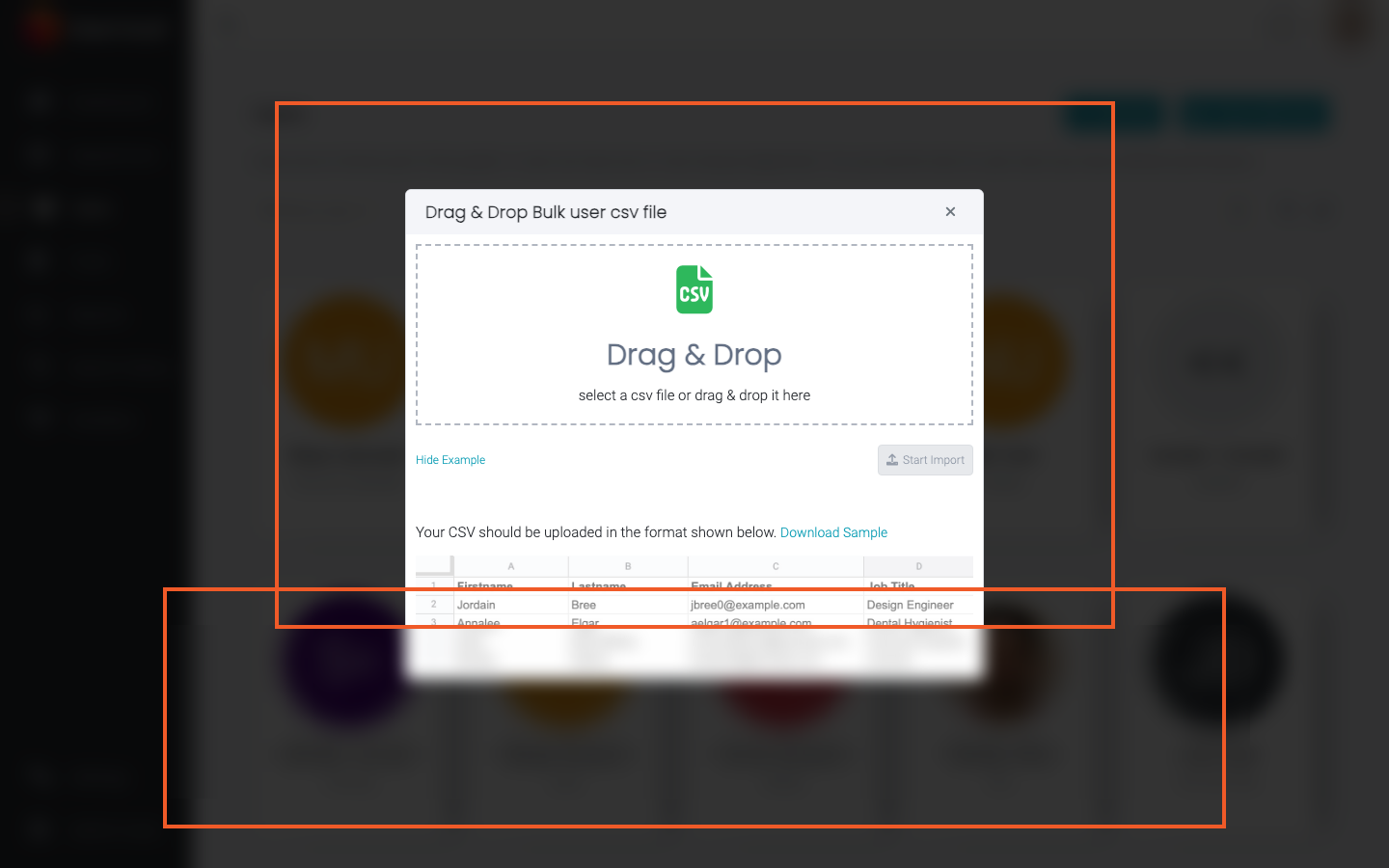
Use Show Example in the import dialog to review the expected column layout. A sample CSV file is also available through Download Sample in the same dialog.
Each row typically includes fields such as first name, last name, email, job title, and quota. Match the sample format exactly so the import succeeds.
Import Users from CSV
- Open Users from the left navigation.
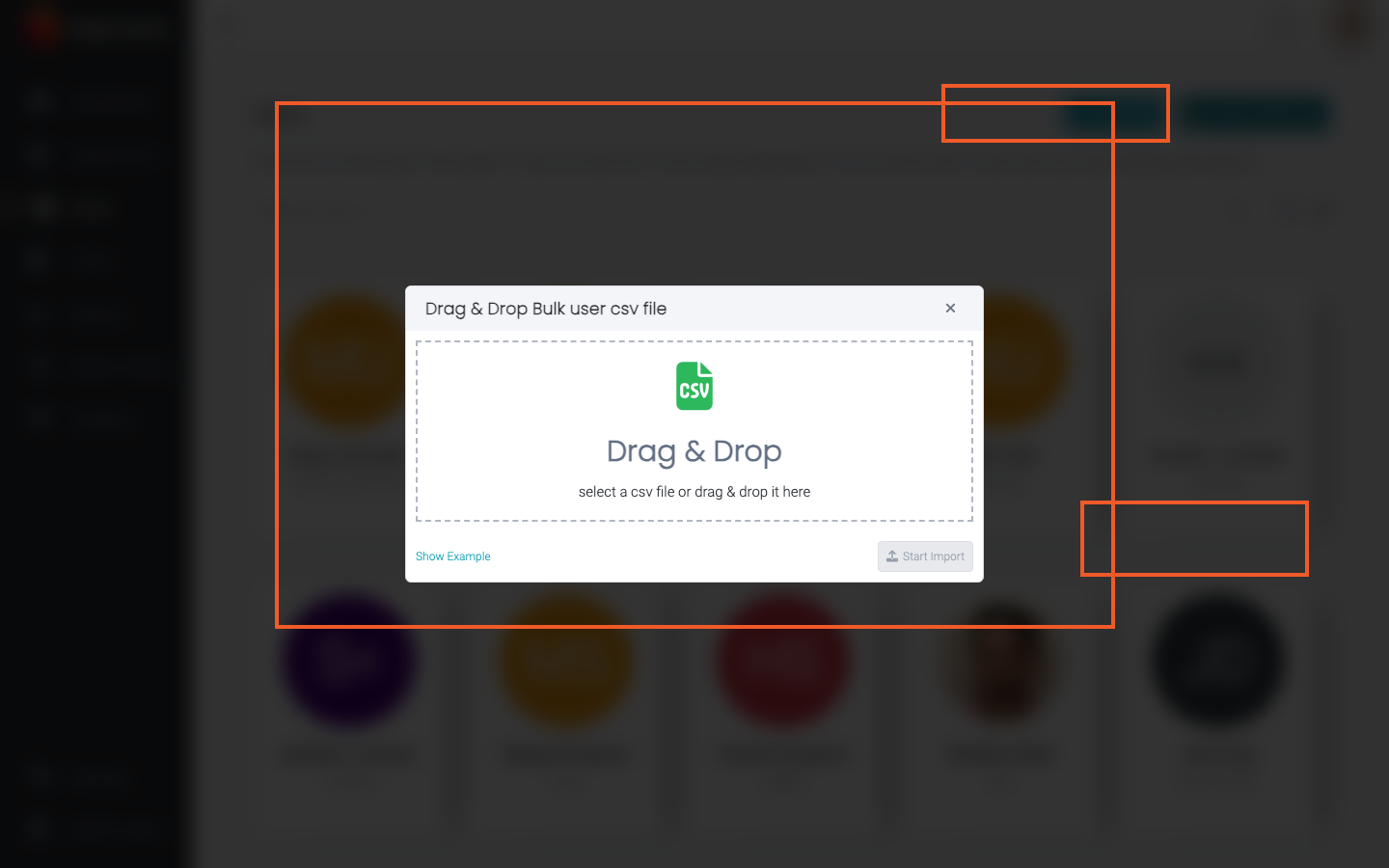
- Click Import Bulk User.
- In the import dialog, drag and drop your CSV file onto the upload area, or click the area to browse for the file.
- Optional: click Show Example to confirm your file matches the required layout.
- When the file name appears below the upload area, click Start Import.
- Wait for EisenVault One to finish processing the file. A success message appears when the import completes.
Example Walkthrough
-
Open Import Bulk User from the Users page.
-
Review the example layout before uploading your file.
Expected Result
- User accounts from the CSV are created in EisenVault One.
- New users appear on the Users page after the list refreshes.
- If email is configured in your environment, imported users may receive welcome or password-related messages according to your settings.