System Storage Report
Purpose
Review document volume and storage usage across departments and folders for a selected date range.
Prerequisites
- You are signed in to EisenVault One.
- Your account has permission to view the System Storage Report.
- You can open Reports from the left navigation.
Before You Begin
The System Storage Report summarizes how much content is stored in each department or folder. Administrators use it to monitor growth, plan capacity, and identify unusually large folders.
Storage figures reflect documents EisenVault One tracks in your tenant. Hidden or restricted departments appear only when your permissions allow you to see them.
Run the System Storage Report
- Open Reports from the left navigation.
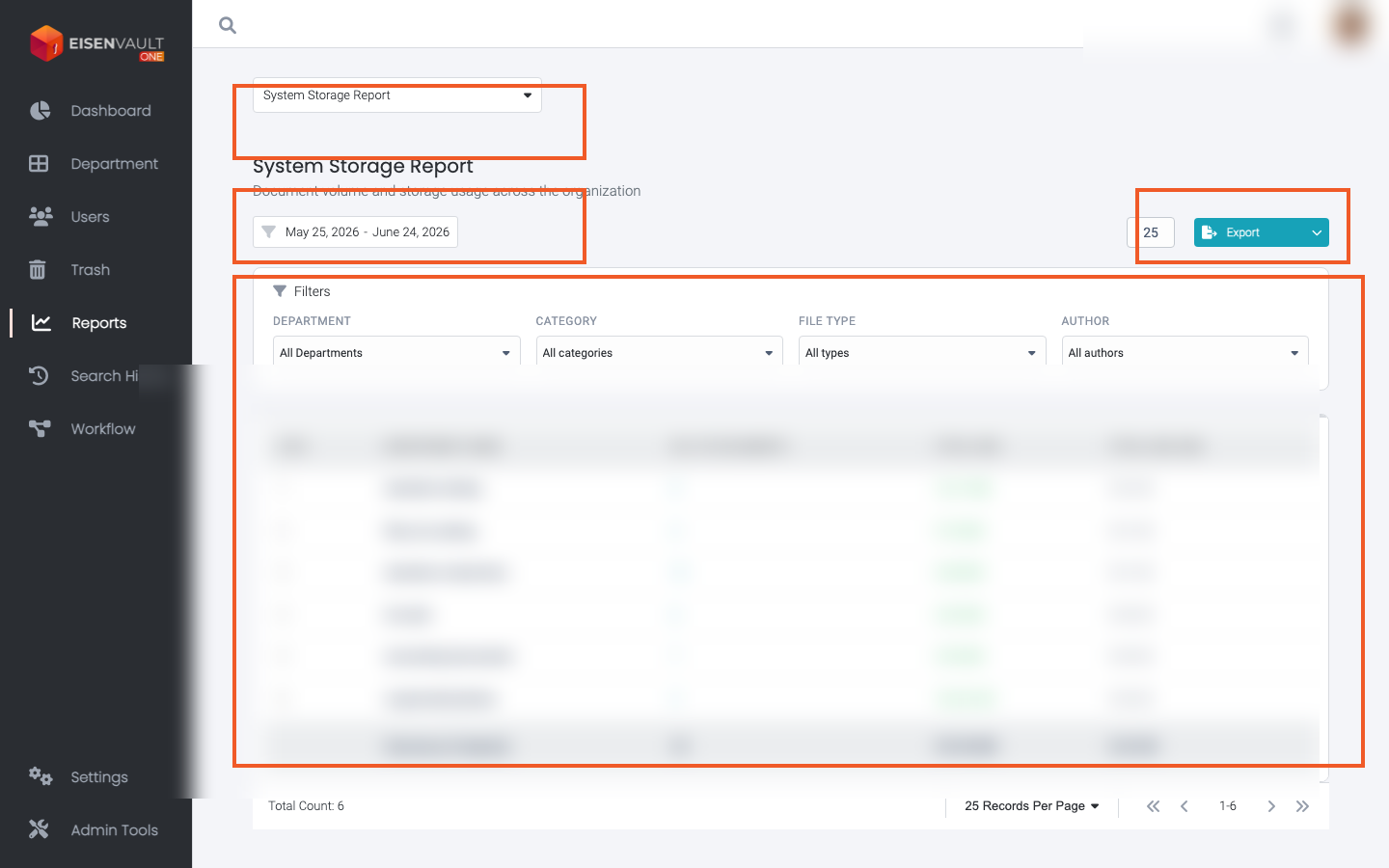
- Open the report type selector and choose System Storage Report.
- Set the Date Range, then apply the filter.
- Optionally expand Filters to narrow by department, category, file type, or author.
- Review storage totals and row-level details in the results table.
- Use Export to download CSV or Excel when export is available for your role.
Example Walkthrough
Demonstration screenshots use redacted names from a staging tenant.
-
Open Reports and select System Storage Report. The type selector, date range, export control, and results table are highlighted.
Expected Result
- EisenVault One shows storage usage for departments and folders in the selected scope.
- Filters and pagination refine the list.
- Export downloads a file you can review offline.