Copy File
Purpose
Create a copy of a document in another folder while keeping the original document in place.
Prerequisites
- You are signed in to EisenVault One.
- You have permission to view the source document.
- You have permission to add content to the destination folder.
Before You Begin
Copying a file creates a separate document in the destination folder. The original document remains unchanged.
Review your organization's rules for duplicated documents before copying controlled or official files. If the document should remain a single record, use Move File instead.
Copy a File
- Click Department in the left navigation and select a department.
- Navigate to the folder that contains the source document.
- Open the document's options menu.
- Click Copy To.
- Select the destination department or folder.
- Confirm the destination.
- Click Copy or the equivalent confirmation button.
Example Walkthrough
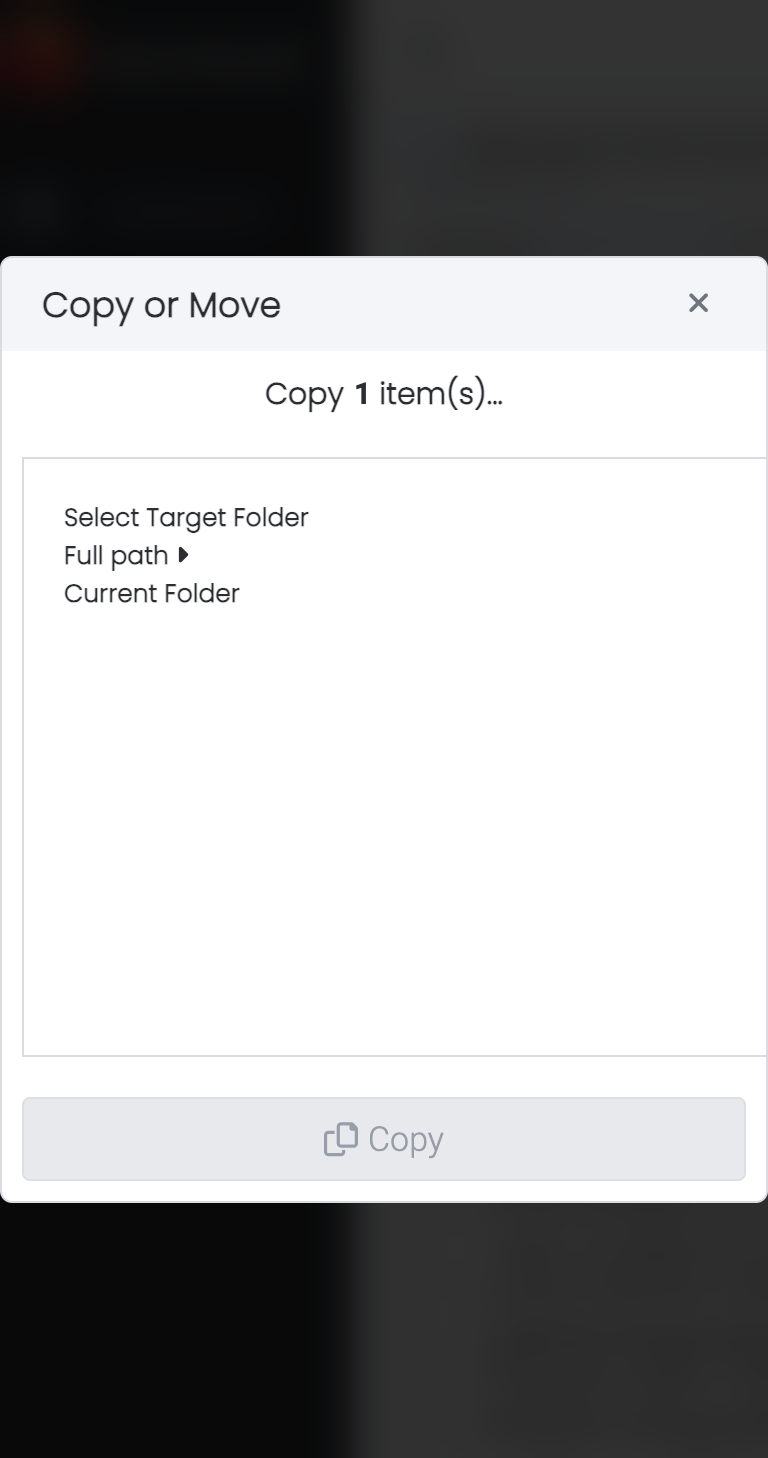
The screenshots below show the Copy To dialog opened for Genesis-Demo.pdf in id-cards.
-
Open the document's options menu and click Copy To.
-
Select the destination folder in the tree, then click Copy.
Expected Result
- A copy of the document appears in the selected destination folder.
- The original document remains in its original folder.
- The copied document can be managed independently according to permissions in the destination.