Workflows
Purpose
Workflows in EisenVault One route documents through structured review and approval steps. Use workflows when a document needs one or more people to approve, reject, or review it before the work is considered complete.
What Problem Workflows Solve
Workflows turn informal approval requests into a repeatable, trackable process:
- Approval steps become structured and consistent.
- Users can track progress in real time.
- Approvers receive tasks automatically.
- Every action is recorded and auditable. Detailed history is available in workflow reports when reporting permissions are enabled.
Open the Workflows Area
- Sign in to EisenVault One.
- Click Workflow in the left navigation.
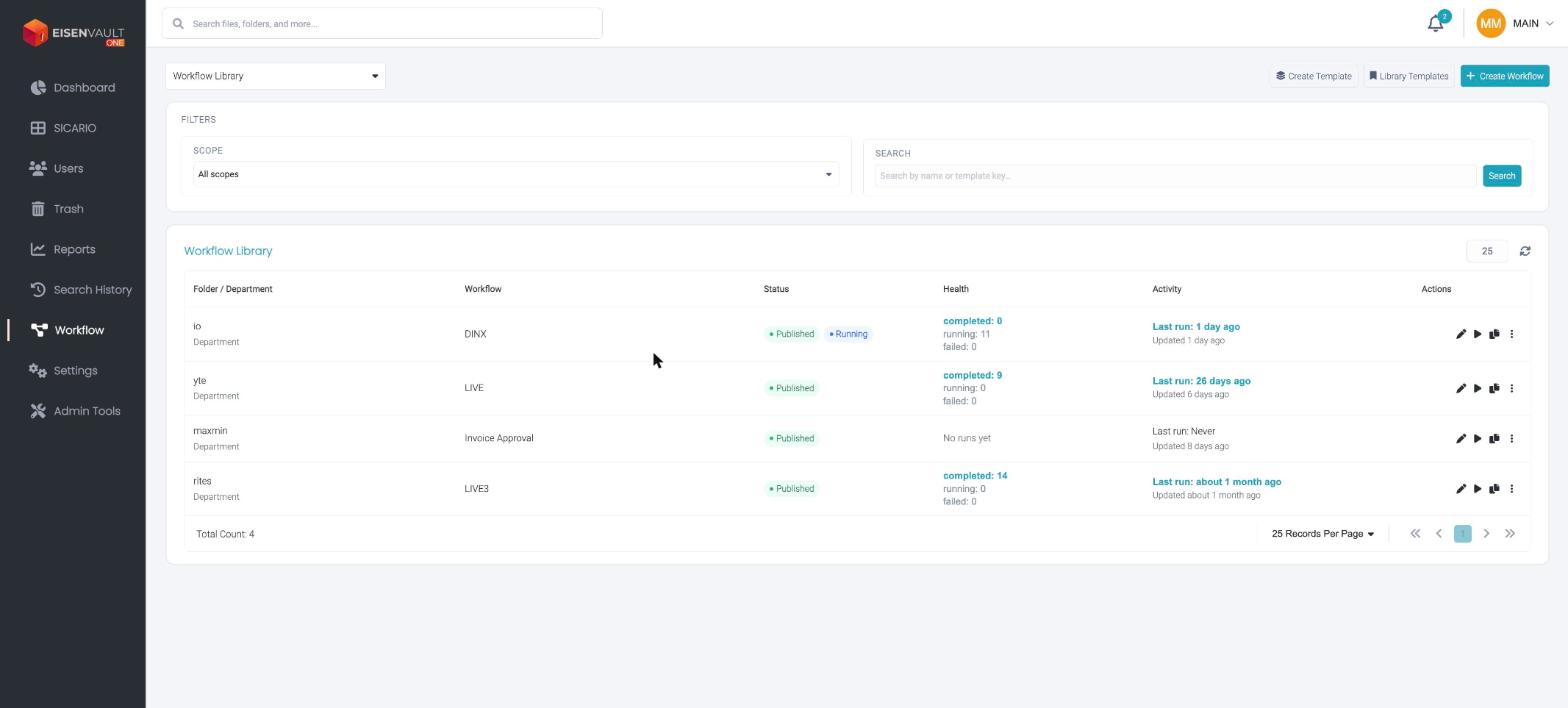
The Workflows page opens on the Workflow Library. Use the dropdown at the top left to switch between the two views:
| View | Purpose |
|---|---|
| Workflow Library | Browse, search, and manage your workflows. Filter by Scope, or search by name or template key. |
| Running Workflows | Monitor active and completed workflow executions. |
Three buttons sit in the top right:
| Button | What it does |
|---|---|
| Create Template | Saves a reusable template. |
| Library Templates | Opens the ready-made templates you can start from. |
| + Create Workflow | Opens the Workflow Builder to design a new workflow. |
If you have not built anything yet, the library shows No workflows yet — Create your first workflow to automate approvals and document routing.
Execution Modes
EisenVault One supports two workflow execution modes.
Automated workflows
Automated workflows use published templates attached to departments or folders.
When a document is uploaded into a configured department or folder:
- Workflow execution starts automatically.
- No manual start action is required.
- Approval tasks are assigned to the configured approvers.
See Workflow Templates for template scope, publishing, and attachment.
Manual workflows
Manual workflows are built in the Workflow Builder using the Document Attachments component, then sent out with Request approval.
- Select the document (or pin a file on the canvas).
- Configure approvers on the canvas.
- Click Request approval.
This mode is useful for special approvals, one-time reviews, and sensitive documents. See Workflow Builder.
Approval Configuration
Approval tasks can be assigned in several patterns:
| Pattern | Behavior |
|---|---|
| Single approver | One person must approve before the workflow continues. |
| Multiple approvers | More than one person is involved; workflow rules define how responses combine. |
| Sequential | Each step must complete before the next approver receives a task. Approvers are asked in the order you arrange them. |
| Parallel | Multiple approvers receive tasks at the same time; the workflow continues once enough approvals are in. |
For Parallel steps you also set How many must approve? — either every approver, or a smaller number that is enough to move on.
Note: Groups can only be used with Parallel. If you add a group as an approver, Sequential is disabled and the builder shows Remove groups to use Sequential. Groups require Parallel.
Workflow Settings
Optional settings can be applied when starting a manual workflow or when designing a template:
| Setting | Description |
|---|---|
| Priority | High, Moderate, Low, or Not set. Priority also decides the default reminder frequency. |
| Due date | When the approval should be completed. Choose Locked (nobody can change it after the approval starts) or Editable (the creator or an admin can extend it while the run is active). |
| Request note | Context for approvers |
| Who gets notified | Only the active approver (default) or Everyone in the workflow |
| Reminder schedule | Use the default for the priority, or set your own reminders before the due date |
| Stop approval flow when any approver rejects | On by default — the workflow stops at the first rejection |
See Workflow Builder for how to configure each of these.
Workflow Rules
Workflow rules are actions EisenVault One performs on the document automatically once the workflow finishes. They are configured on the workflow, separately from the settings above.
| Rule | What it does |
|---|---|
| Move | Moves the document to a folder you choose when the workflow is approved, and optionally to a different folder when it is rejected. |
| Copy | Copies the document to a folder you choose when the workflow is approved, and optionally to a different folder when it is rejected. |
For each rule you can set an approved destination folder, a rejected destination folder, or both. If you leave one unset, no action is taken for that outcome.
You can also set Move and Copy rules on a department or folder. See Manage Rules on a Department or Folder.
Example: a contract approval uses a Move rule so approved contracts land in Legal/Signed and rejected ones land in Legal/Rejected, without anyone filing them by hand.
Permissions
Workflow actions use permissions from the Approvals group:
| Permission | Allows |
|---|---|
create_edit_approvals |
Design templates, save drafts, publish, and start manual approval runs |
view_approval_flow |
View workflow runs and approval history |
approve_task |
Approve an assigned approval step |
reject_task |
Reject an assigned approval step |
Users who start a workflow can usually view and edit that run even without global view_approval_flow or create_edit_approvals on every object.
Monitoring
Users can monitor workflow execution from the Running Workflows view and from the dashboard Workflow Activity card:
- Running workflows
- Completed workflows
- Failed workflows
- Stopped workflows
Click any workflow run to open the full detail view with workflow progress, approval history, and task timeline. See Workflow Runs and Approval Details.
Approval Actions
An approver can Approve, Quick Approve, Reject, or Send back a request. A note explaining the decision is required for every action except Quick Approve, which approves in one click.
Send back returns the request to an earlier approver for revalidation instead of rejecting it outright — useful when something earlier in the chain needs rechecking. See Approval Actions for all four actions, revalidation, and the approval statuses.
Common Tasks
- Workflow Builder
- Approval Actions
- The Approval Page
- Pending Approvals
- Workflow Templates
- Workflow Runs
- Approval Details