Duplicate Files
Purpose
Find files that share the same base name in the selected period. The Duplicate Files widget highlights likely duplicates on the dashboard; the Duplicate Documents list page shows every matching file with sortable columns.
Prerequisites
- You are signed in to EisenVault One.
- You can open Dashboard from the left navigation.
Before You Begin
- EisenVault One groups duplicates by base file name within the dashboard date range.
- The widget shows a short list with duplicate counts. Click the Duplicate Files header to open the full list.
- Duplicate detection is a hint to review content; confirm duplicates before deleting files.
View Duplicates on the Dashboard
- Open Dashboard.
- Set the date range you want to inspect, then click Apply Filter.
- Scroll to the Duplicate Files widget.
- Review file names and duplicate counts.
- Click the Duplicate Files header to open Duplicate Documents.
Work with the Duplicate Documents List
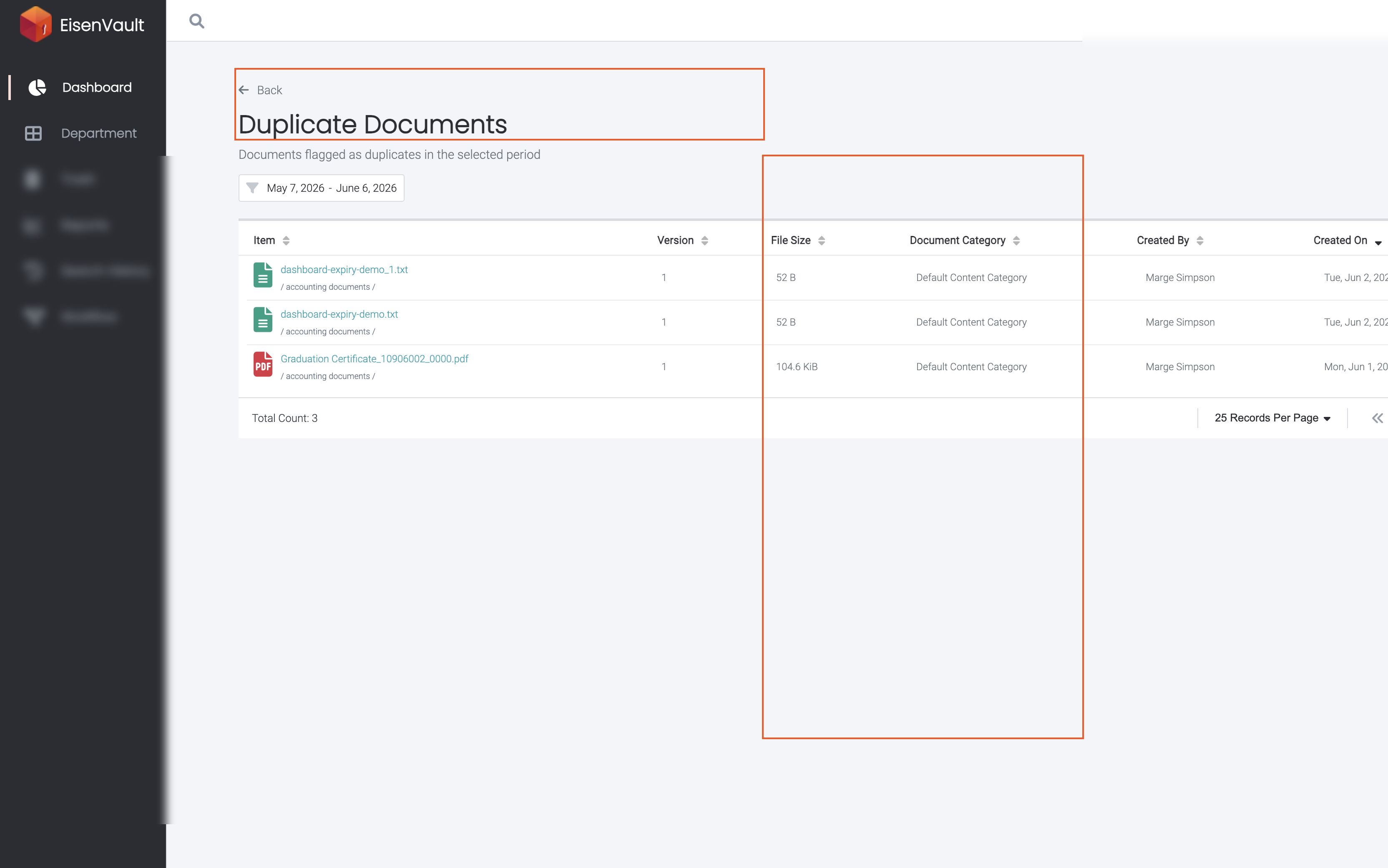
On the Duplicate Documents page:
- Confirm the subtitle Documents flagged as duplicates in the selected period.
- Sort by Item, Version, File Size, Document Category, Created By, or Created On.
- Click a document name to open preview when the file is still available.
- Use pagination when more than one page of results exists.
- Click Back to return to the dashboard.
Example Walkthrough
Demonstration screenshots use redacted file names and user labels.
-
The Duplicate Files widget calls out file names that appear more than once.
-
Click the widget header to review every matching file in a table.
Expected Result
- The widget lists duplicate groups or shows No duplicate files in the last 30 days.
- The list page shows all flagged files for the selected date range.
- Sorting and pagination work without leaving the page.