User Activity Report
Purpose
Review login and user activity analytics for a selected date range.
Prerequisites
- You are signed in to EisenVault One.
- Your account has permission to view the User Activity Report.
- You can open Reports from the left navigation.
Before You Begin
The User Activity Report shows one row per user for the selected date range, with these columns:
| Column | Meaning |
|---|---|
| User Name | The user. Click the name to open their details if you have permission. |
| The user's email address. | |
| Total Logins | Number of sign-ins in the period. Click the number to see each login. |
| Uploaded Documents | Documents the user uploaded in the period. |
| Accessible Documents | Documents the user can access. |
| Edited Documents | Documents the user edited in the period. |
| Engagement Score | A percentage summarizing the user's activity. |
| Last Login | The user's most recent sign-in date. |
Regular users may see a narrower view than system administrators. A regular user can open login timestamps and document lists only for their own account. Opening another user's details shows a permission message.
Run the User Activity Report
- Open Reports from the left navigation.
- Open the report type selector and choose User Activity Report.
- Set the Date Range at the top right. Pick a Start and End date, then apply.
- Optional: use the User Name, Department, and Extension filters.
- Review the table. Use column sorting and pagination for long result sets.
- Optional: click Export and choose Excel (.xlsx), PDF (.pdf), or CSV (.csv).
View Login Timestamps
- In the Total Logins column, click a user's login count.
- The User Login Timestamp Details page lists every login in the period with User ID, Full Name, Login IP Address, and the Timestamp in UTC and in IST.
- Change the date range at the top right to look at another period.
- Click Export to download the list as Excel, PDF, or CSV.
- Click the back arrow to return to the report.
Example Walkthrough
Demonstration screenshots use redacted user names and email addresses from a staging tenant.
-
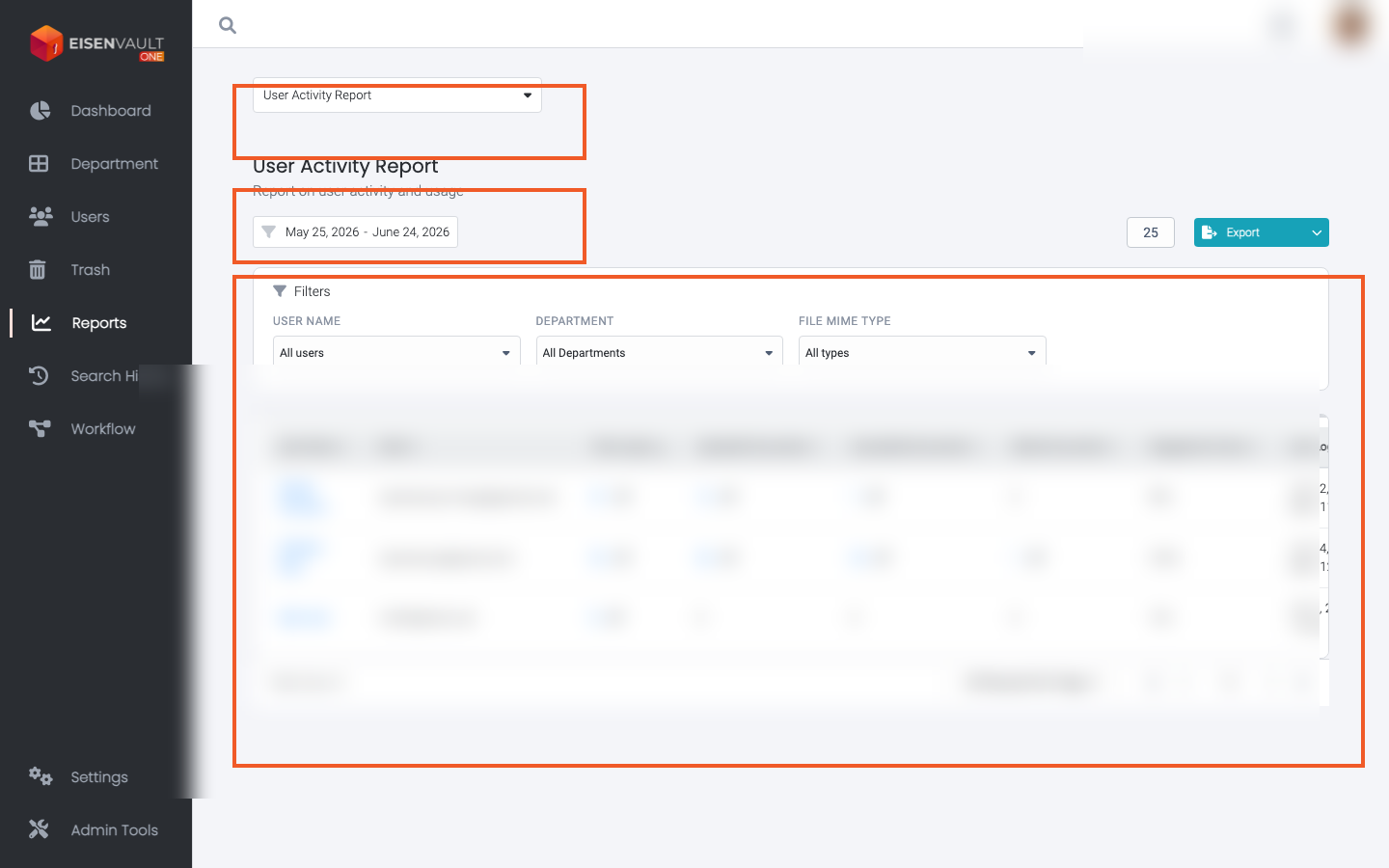
Open Reports and select User Activity Report. The type selector, date range, and activity table are highlighted.
Expected Result
- EisenVault One shows user activity for the selected period.
- The table updates when you change the date range or pagination.
- Export downloads an Excel, PDF, or CSV file when permitted.