Restore from Trash
Purpose
Restore a deleted file or folder from trash when the item still exists in the recoverable trash area.
Prerequisites
- You are signed in to EisenVault One.
- Trash or deleted-item recovery is enabled in your deployment.
- You have permission to view and restore the deleted item.
Before You Begin
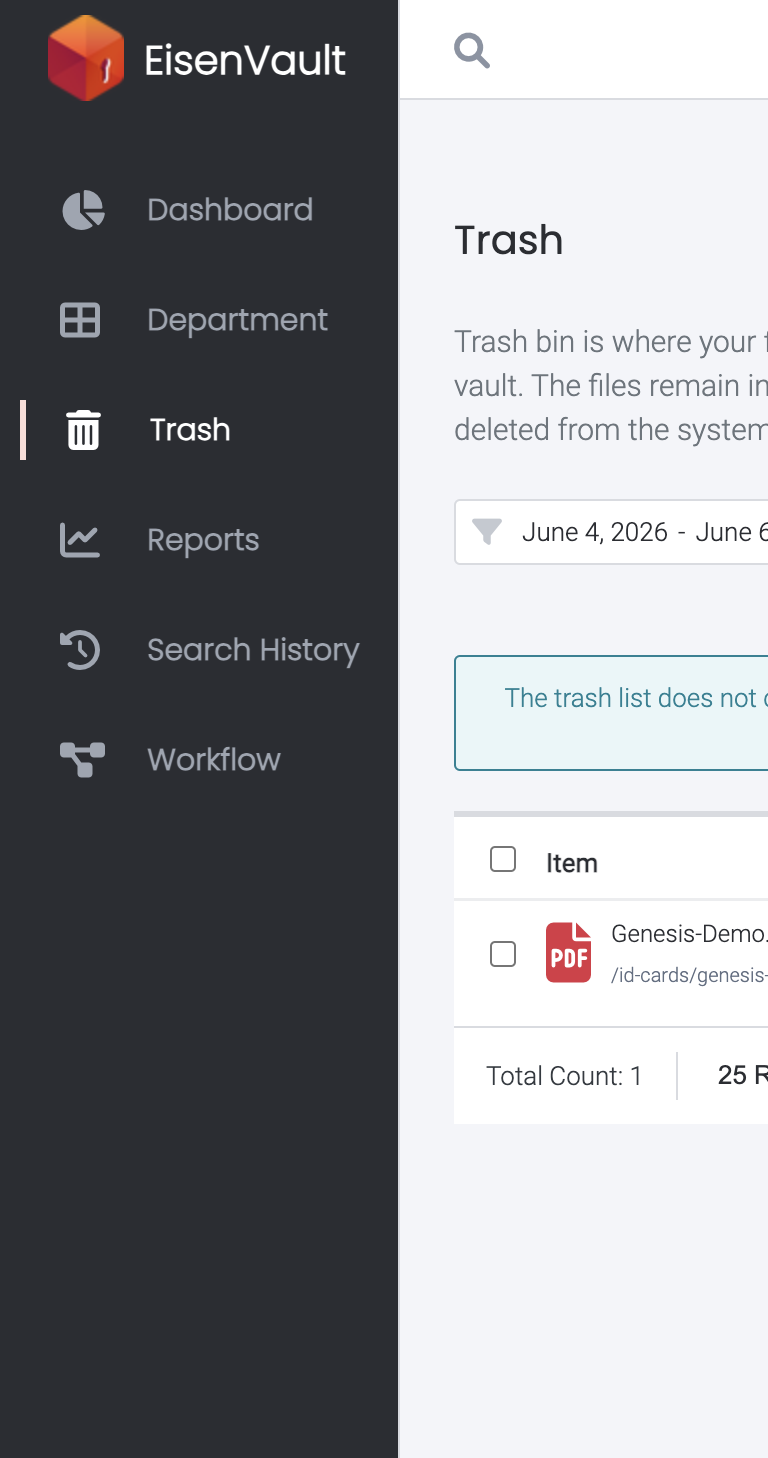
Open Trash from the left navigation. The list shows each deleted item's name and original path, File Size, Deleted On, and Deleted By. Attachments you deleted show a paperclip icon.
- Use the date range at the top right to choose which deletion dates to show.
- Use Search by filename to find an item.
- Sort by Item or Deleted On by clicking the column heading.
- Items stay in the trash for 30 days, then are permanently deleted automatically.
- If you do not have permission to see items trashed by other users, the list says so.
Deleting is processed in the background. A message confirms the delete, and the item can take a few seconds to appear in the trash. Use the refresh icon to reload the list.
Restoring an item returns it to its original location. If the original parent folder was also deleted or no longer exists, EisenVault One may ask you to choose another destination or may block the restore until the parent location is available.
Restore an Item
- Click Trash in the left navigation.
- Find the file or folder you want to restore.
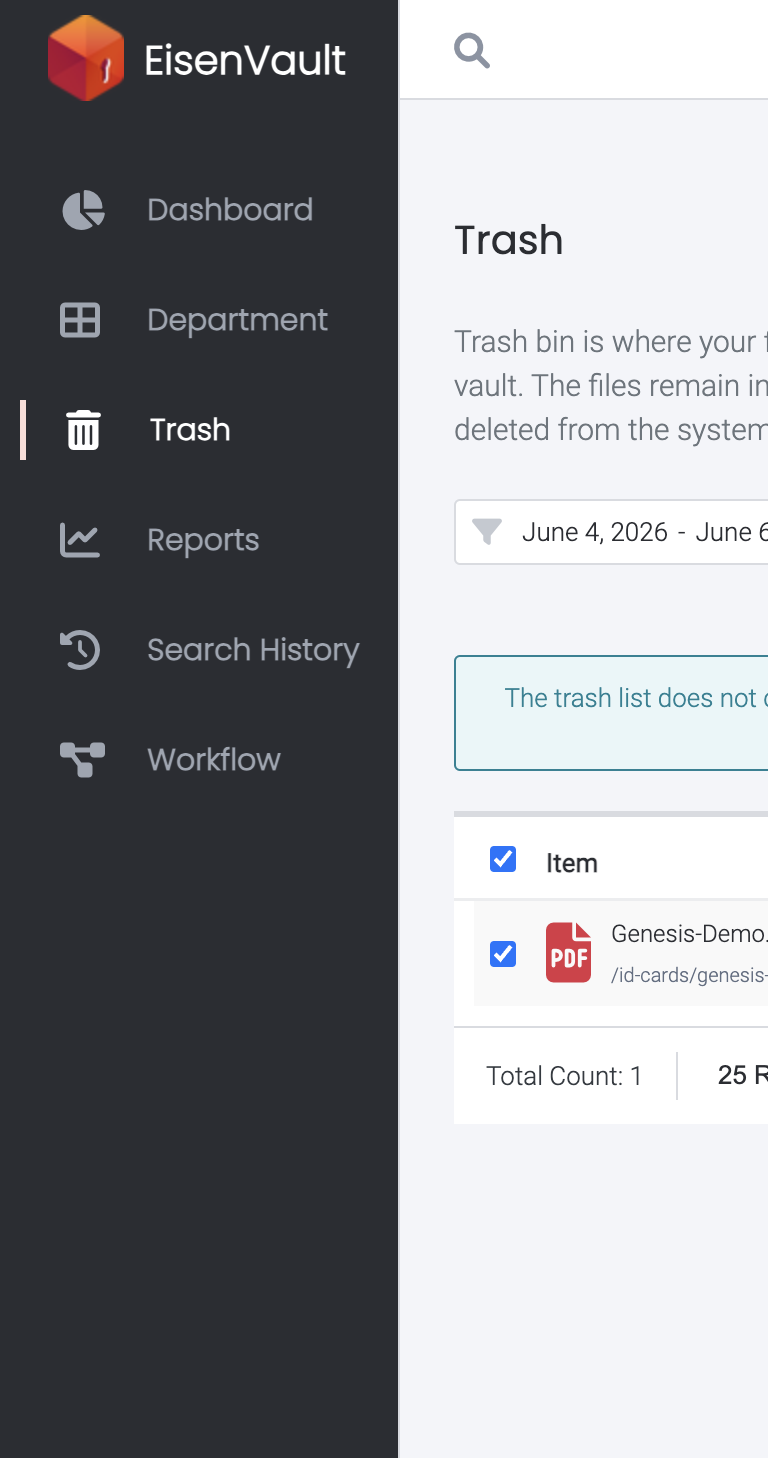
- Point to its row, then click Restore at the end of the row. To restore several items, tick them first.
- Confirm the restore action.
- Go to the original location and confirm that the item is available again.
Delete Permanently
Click Delete at the end of a row, or tick items and click Delete Selected, and confirm "Permanently delete this item?". This cannot be undone.
Example Walkthrough
The screenshots below restore a deleted image.
-
Open Trash from the left navigation and locate the deleted item.
-
Tick the item. Restore and Delete appear at the end of its row.
Expected Result
- The file or folder is restored from trash.
- The restored item is available in its original location when that location still exists.
- Permissions and metadata remain associated with the restored item where supported by your deployment.