Edit a User
Purpose
Update an existing user's profile details, active status, and system-level roles.
Note: This action may require administrator privileges.
Prerequisites
- You are signed in as a user administrator or system administrator.
- You have the edit_user permission.
- The user account already exists.
Before You Begin
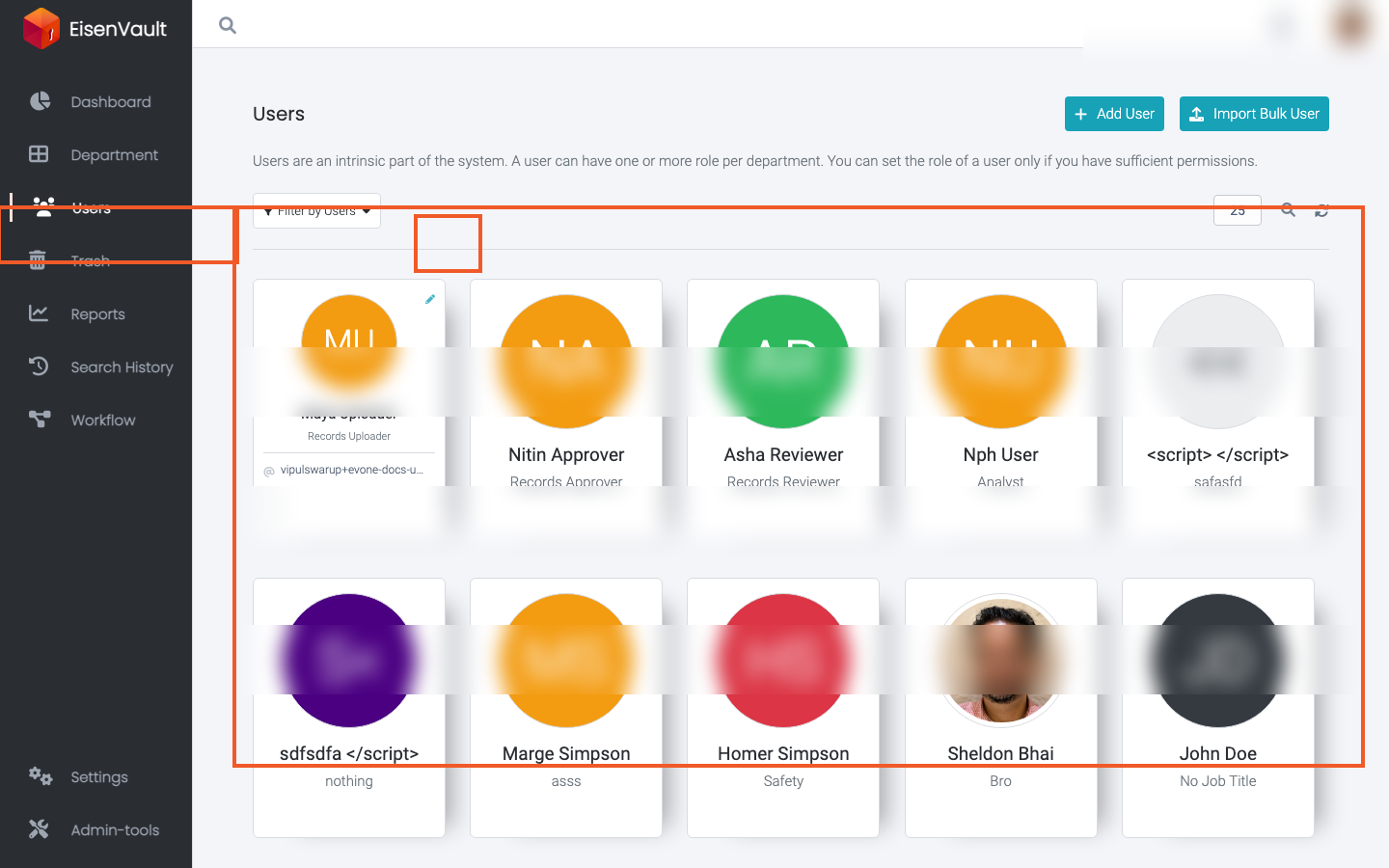
Administrators edit other users from the Users page. Click a user's name to open their Profile page.
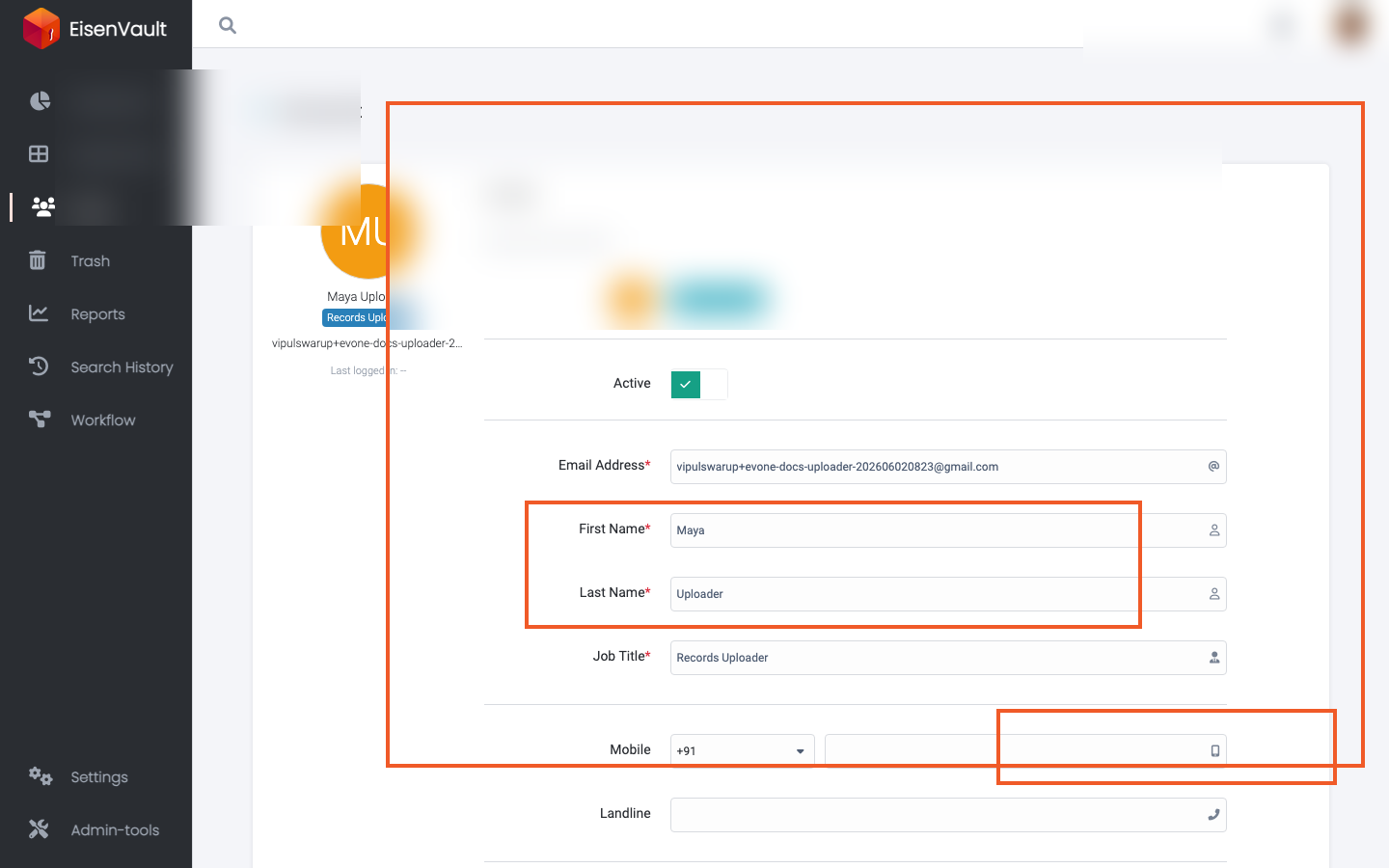
The Profile edit screen lets you change:
- Personal information such as email, first and last name, job title, and Storage quota
- Contact numbers
- System-level Roles (for example User Administrator)
- Account Status (active or inactive) for accounts other than your own
Users without edit_user can still edit their own profile through Edit Profile in the account menu. See Main Profile.
Edit a User
- Open Users from the left navigation.
- Find the user you want to update.
- Click the user's name.
- EisenVault One opens the Profile form. Job Title is optional.
- Update the fields you need to change.
- To assign or remove a system-level role, use Roles and choose from the list. Role tags appear below the selector; remove a tag to unassign a role.
- To deactivate an account, turn off Account Status. This option appears only when you are editing someone else's profile.
- Click Update Profile.
Example Walkthrough
-
Open Users and locate the account you want to change. Its name opens the profile.
-
Update the profile fields and roles, then click Update Profile. Archive User sits beside it; see Archive a User.
Expected Result
- The user's profile details are saved.
- Assigned system-level roles take effect according to your EisenVault One role model.
- If you disabled Active, the user can no longer sign in until the account is re-enabled.