Copy Folder
Purpose
Create a copy of a folder in another location while keeping the original folder in place.
Prerequisites
- You are signed in to EisenVault One.
- You have permission to view the source folder.
- You have permission to add folders and content to the destination.
Before You Begin
Copying a folder may also copy the documents and subfolders inside it, depending on your deployment's folder-copy behavior. Large folders can take longer to copy.
Confirm that the destination is correct before you start. Copying to the wrong department can create duplicate content that later needs cleanup.
Copy a Folder
- Click Department in the left navigation and select a department.
- Navigate to the department or parent folder that contains the folder you want to copy.
- Open the folder's options menu.
- Click Copy.
- Select the destination department or folder.
- Confirm the destination.
- Click Copy or the equivalent confirmation button.
Example Walkthrough
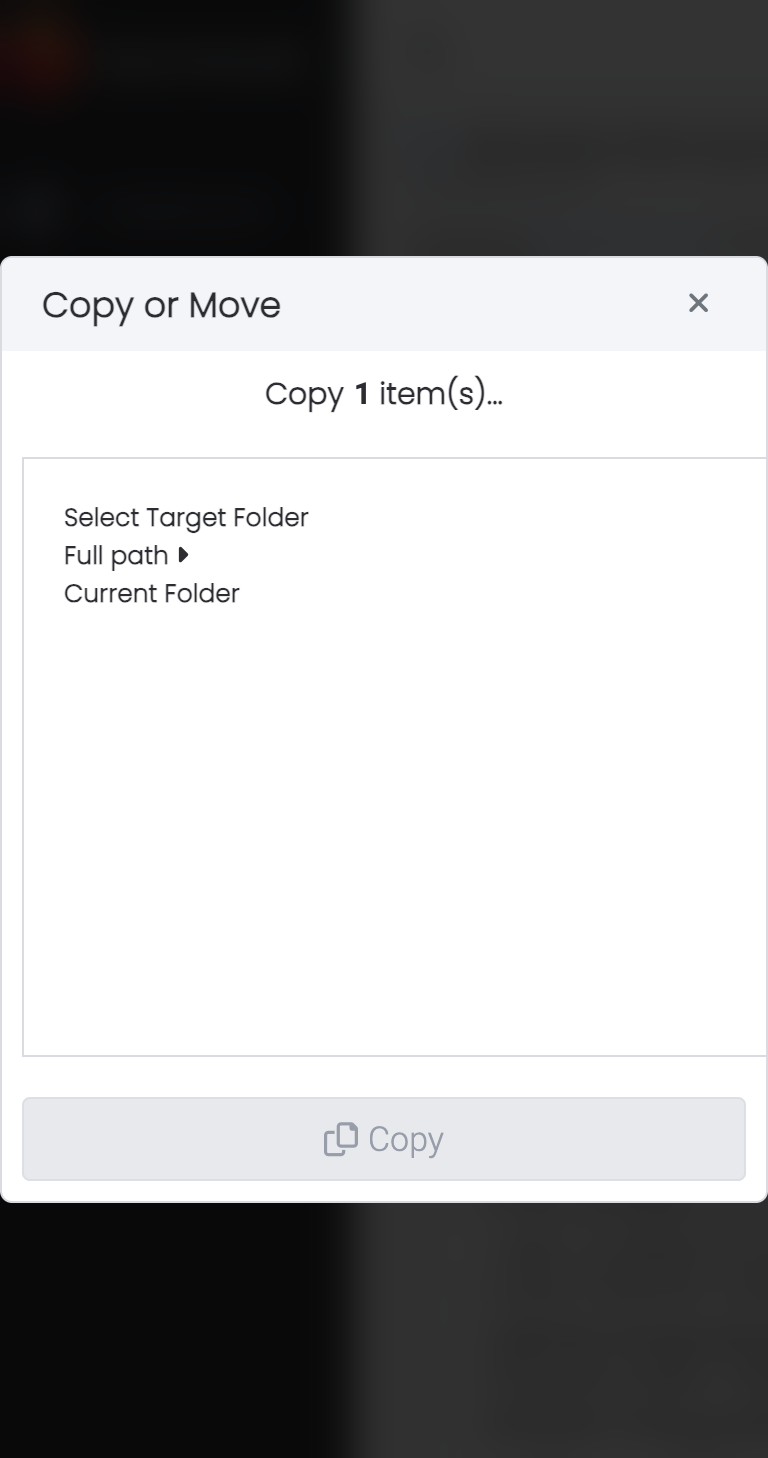
The screenshots below show the Copy To dialog for a folder in id-cards.
-
Open the folder's options menu and click Copy To.
-
Select the destination folder, then click Copy.
Expected Result
- A copy of the folder appears in the selected destination.
- The original folder remains in its original location.
- Copied content follows the permissions and rules applied in the destination location.