Rename File
Purpose
Change a document's display name in the file list.
Prerequisites
- You are signed in to EisenVault One.
- You can open the folder that contains the document.
- You have permission to rename the document.
Before You Begin
Renaming a file changes how the document appears in EisenVault One. It does not create a new version and does not change the document's content.
Use a clear name that helps other users identify the document. The file extension cannot be changed in the rename dialog, so a document keeps its original type.
Long names are shortened in the file list. Hover over a name to see the full file name in a tooltip.
Rename a File
- Click Department in the left navigation and select a department.
- Navigate to the folder that contains the document.
- Find the document in the file list.
- Open the document's options menu.
- Click Rename.
- Enter the new file name.
- Click Save, Rename, or the equivalent confirmation button.
Example Walkthrough
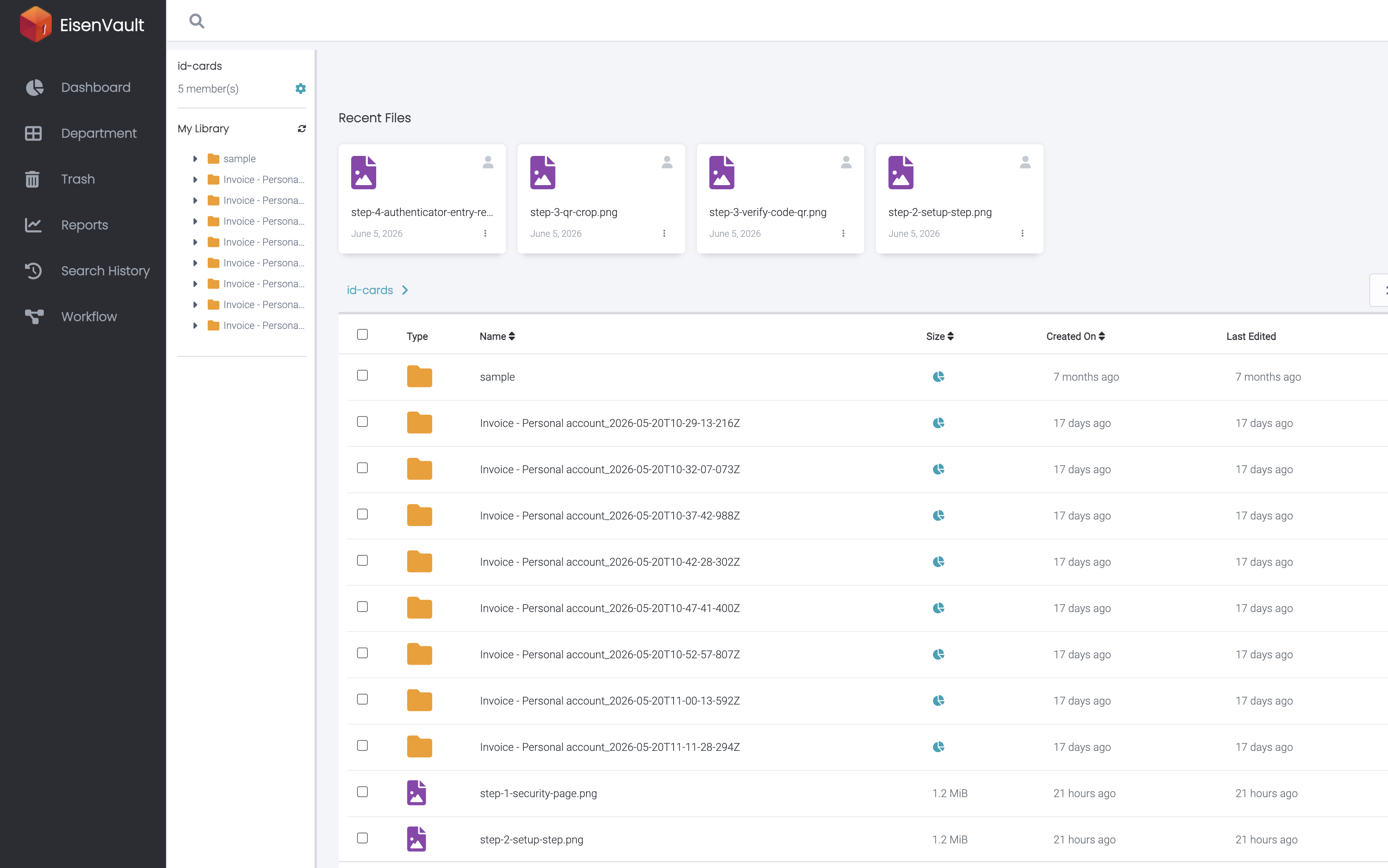
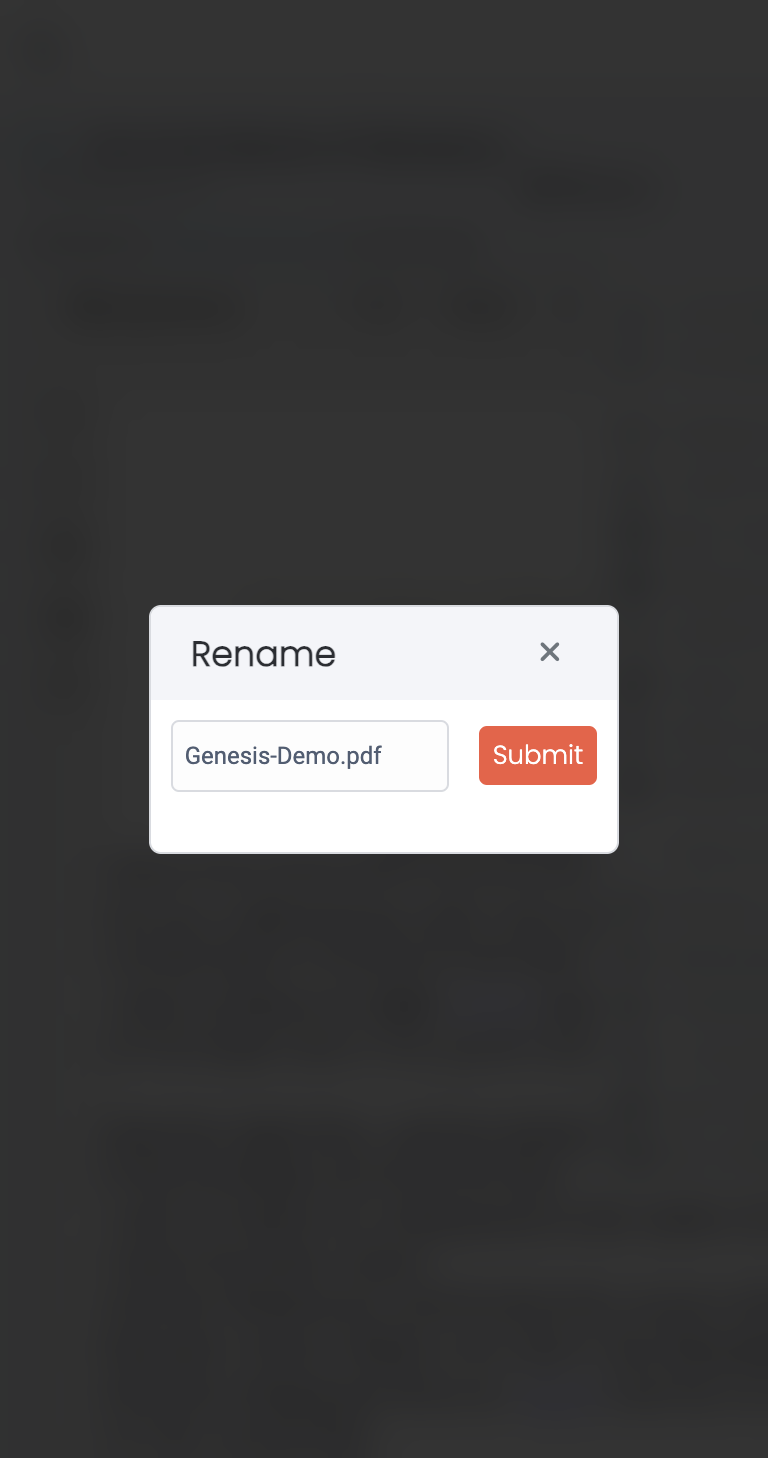
The screenshots below rename The First Book of Moses.pdf to Genesis-Demo.pdf in the id-cards department.
-
Open the folder that contains the document and locate it in the file list.
-
Open the document's options menu and click Rename File. Enter the new name, then click Submit.
Expected Result
- The document appears with the new name in the file list.
- The document remains in the same folder.
- Existing metadata, permissions, versions, subscriptions, and audit history remain associated with the document.