Forgot Password
Purpose
Reset your EisenVault One password when you can no longer sign in with your current one.
Prerequisites
- You know the correct EisenVault One login URL.
- You still have access to the email inbox linked to your EisenVault One account.
Before You Begin
When you submit a password reset request, EisenVault One sends an email with a Reset Password link. In this environment, the email stated that the link remains active for 24 hours. During the reset itself, EisenVault One does not allow you to reuse your current password.
If two-factor authentication is enabled on your account, you will still need your authenticator code or a backup code the next time you sign in.
Reset Your Password
- Open the EisenVault One login page.
- Click Forgot Password.
- Enter your email address.
- Click Retrieve Password.
- Open the password reset email sent by EisenVault One.
- Click Reset Password in the email.
- Enter a new password that is different from your current password.
- Click Set Password.
- Return to the login page and sign in with the new password.
Example Walkthrough
The screenshots below show a real password reset for the user n7ph5@wshu.net.
-
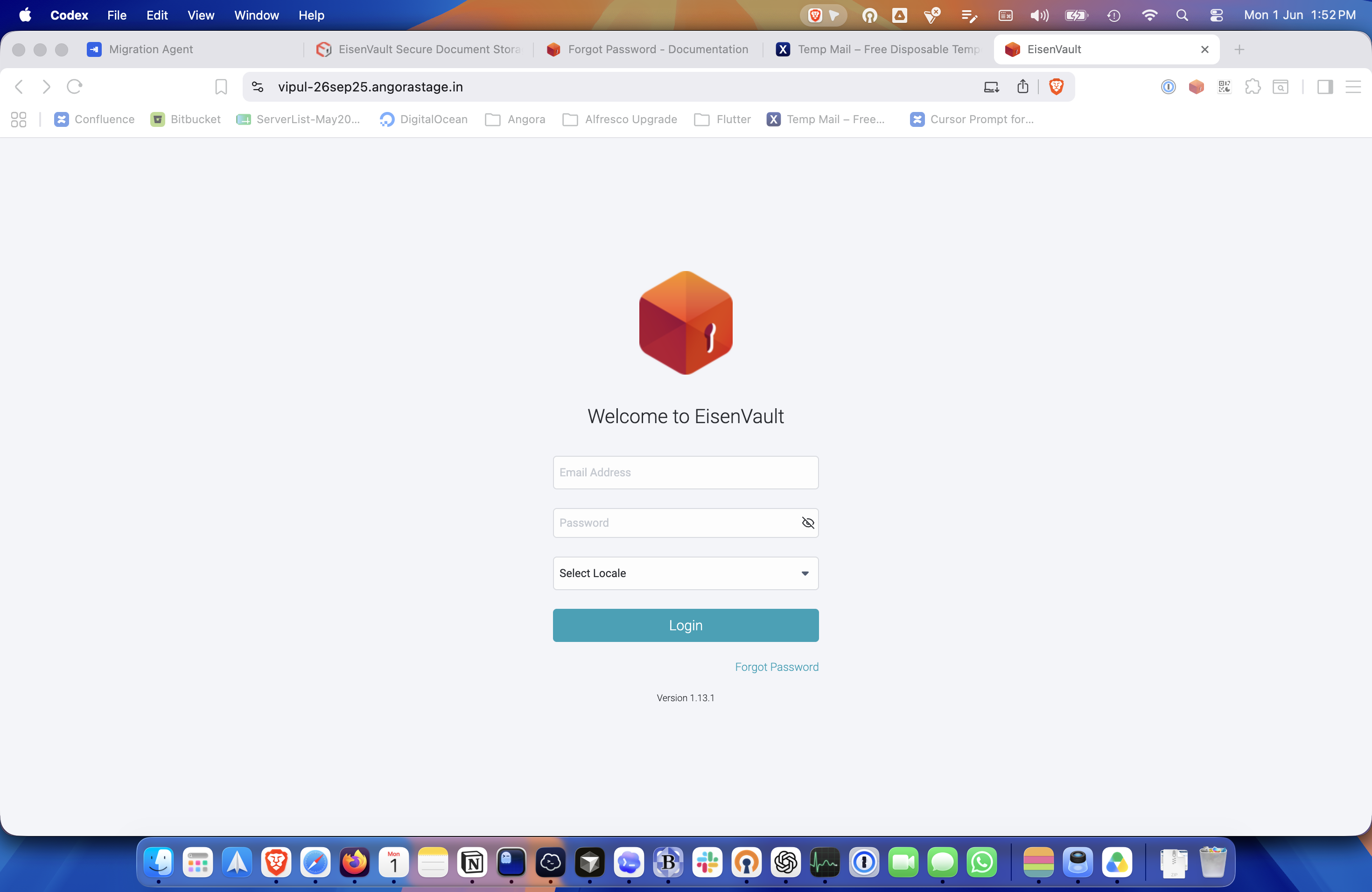
Start on the EisenVault One sign-in page. The forgot-password form is available from here.
-
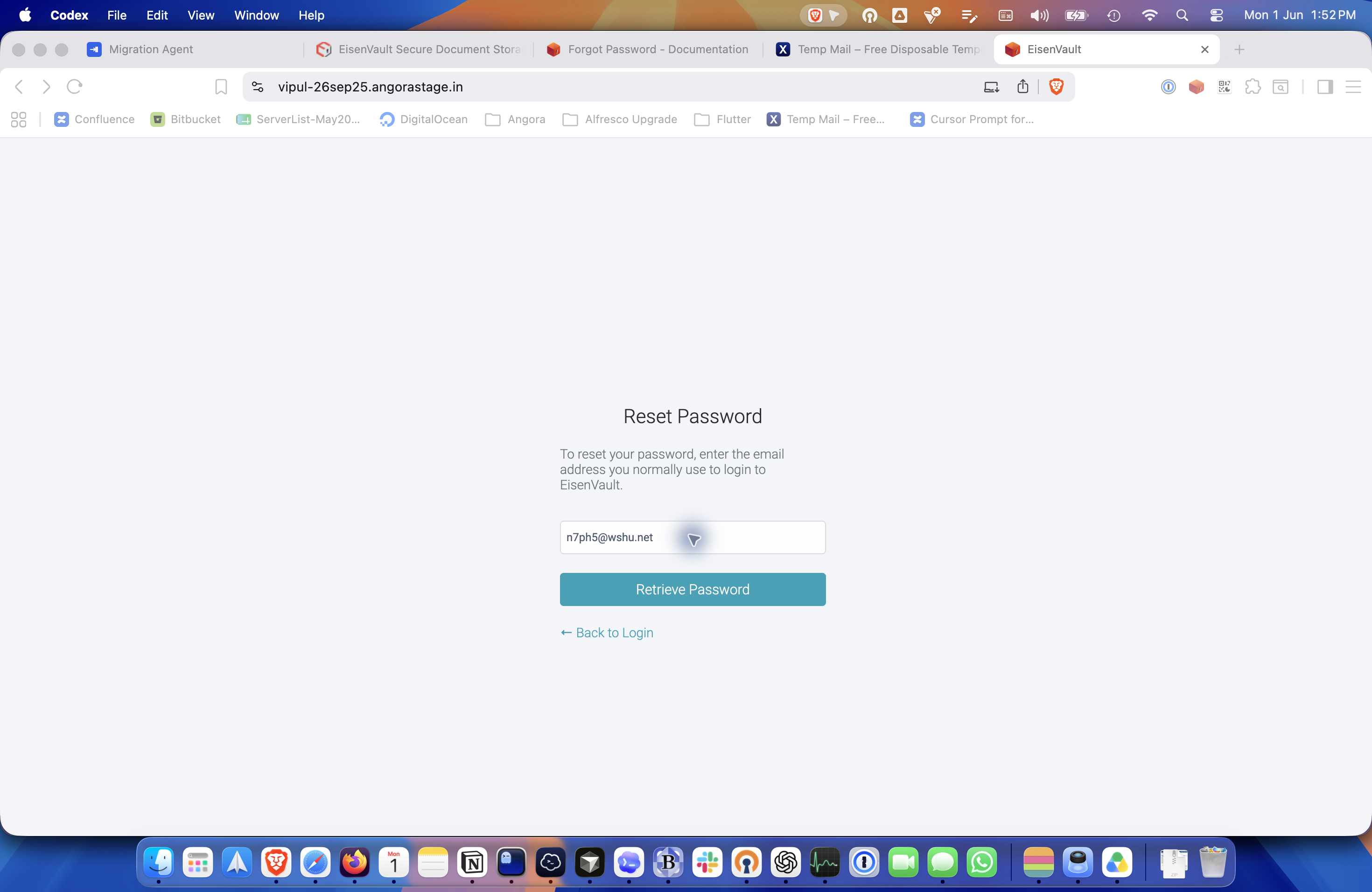
Enter the account email address and click Retrieve Password.
-
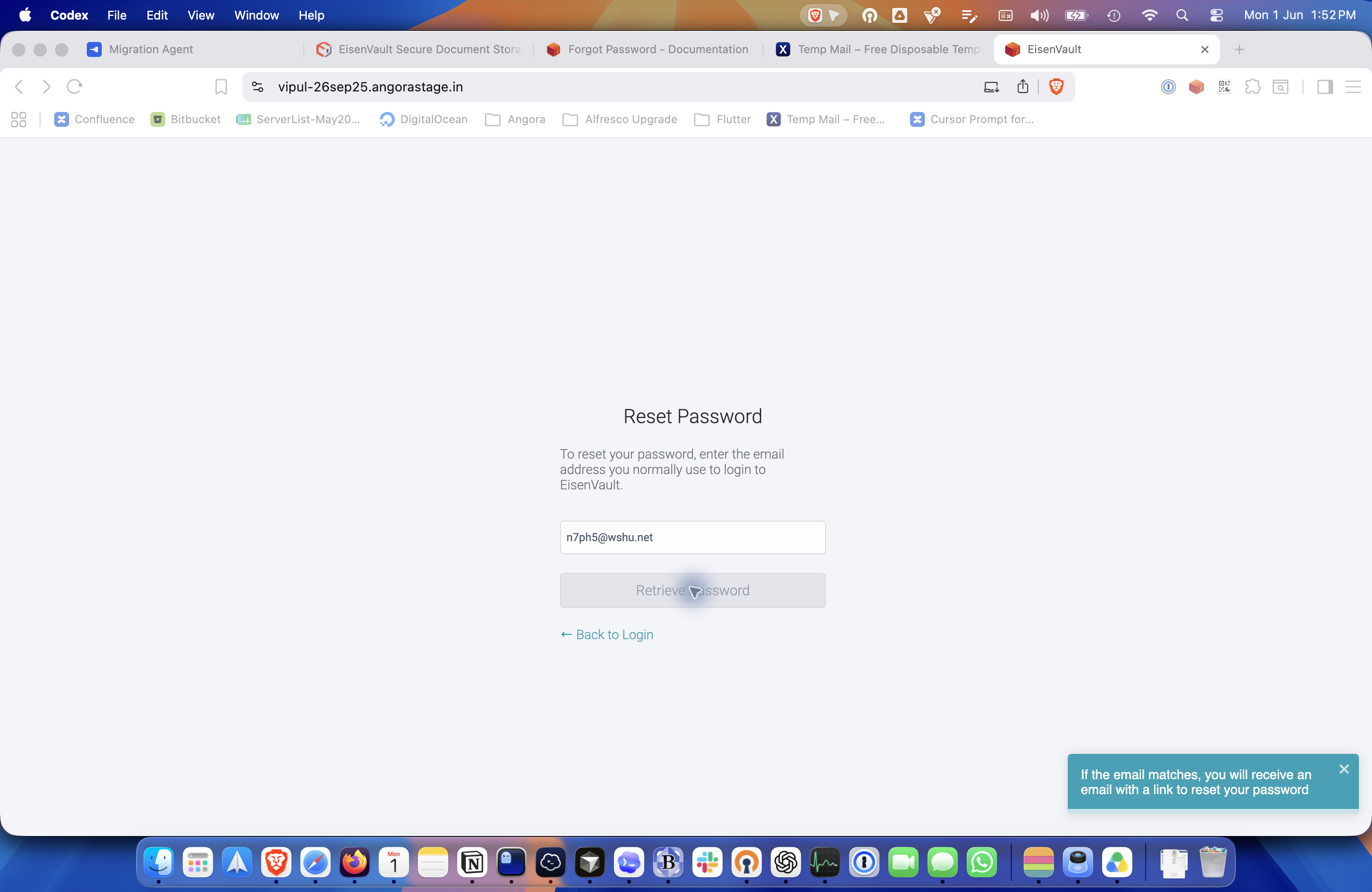
EisenVault One confirms that the reset email has been sent.
-
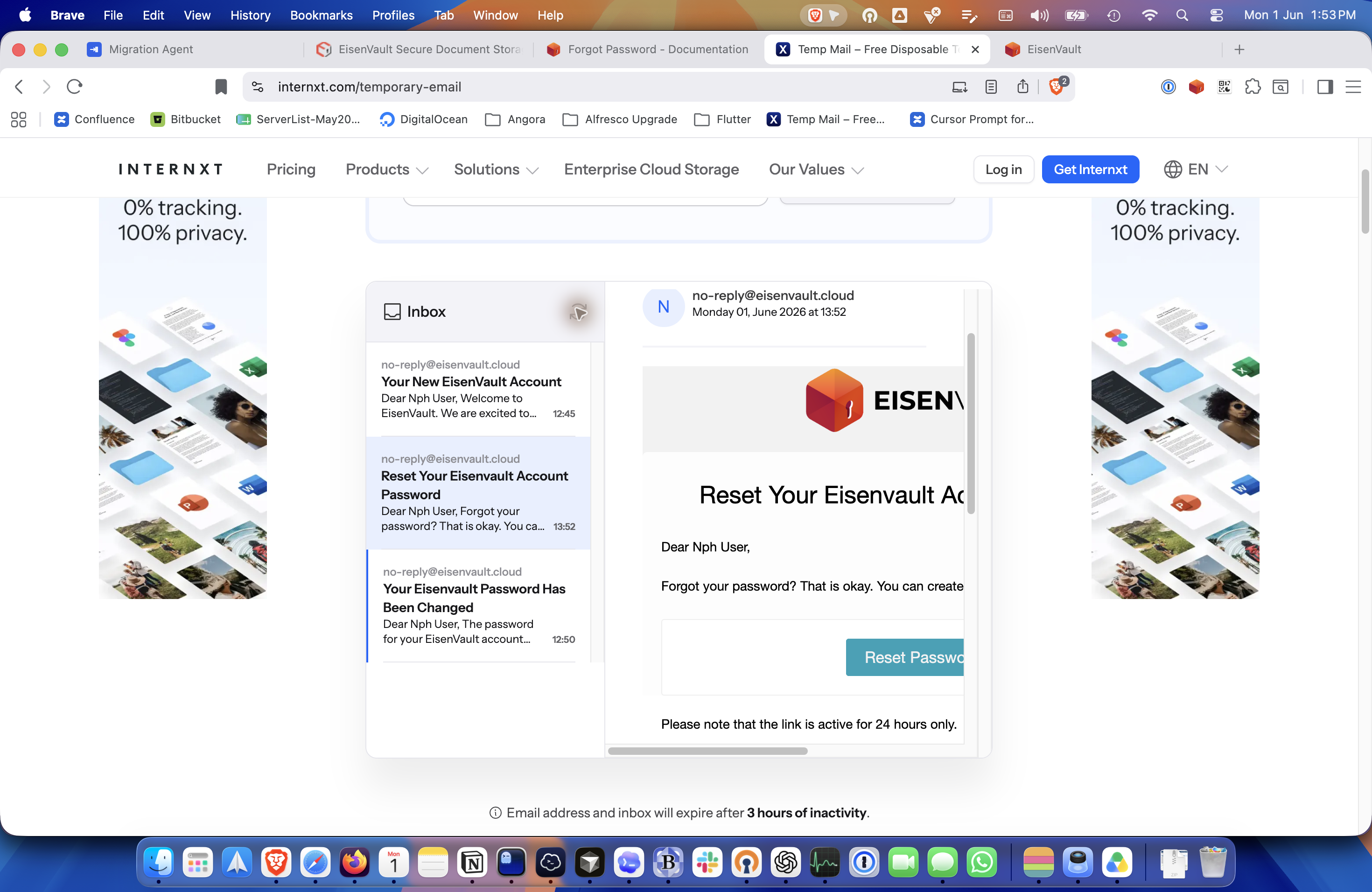
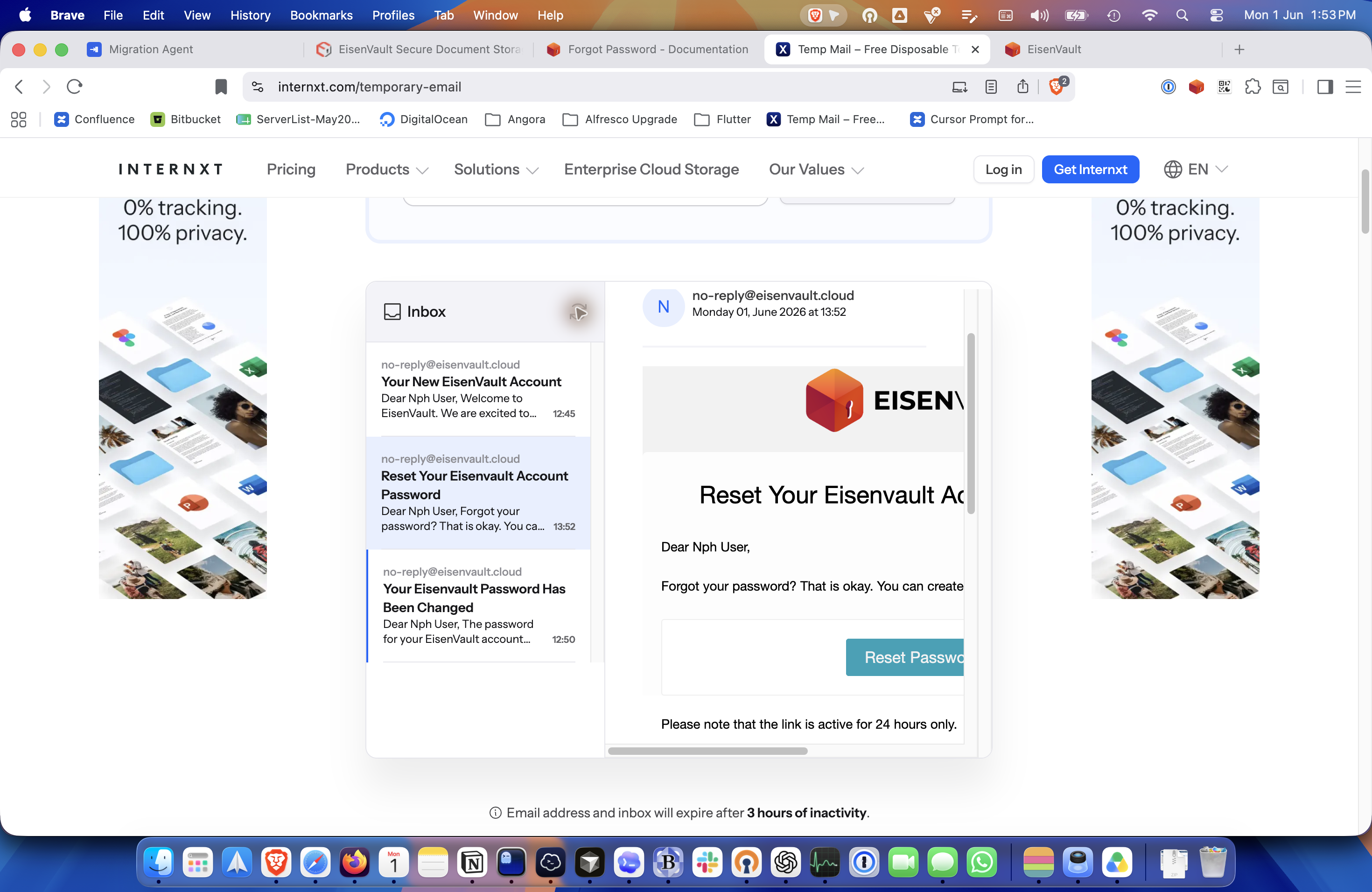
Open the inbox and wait for the message with the subject Reset Your EisenVault One Account Password.
-
Open the email and click Reset Password.
-
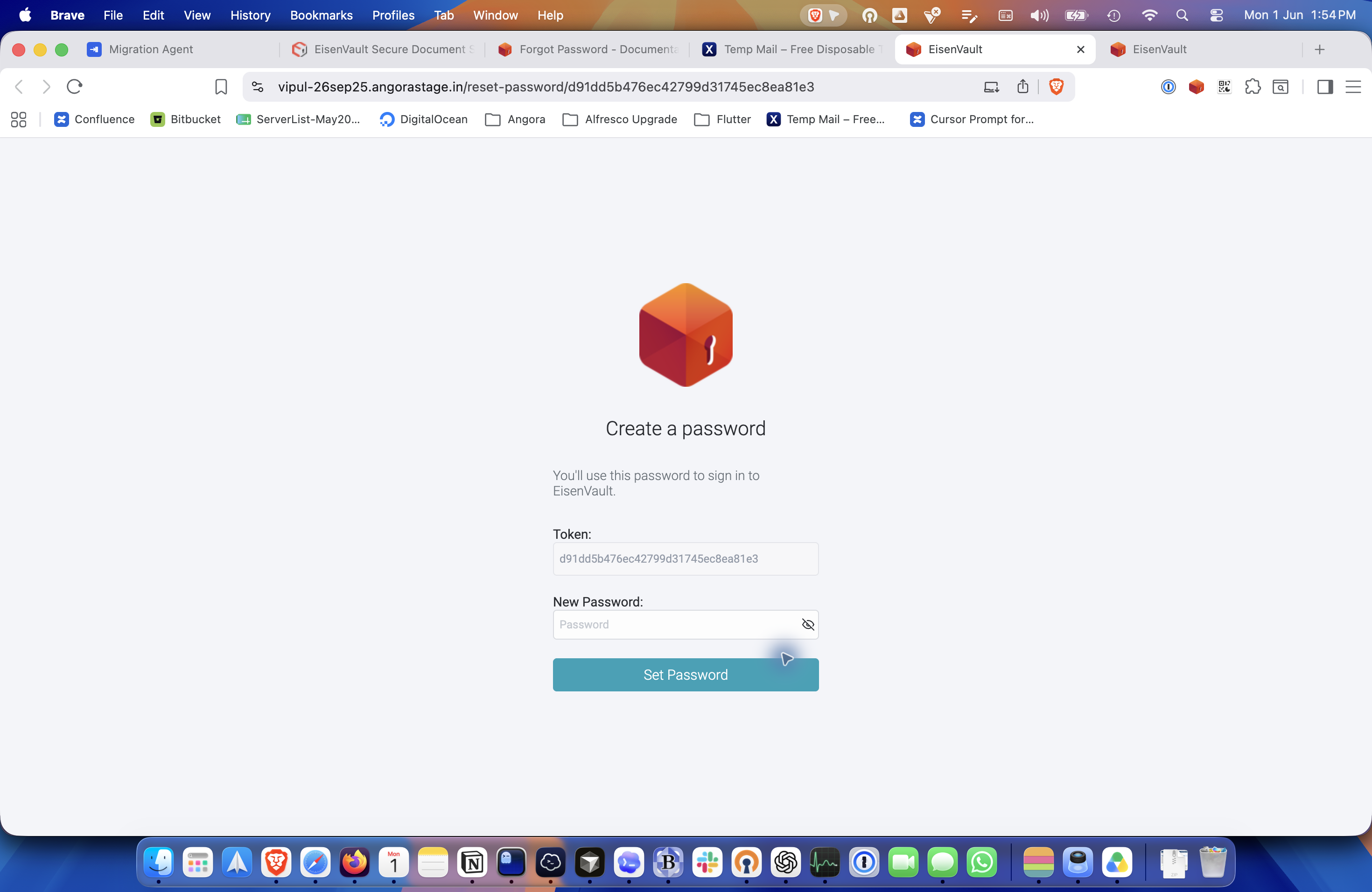
On the reset page, enter a new password and click Set Password. The new password must be different from the current one.
-
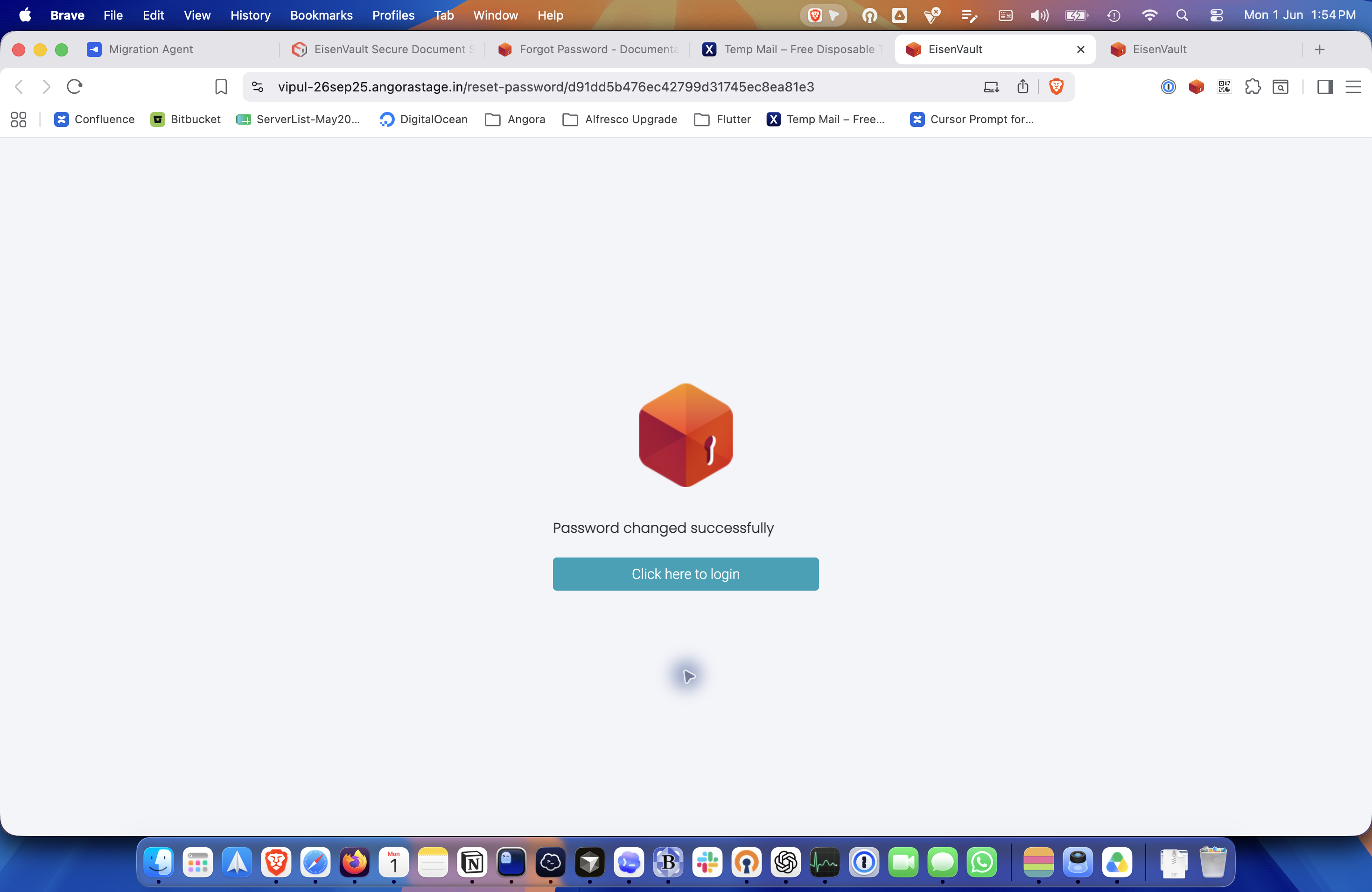
After the password is accepted, EisenVault One shows a confirmation message and lets you return to the login page.
Expected Result
- EisenVault One sends a reset email to the user's registered address.
- You can open the reset link and set a new password.
- After the reset is complete, you can sign in again with the new password.