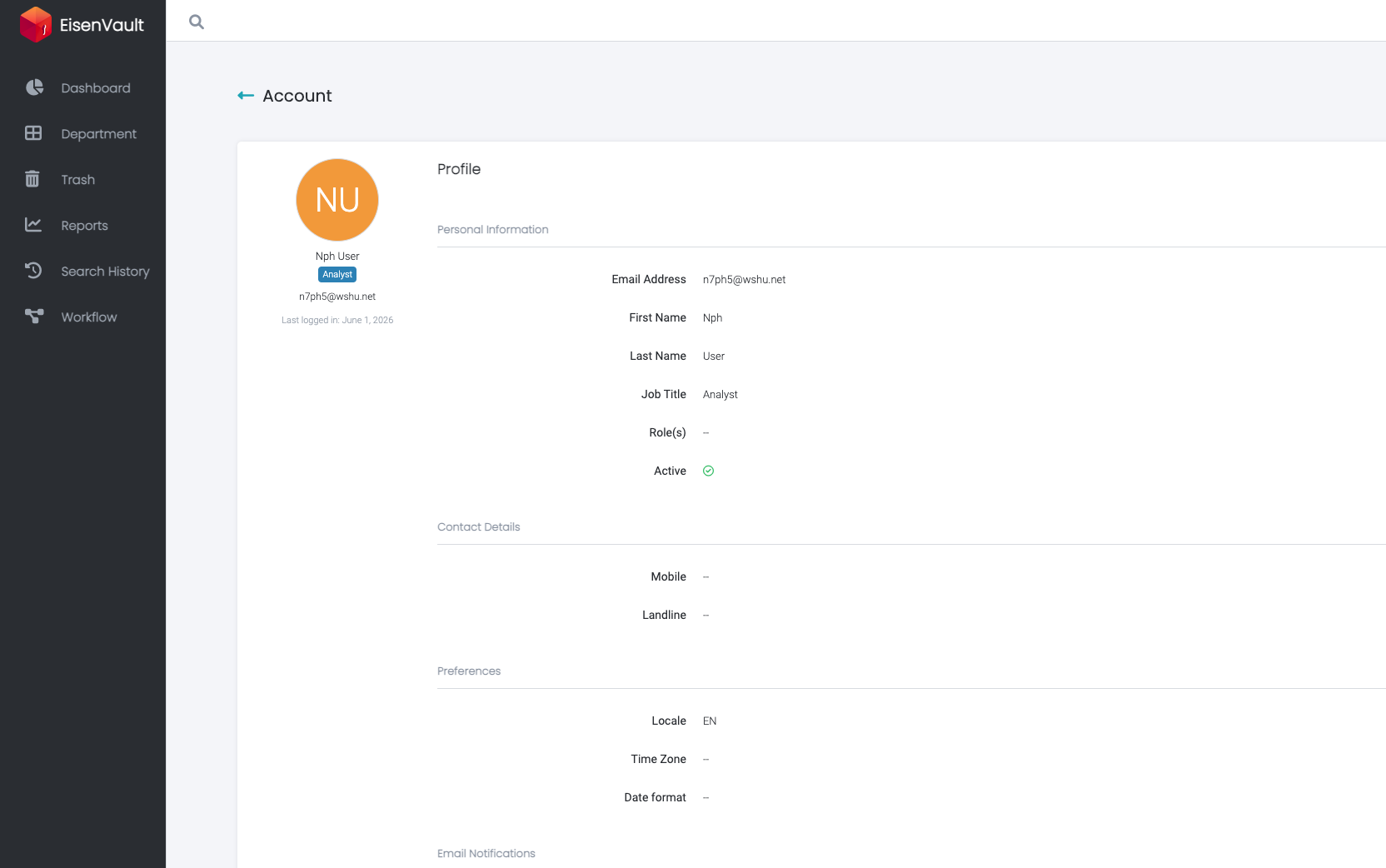
Profile & Preferences
Purpose
Profile and preferences settings let you manage your EisenVault One account details, regional settings, security options, and how the application looks while you are signed in.
What You Can Manage
- Personal profile — name, email, job title, contact numbers, and avatar
- Preferences — locale, time zone, and email notification switches
- Password — change your account password while signed in
- Two-factor authentication — add an extra verification step at login
- Theme — switch between light mode, dark mode, or match your browser
How Account Settings Work
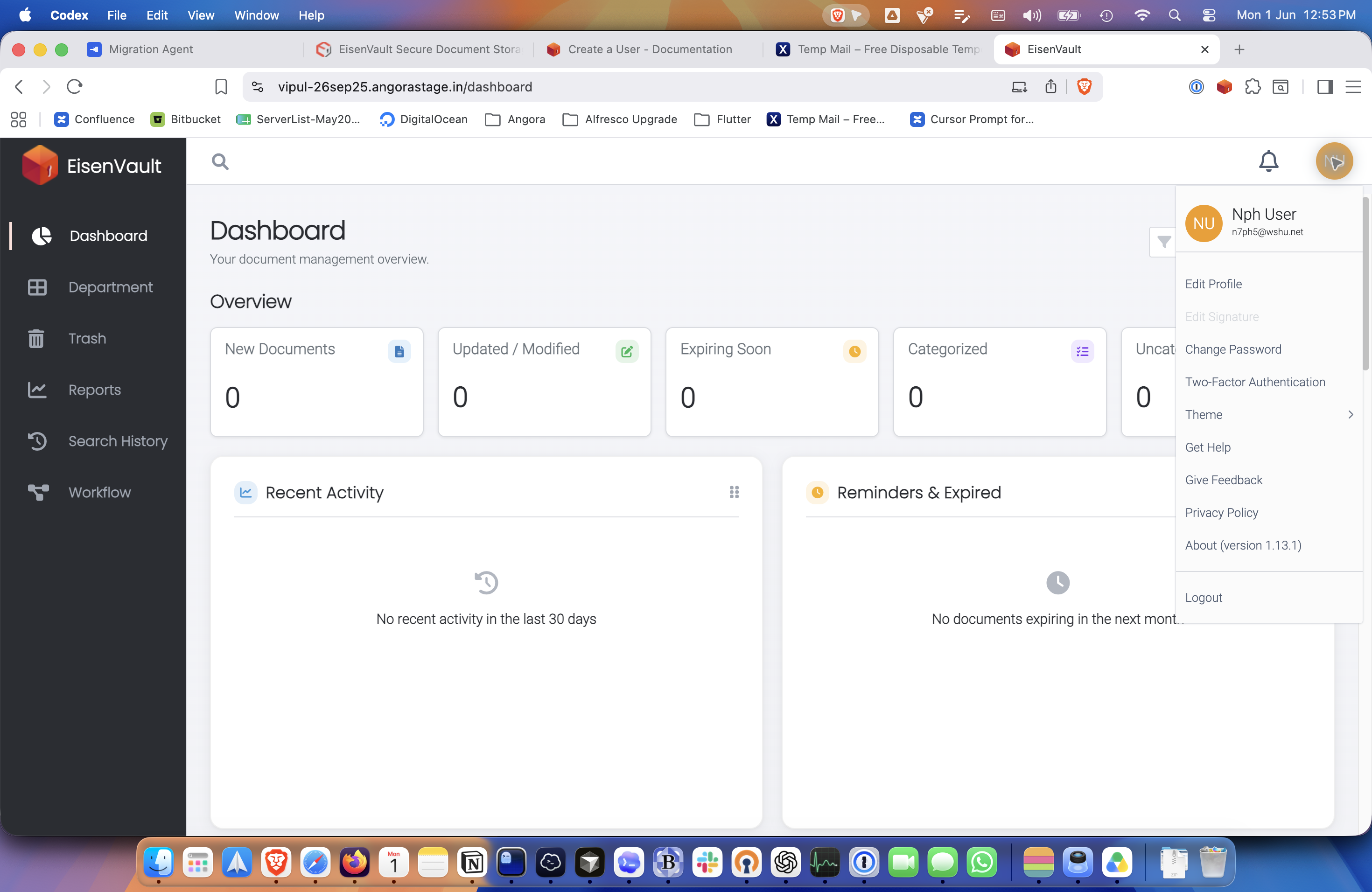
Most account actions start from the account menu in the top-right corner. Click your avatar to open it.
From the account menu you can go directly to Edit Profile, Change Password, Two-Factor Authentication, and Theme. Logout is also available here.
When you open Edit Profile, EisenVault One shows the account area with a sidebar on the left. Use that sidebar to move between:
- Profile — view or edit your personal information
- Preferences — update locale, time zone, and email notification settings
- Password — change your password
- Security — set up or manage two-factor authentication
Theme settings are only in the account menu. They are not on the account sidebar pages.
Some values appear on the read-only profile view, such as locale, time zone, and date format. Edit locale and time zone on the Preferences page. Date format is shown for reference but is not editable there.
Example Screens
The account menu is the starting point for profile, password, security, and theme settings.
After you choose Edit Profile, use the account sidebar to open profile, preferences, password, or security pages.