Edit Role
Purpose
Update a role's name, permission set, or lifecycle status.
Note: This action may require administrator privileges.
Prerequisites
- You are signed in as a user administrator or system administrator.
- You can open Admin Tools > Roles.
- The role already exists.
- You have permission to edit roles.
Before You Begin
System roles are usually protected. If a role is system-defined, EisenVault One may allow you to view the role but prevent name changes, permission changes, disabling, or deletion.
Changing a role affects users and groups that already have that role. Review assignments before removing permissions that people rely on.
Edit Permissions
- Open Admin Tools > Roles.
- Locate the role. If the action column is not visible, scroll the table horizontally.
- Click Edit.
- Use Quick Filter to find permissions by keyword if needed.
- Select or clear permissions.
- Click Save Permissions.
Enable, Disable, or Delete a Role
- Open Admin Tools > Roles.
- Locate the custom role. If the action column is not visible, scroll the table horizontally.
- Use Disable, Enable, or Delete in the rightmost column where available.
- If the action is blocked, open Role Associations from the error message and remove the role from its assignments first.
Example Walkthrough
-
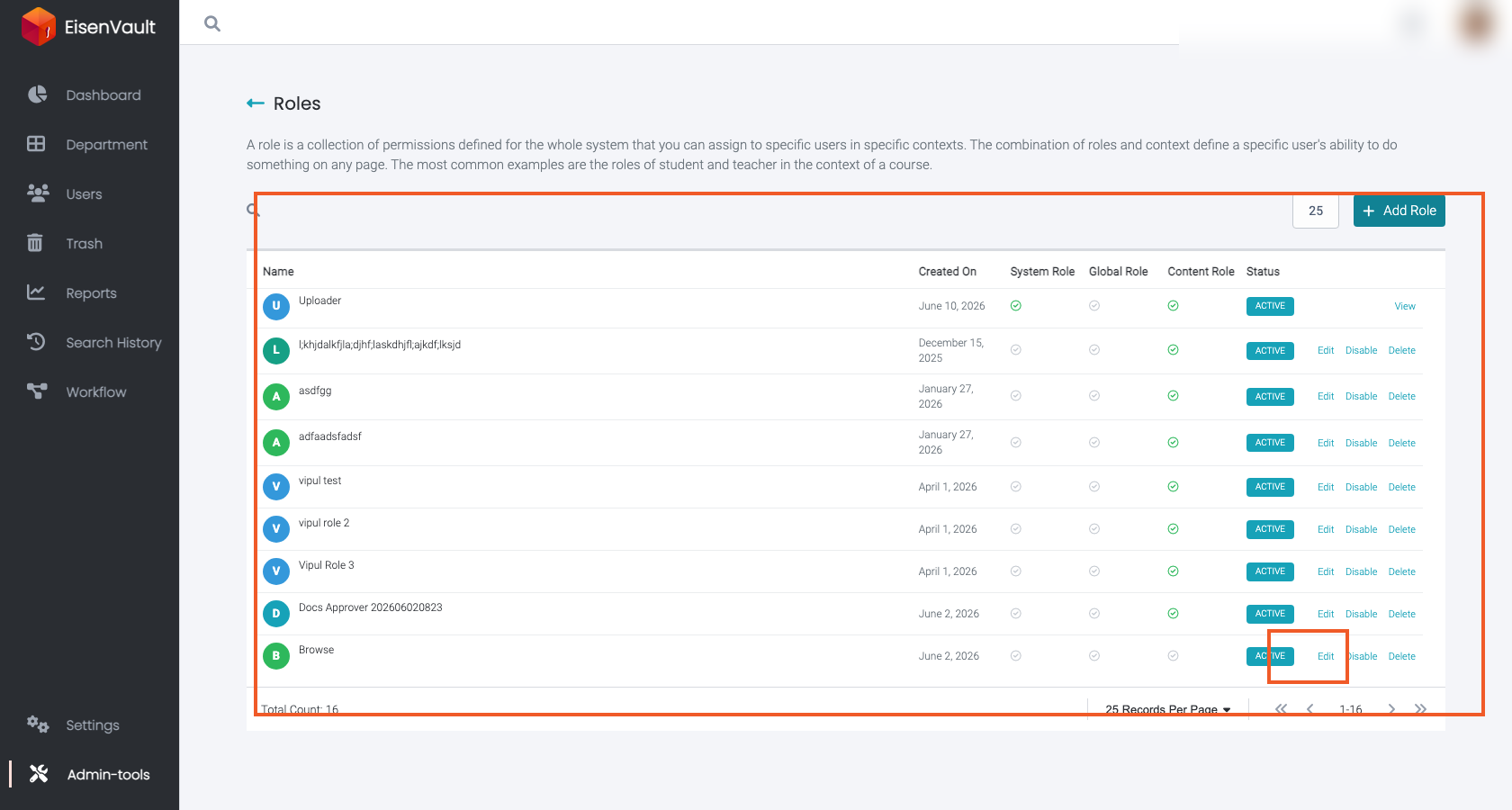
The roles list shows role type, status, and row actions. Use Edit in the rightmost column for custom roles.
-
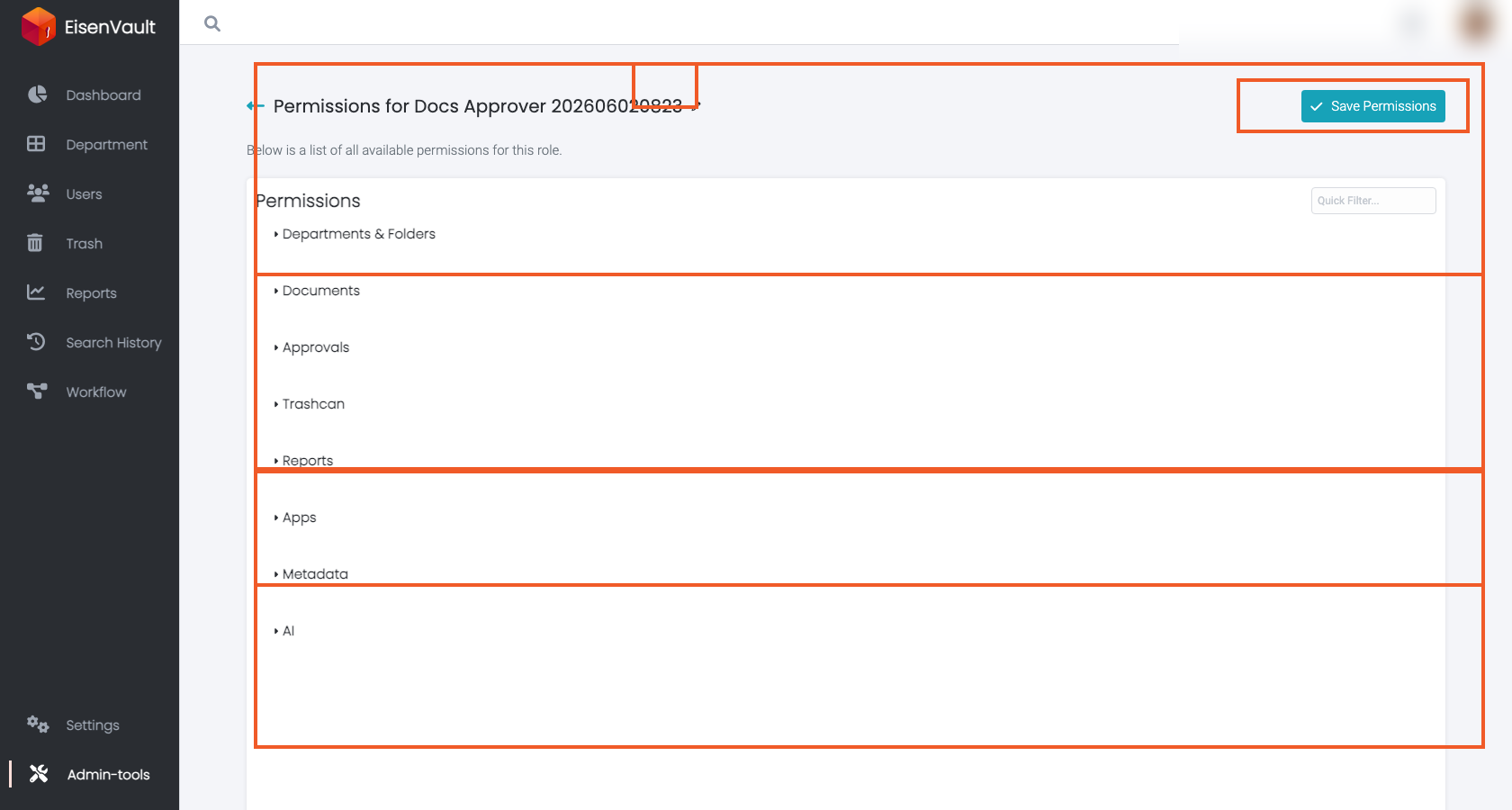
Open a role to edit its permissions, then save the selected permission set.
-
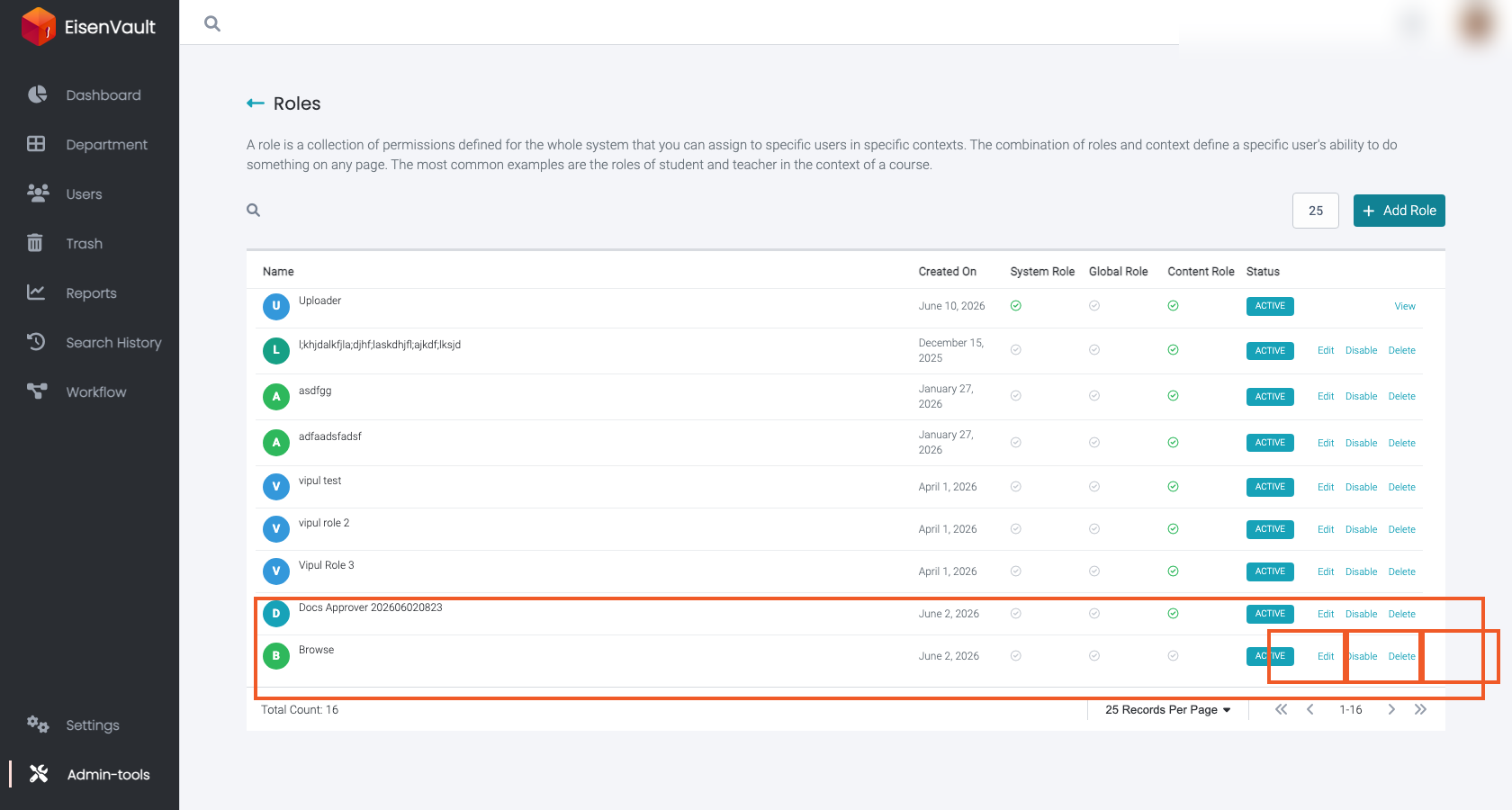
Use Disable or Delete in the row actions when you need to retire a custom role.
Expected Result
- Permission changes apply to users or groups assigned to the role.
- Disabled roles are retained but may no longer be usable for new assignments.
- Deleted roles are removed after associations are cleared.