Managing Email Alert Preferences
Purpose
Turn email notification types on or off for your EisenVault One account.
Prerequisites
- You are signed in to EisenVault One.
- You can open your account Preferences page.
Before You Begin
Email preferences are managed on the Preferences page, not from the bell icon menu.
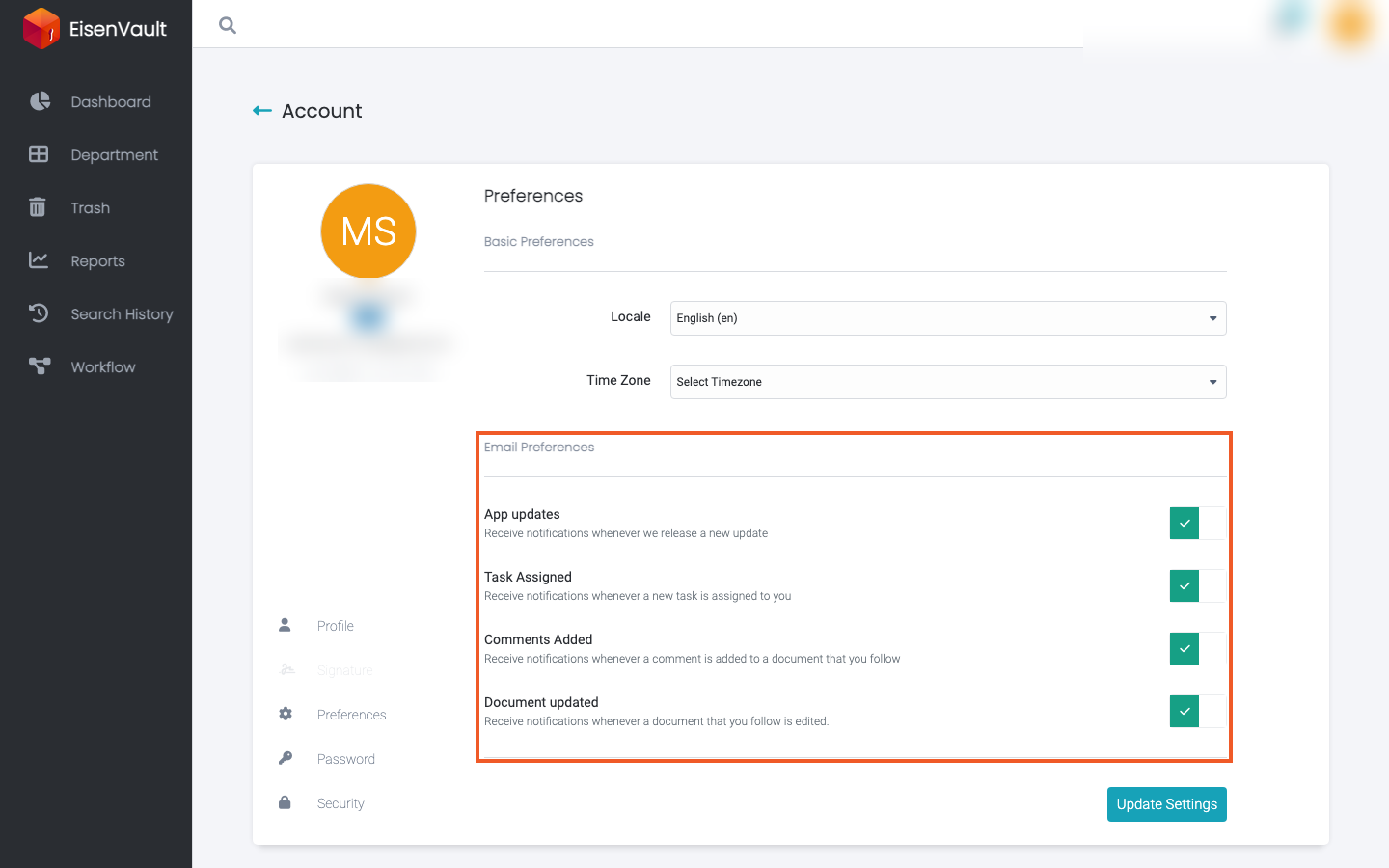
Each switch controls one email notification type:
- App updates
- Task Assigned
- Comments Added
- Workflow due-soon reminders (email)
- Workflow overdue reminders (email)
- Document updated
Changes apply to your account only. They do not change email settings for other users or organization-wide delivery options configured by administrators.
After saving, your main profile view shows Subscribed or Unsubscribed for each email notification type.
Update Email Alert Preferences
- Click your account avatar in the top-right corner.
- Click Edit Profile.
- In the account sidebar, click Preferences.
- In Email Preferences, turn each switch on or off.
- Click Update Settings.
- Confirm EisenVault One shows an Updated confirmation.
Example Walkthrough
-
Open Email Preferences on the Preferences page.
-
Turn off Document updated if you want to stop email when followed documents change.
-
Click Update Settings and confirm the save message appears.
Expected Result
- Your selected switches are saved to your account.
- EisenVault One shows an Updated confirmation after a successful save.
- The read-only profile view reflects your new Subscribed or Unsubscribed status for each type.