Security - 2FA Setup
Purpose
Enable two-factor authentication (2FA) for your EisenVault One account so that login requires both your password and a time-based verification code from an authenticator app.
Prerequisites
- You are signed in to EisenVault One.
- You can open your account settings.
- You have an authenticator app available on your phone, such as Google Authenticator.
Before You Begin
The 2FA setup flow is available from your account's Security page. EisenVault One displays a QR code that must be scanned into your authenticator app. After scanning, you must enter a current 6-digit code to activate 2FA.
Enable Two-Factor Authentication
- Open your account menu.
- Go to Two-Factor Authentication from the account options.
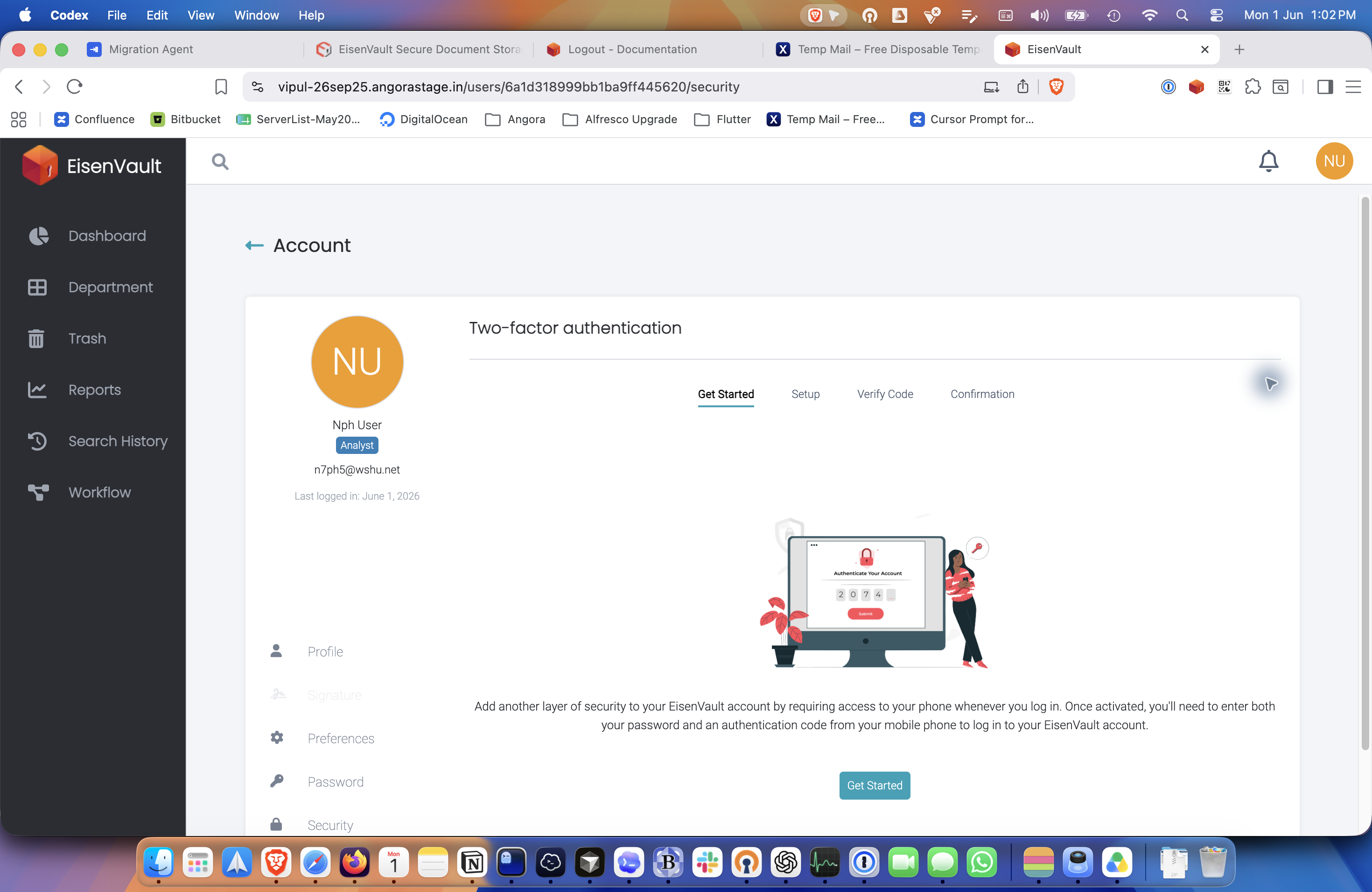
- On the Security page, click Get Started.
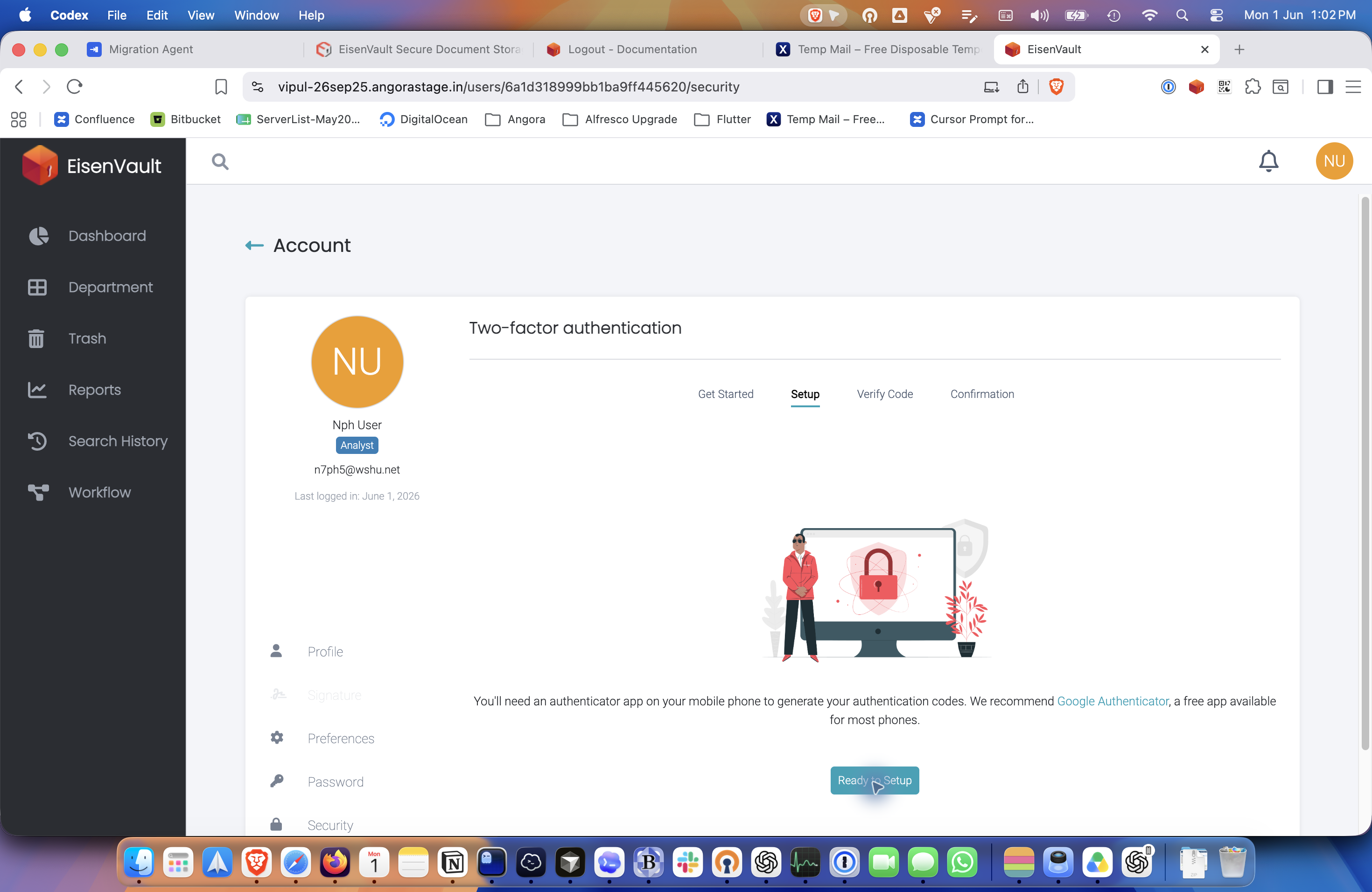
- Review the setup step, then click Ready to Setup.
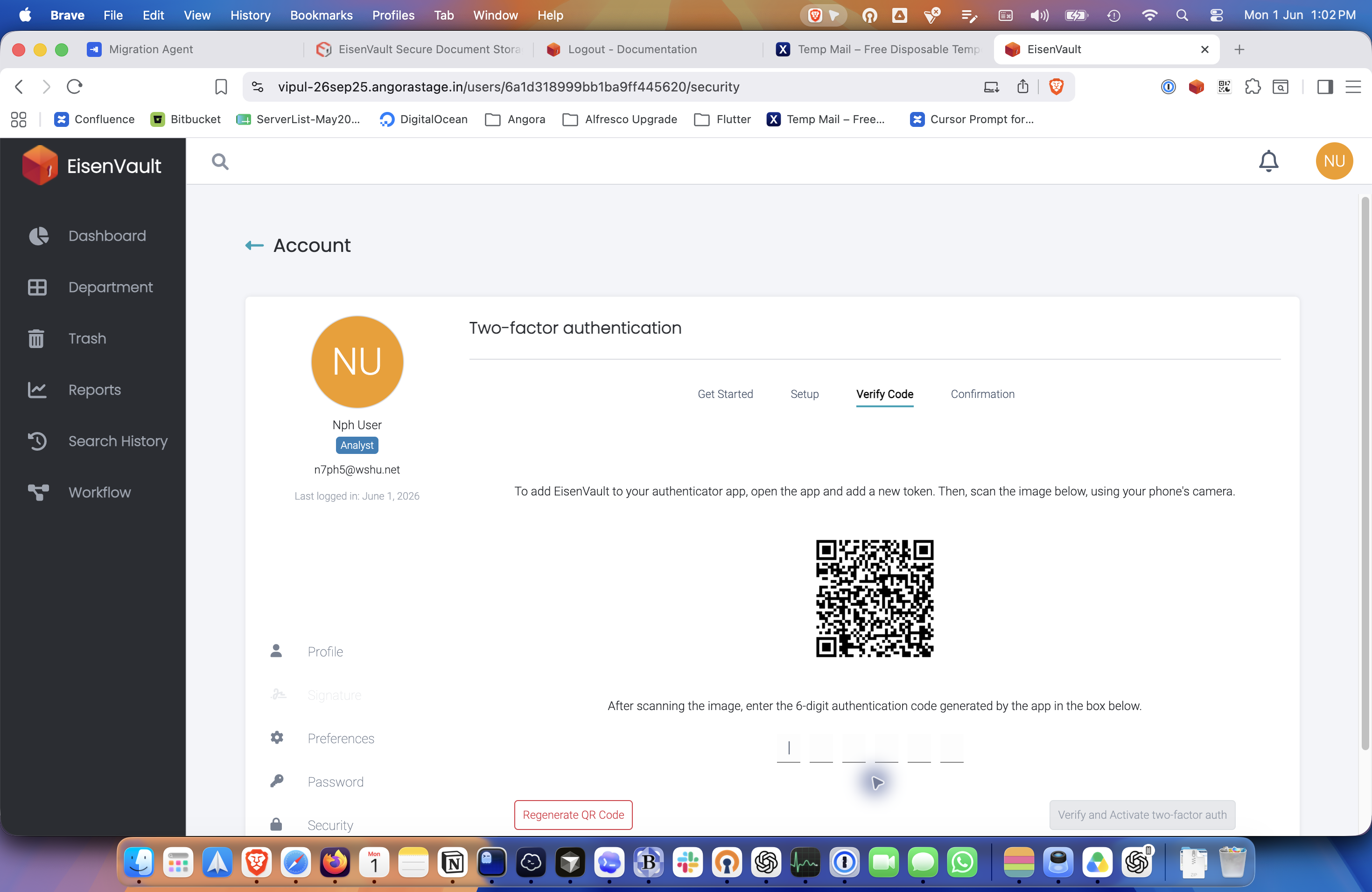
- Scan the QR code with your authenticator app.
- Enter the current 6-digit code generated by the app into the six verification boxes.
- Click Verify and Activate two-factor auth.
- Wait for EisenVault One to confirm that 2FA has been enabled.
- Copy or record the backup authentication codes and store them in a safe place.
Example Walkthrough
The screenshots below show a real 2FA setup for the user n7ph5@wshu.net.
-
Open the account security page and start the 2FA wizard.
-
Move to the setup step, where EisenVault One explains that an authenticator app is required.
-
Open the verification step and scan the QR code shown by EisenVault One.
-
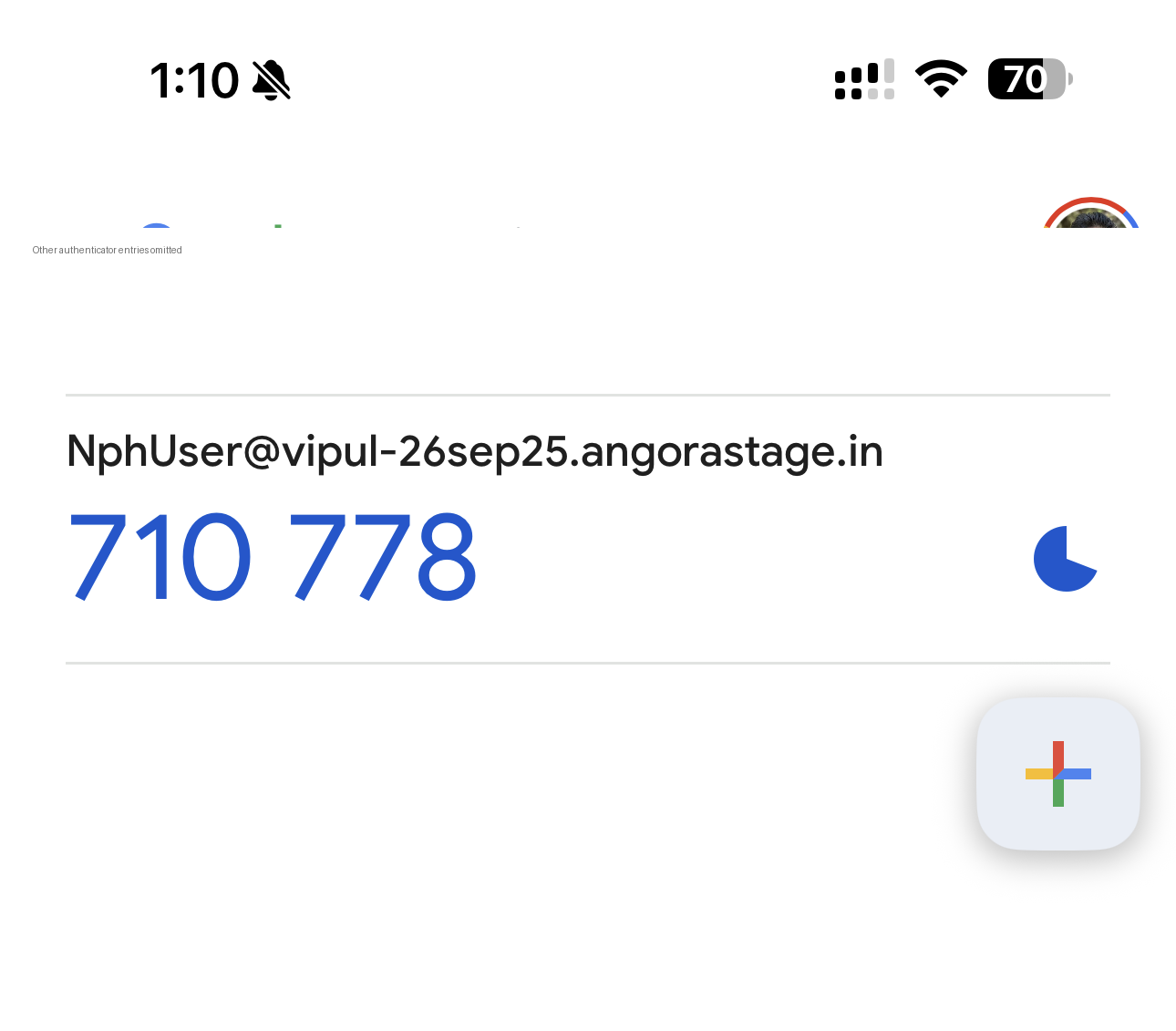
After scanning, confirm that the EisenVault One token appears in your authenticator app. In this example, unrelated entries were omitted from the phone screenshot.
-
Return to the EisenVault One verification screen, enter the current 6-digit code from your authenticator app, and click Verify and Activate two-factor auth.
In the live setup this is the step where the code shown by the app is typed into the six boxes below the QR code. The button remains disabled until all six digits are entered.
-
After activation, EisenVault One shows backup authentication codes. Save these securely before leaving the page.
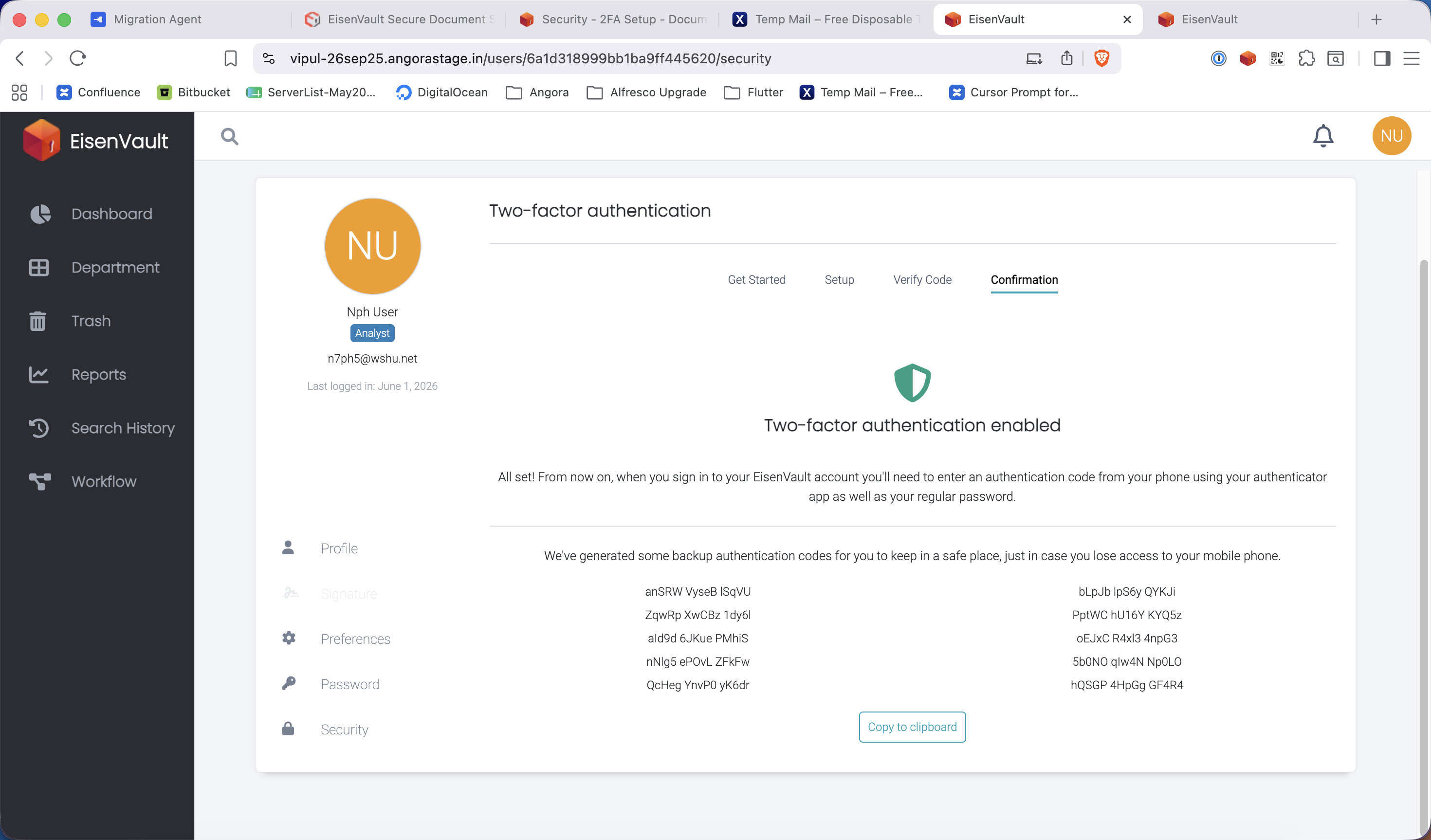
These backup codes can be used if you lose access to your phone or authenticator app. Store them somewhere protected, such as a password manager or another secure location that only you can access.
Expected Result
- Your authenticator app contains a new EisenVault One token.
- EisenVault One accepts the current 6-digit code and enables 2FA for your account.
- Backup authentication codes are displayed and saved securely for recovery use.
- Future sign-ins require both your password and a verification code.