Edit Role Permissions
Purpose
Update which permissions a role grants.
Note: This action may require administrator privileges.
Prerequisites
- You are signed in as an administrator.
- You can open Admin Tools > Roles.
- The role already exists.
Before You Begin
System roles may be read-only
System-defined roles may not allow editing of permissions or name changes. If the UI disables editing, the role is likely a system role.
Global permissions vs content permissions
Permissions are categorized as global or content permissions. Roles are usually created to match one of these categories, and the permissions available on the role’s permission screen may be filtered accordingly.
Edit Permissions
- Open Admin Tools > Roles.
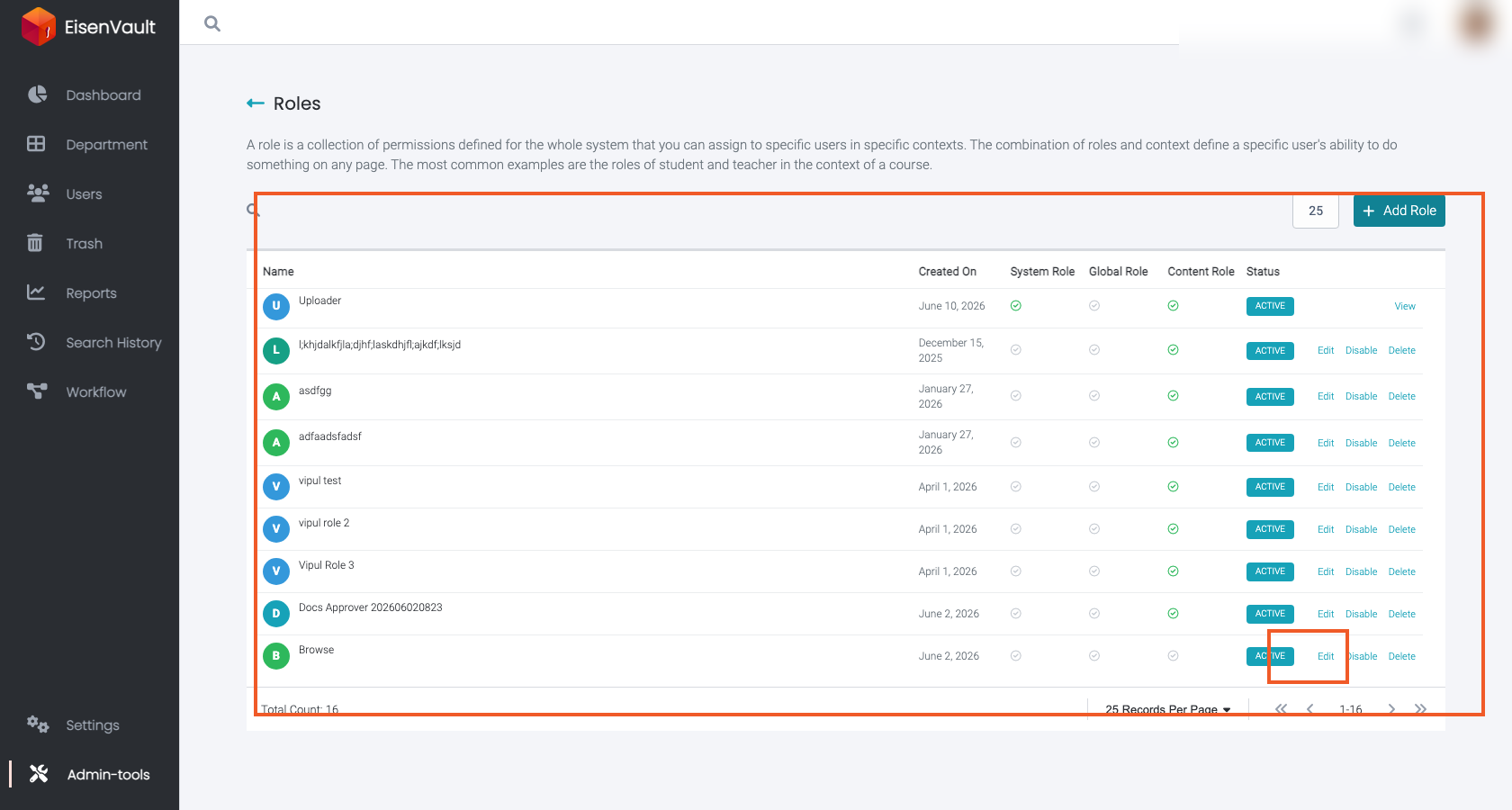
- Locate the role in the list. If the action column is not visible, scroll the table horizontally.
- Click Edit for the role you want to change.
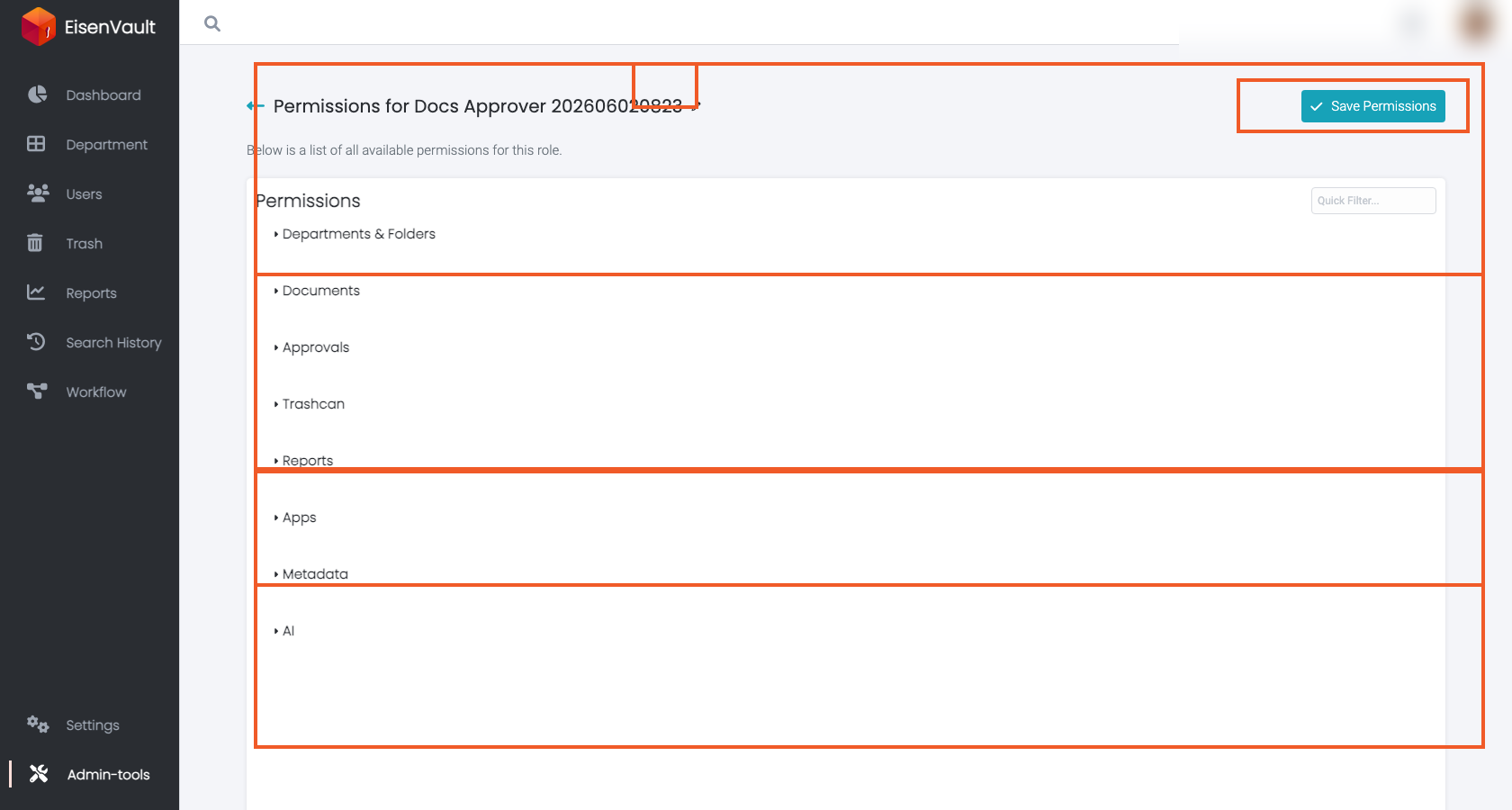
- Use the permission list to select or clear permissions.
- Use Quick Filter to find permissions by keyword.
- Use a section’s “select all” control where appropriate.
- Click Save Permissions.
Linked permissions
Some content permissions are linked so that users can always reach the files they are allowed to use:
- View Department, List Folder Content, and View Document are linked. Selecting or clearing one applies to all three.
- Selecting any Documents permission also selects those three.
- Clearing any of those three also clears the Documents permissions.
The permissions editor shows a note when a link applies.
The roles list below shows where you open a role for editing. The permissions editor shows the Save Permissions action and the permission categories you can expand.
Expected Result
- The role’s permission set is updated.
- Users or groups that are assigned the role gain/lose capabilities based on the updated permission set.