Update Metadata of Document
Purpose
Update a document's category and metadata fields. A document can have only one category at a time, and the selected category controls which metadata fields are shown.
Prerequisites
- You are signed in to EisenVault One.
- You can open the document in preview.
- You have permission to edit document metadata.
Before You Begin
If no custom category is selected, the document uses Default Content Category. Choosing a custom category replaces the current category for the whole document.
Changing metadata can create a new document version when metadata versioning is enabled.
Update Document Metadata
- Navigate to the document and open it in preview.
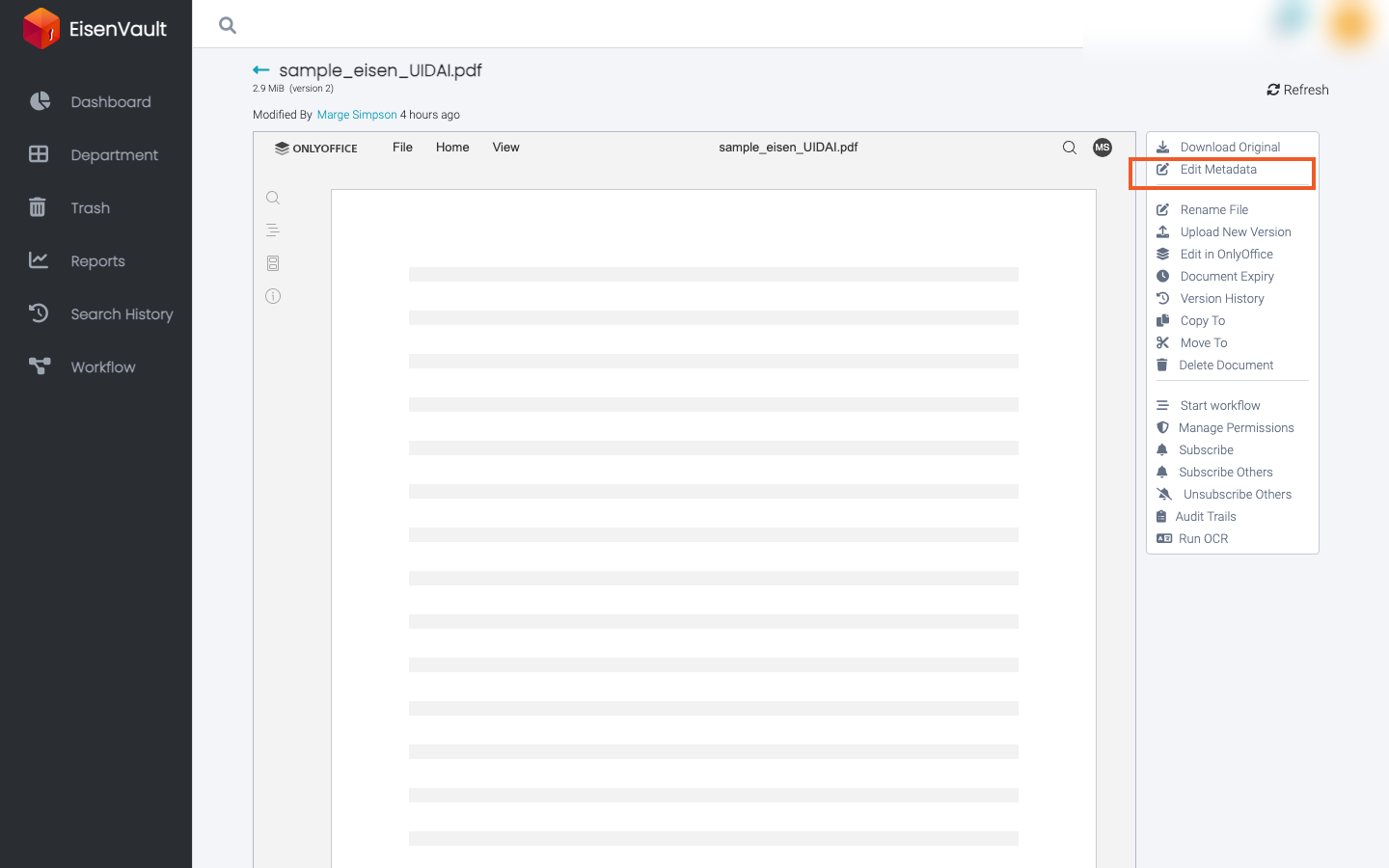
- In the Metadata panel on the right, click the pencil icon next to Metadata. The panel turns into a form, with Save and Cancel buttons at the top.
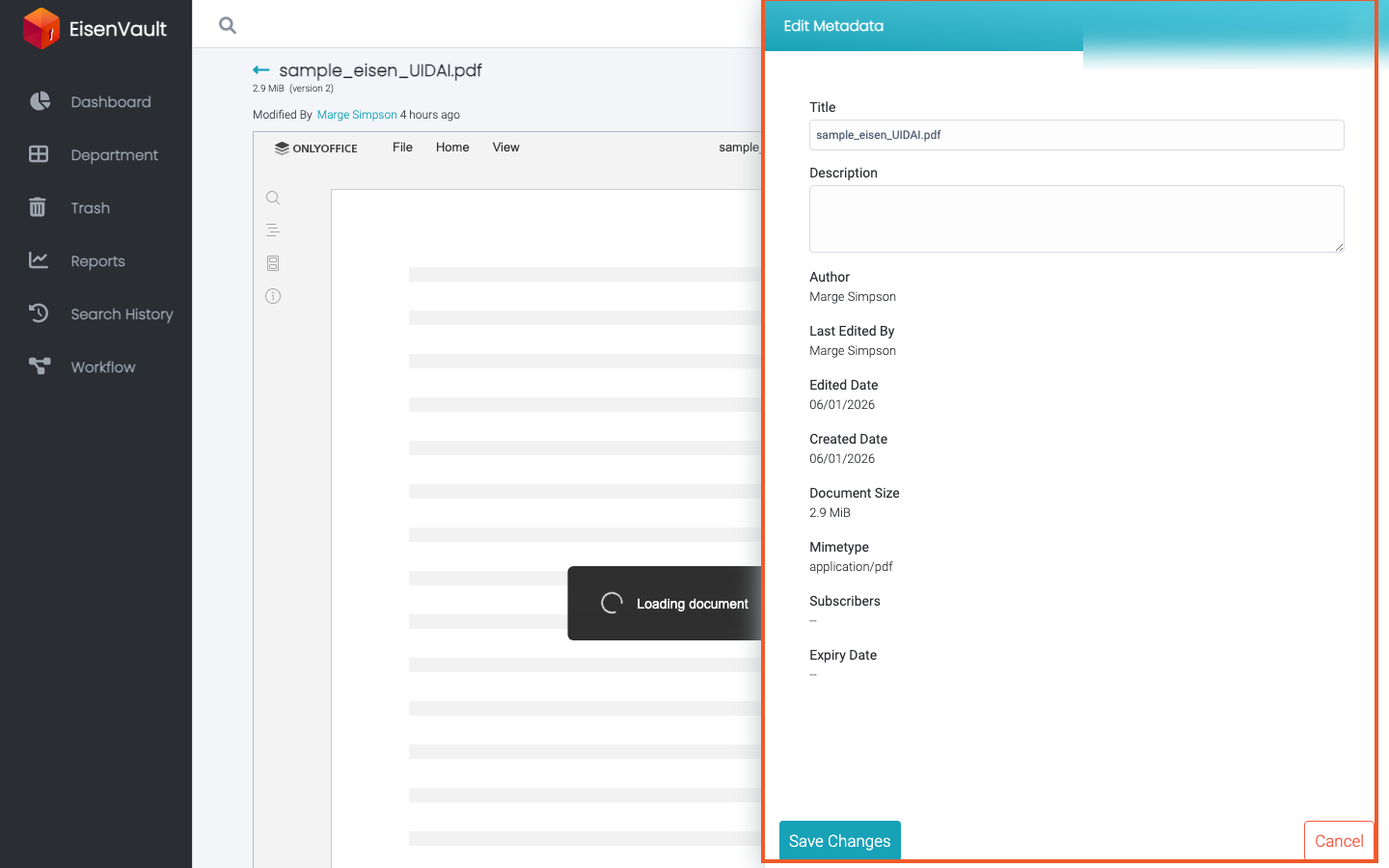
- Open Document Category and select the category.
- Fill in the metadata fields shown for that category. Expiry Date is editable here too.
- Click Save. Click Cancel to discard your changes.
Example Walkthrough
-
Open the document preview and click the pencil icon on the Metadata panel.
-
Select the category, fill the category-specific fields, and click Save.
Expected Result
- The document is assigned to the selected category.
- The metadata values are saved on the document.
- The document can appear in Categorized dashboard views when the selected date range includes the category or metadata update.
- Audit trails and version history may show the metadata change, depending on system settings.