Delete Folder
Purpose
Delete a folder and remove it from the active Explorer view.
Prerequisites
- You are signed in to EisenVault One.
- You can open the department or parent folder that contains the folder.
- You have permission to delete the folder.
Before You Begin
Deleting a folder can also remove the files and subfolders inside it from the active Explorer view. Review the folder contents before confirming the deletion.
Depending on your deployment, deleted folders may move to trash and remain recoverable for a limited time.
Delete a Folder
- Click Department in the left navigation and select a department.
- Navigate to the department or parent folder that contains the folder.
- Open the folder's options menu.
- Click Delete.
- Review the confirmation message, including any warning about child content.
- Confirm the deletion.
Example Walkthrough
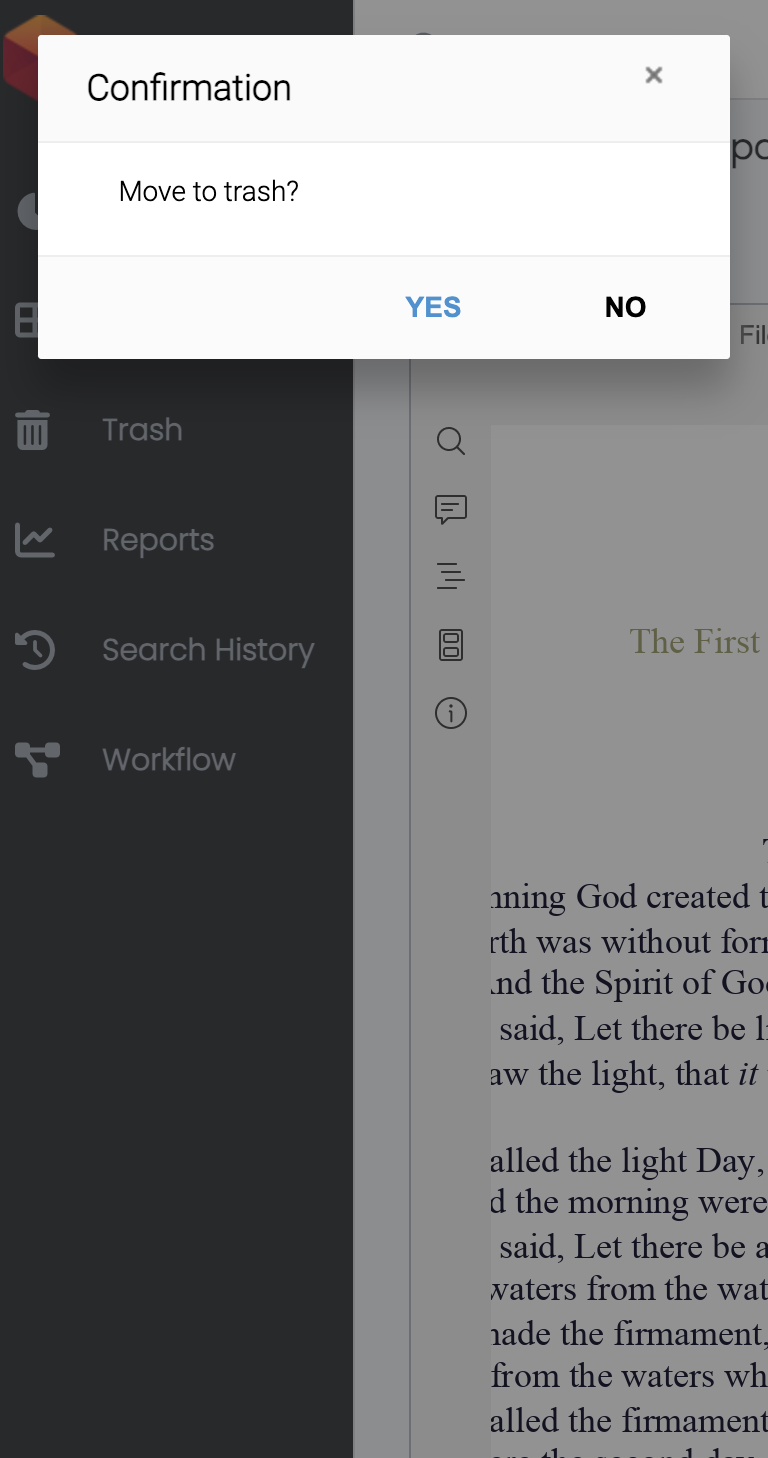
The screenshots below show the delete confirmation dialog used for folders and documents.
-
Open the folder's options menu and click Delete Folder.
-
Review the confirmation message, then click Yes to move the folder to trash.
Expected Result
- The folder is removed from the active folder list.
- Files and subfolders inside the folder are no longer available from the previous location.
- If trash is enabled, the folder may be recoverable until it is permanently removed.