Assign Role
Purpose
Assign roles to users or groups so they receive the correct administrative or content-level permissions.
Note: This action may require administrator privileges.
Prerequisites
- You are signed in as a user administrator or system administrator.
- The role already exists.
- You understand whether the role is a Global Role or a Content Role.
Before You Begin
Role assignment depends on role type:
- Assign Global Roles on a user's profile. These roles grant system-level capabilities such as user administration.
- Assign Content Roles on a department, folder, or document's permissions screen. These roles grant access in that content location.
Do not assign an administrator role unless the user needs the administrative capabilities it grants.
Assign a Global Role to a User
- Open Users from the left navigation.
- Find the user.
- Click the pencil icon on the user's card.
- In the Profile form, use Roles to select the global role.
- Confirm the role tag appears below the selector.
- Click Update Profile.
Example Walkthrough
Demonstration screenshots use redacted names from a staging tenant.
-
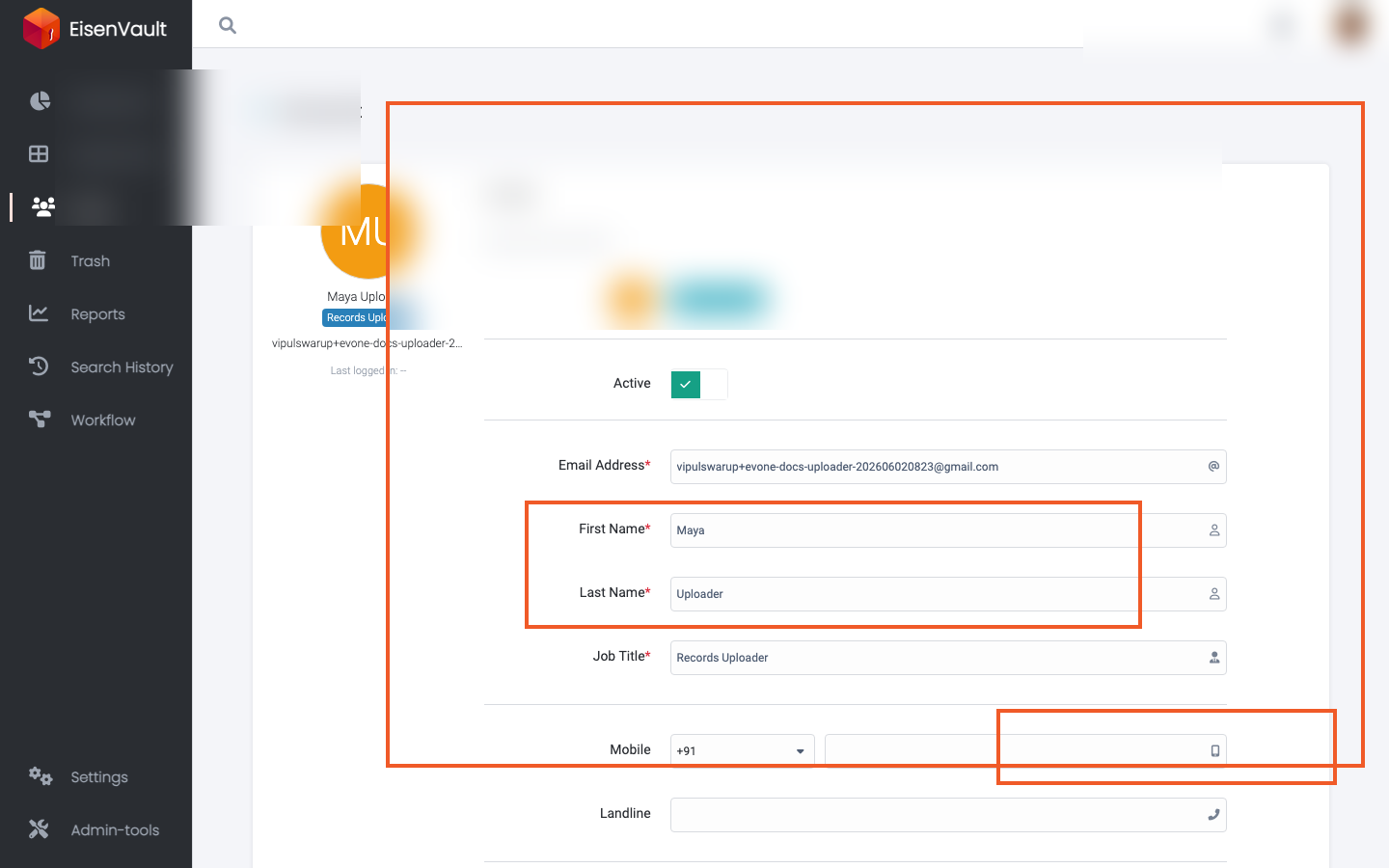
Open the user's Edit Profile form and assign a global role in the Roles field.
-
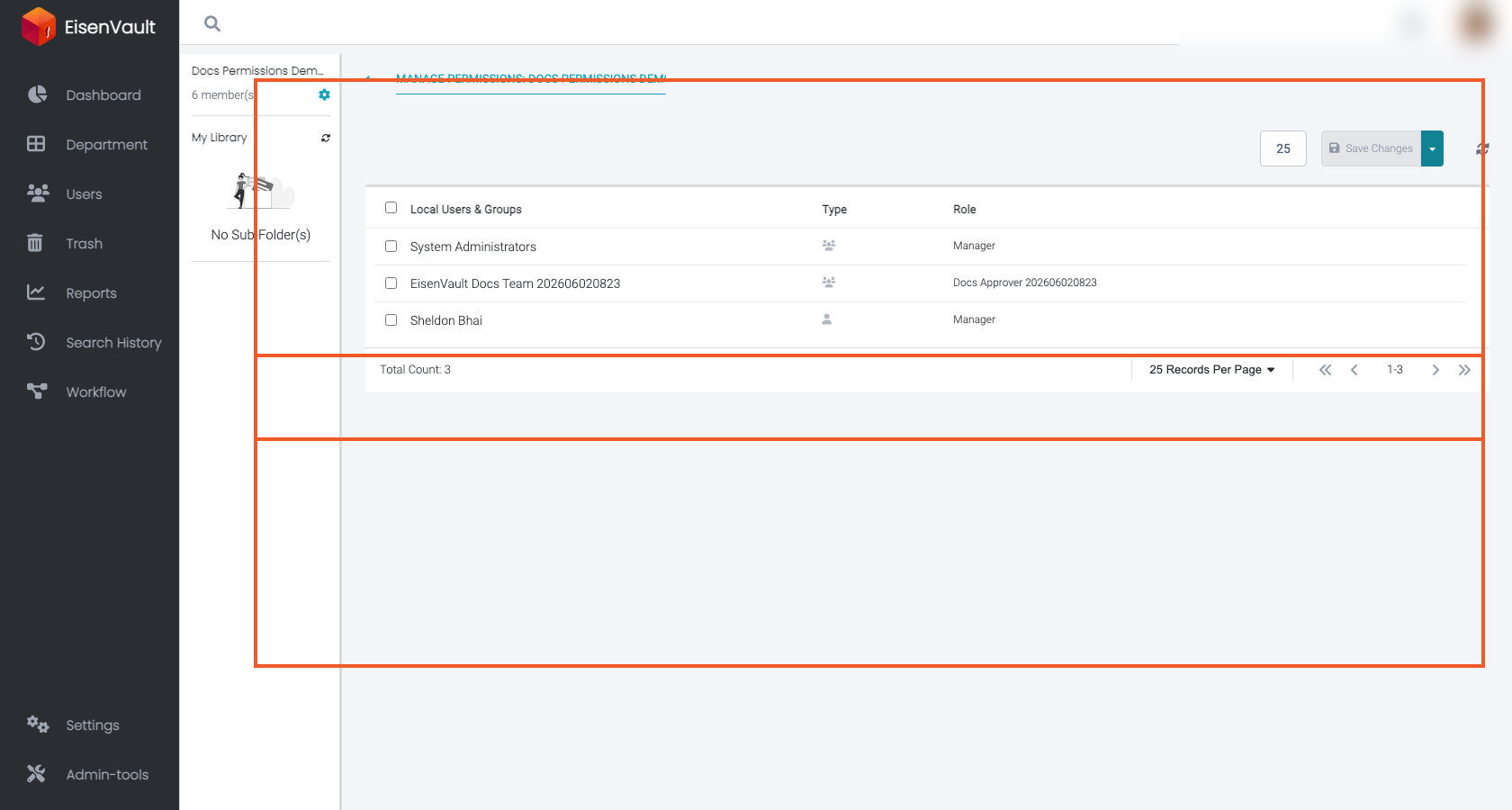
To assign a content role, open Manage Permissions on the target department, folder, or document.
Assign a Content Role to a User or Group
- Open the target department, folder, or document.
- Open Manage Permissions.
- Add a local user or local group.
- Select the content role for that user or group.
- Save the permission changes.
Expected Result
- Global roles appear on the user's profile and grant system-level permissions.
- Content roles appear on the selected content item's permissions screen and grant access in that context.
- Effective permissions combine with any other roles the user receives directly or through groups.