Change Password
Purpose
Change your EisenVault One account password while you are signed in.
Prerequisites
- You are signed in to EisenVault One.
- You know your current password.
Before You Begin
You can change your password from the top-right account menu or from the Password page in the account sidebar.
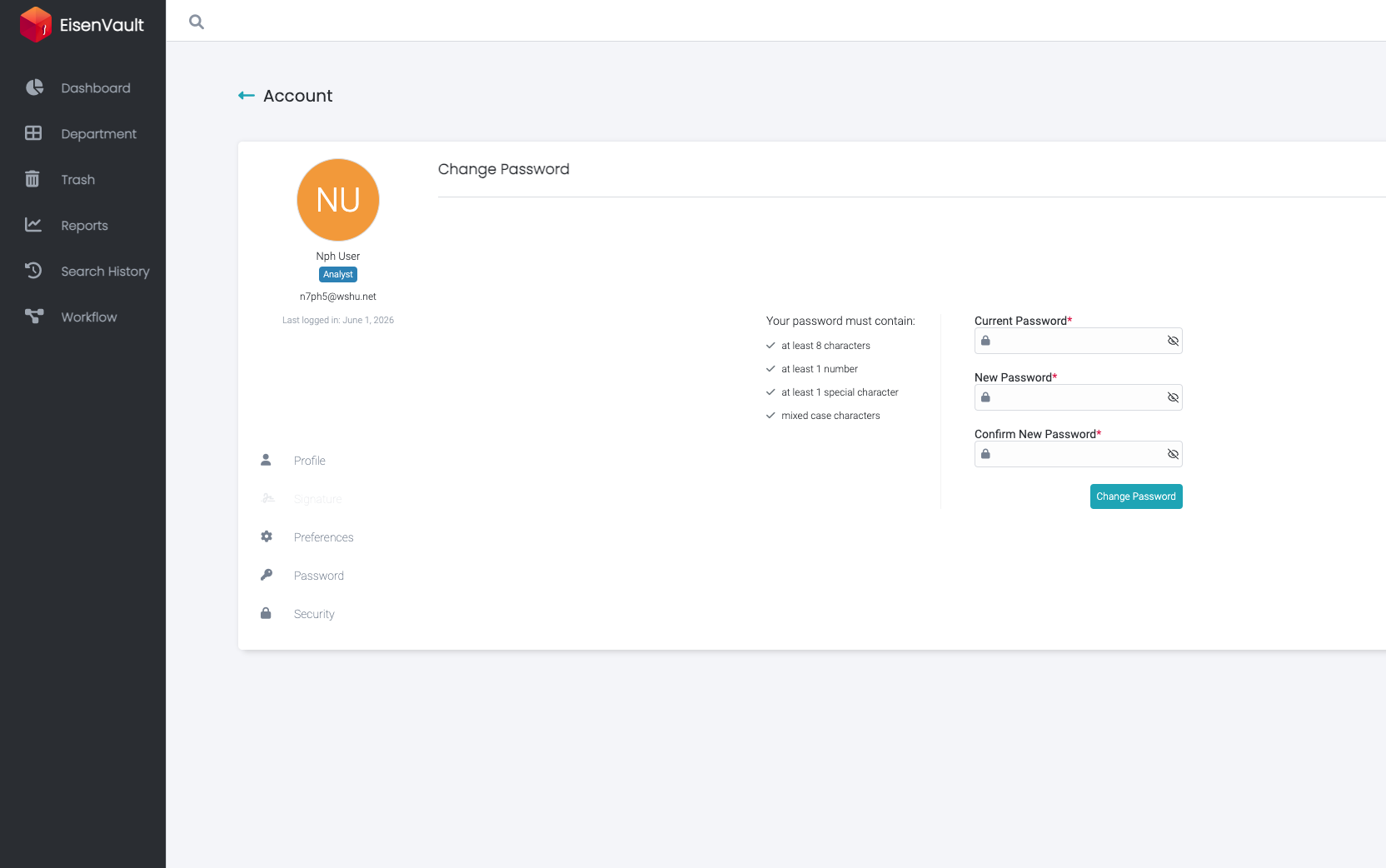
When you change your own password, EisenVault One asks for your Current Password, New Password, and Confirm New Password. A checklist on the left shows whether your new password meets the required rules:
- At least 8 characters
- At least 1 number
- At least 1 special character
- Mixed case characters
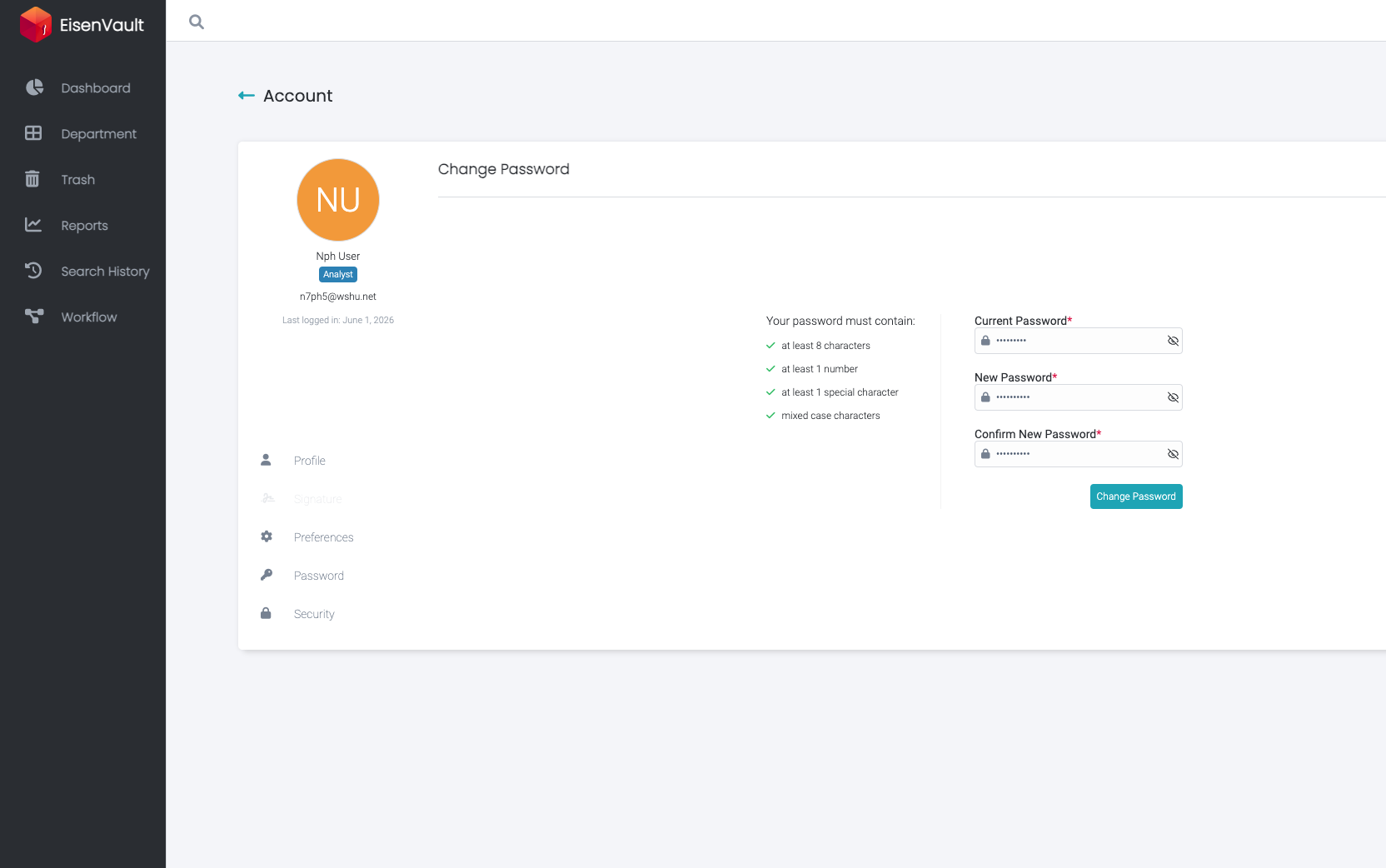
Each rule turns green as your new password satisfies it. Administrators who reset another user's password from the account area do not need to enter the current password.
Change Your Password
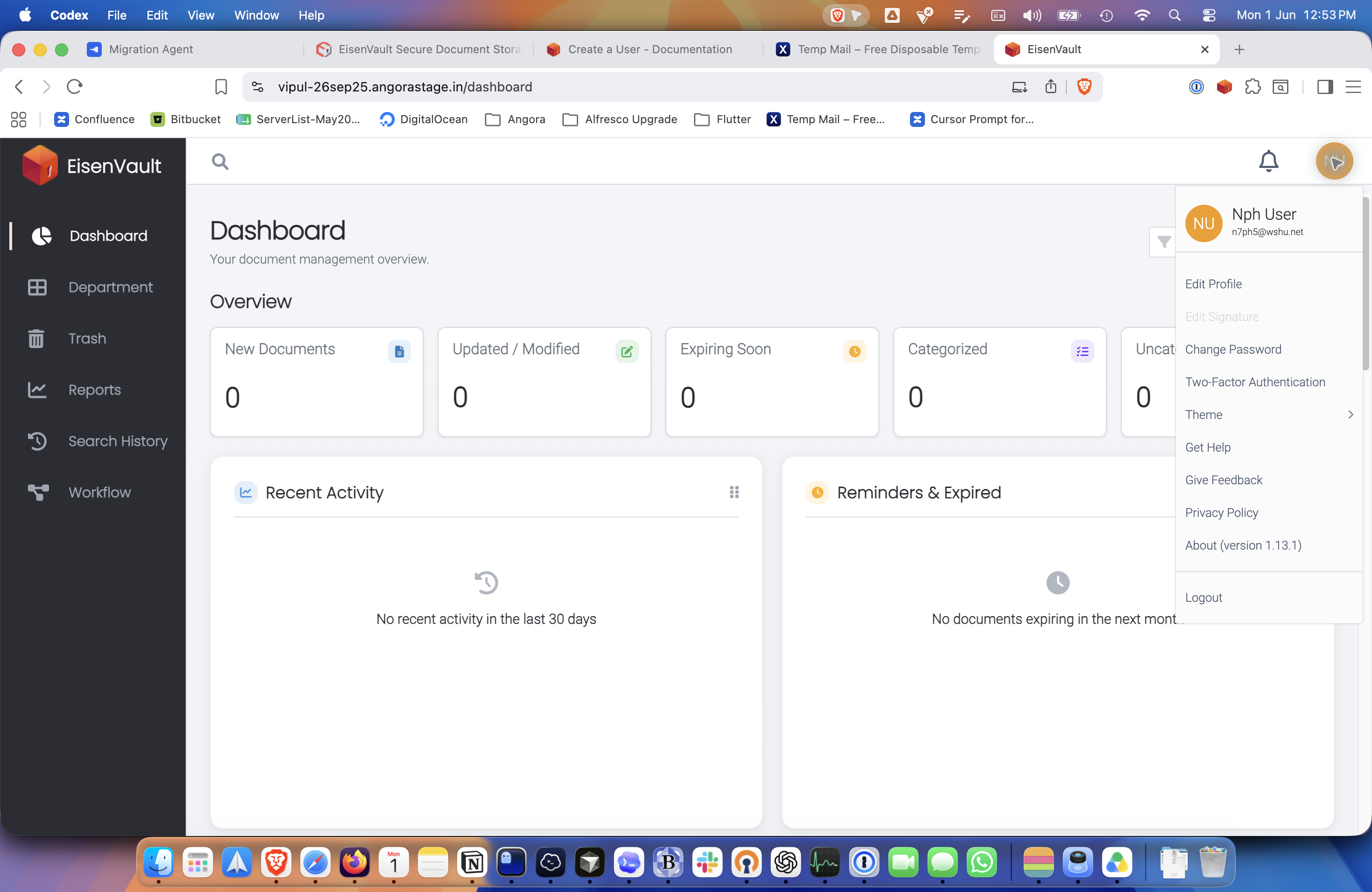
- Click your account avatar in the top-right corner.
- In the account menu, click Change Password.
- Enter your Current Password.
- Enter your New Password.
- Enter the same value again in Confirm New Password.
- Review the password requirements checklist on the left.
- Click Change Password.
You can also open the account area from Edit Profile, then click Password in the account sidebar on the left.
Example Walkthrough
The screenshots below show the password change flow for the user n7ph5@wshu.net.
-
Open the account menu from the avatar in the top-right corner and click Change Password.
-
On the Change Password page, review the password requirements and enter your current and new passwords.
-
As you type the new password, EisenVault One marks each requirement green when it is satisfied.
-
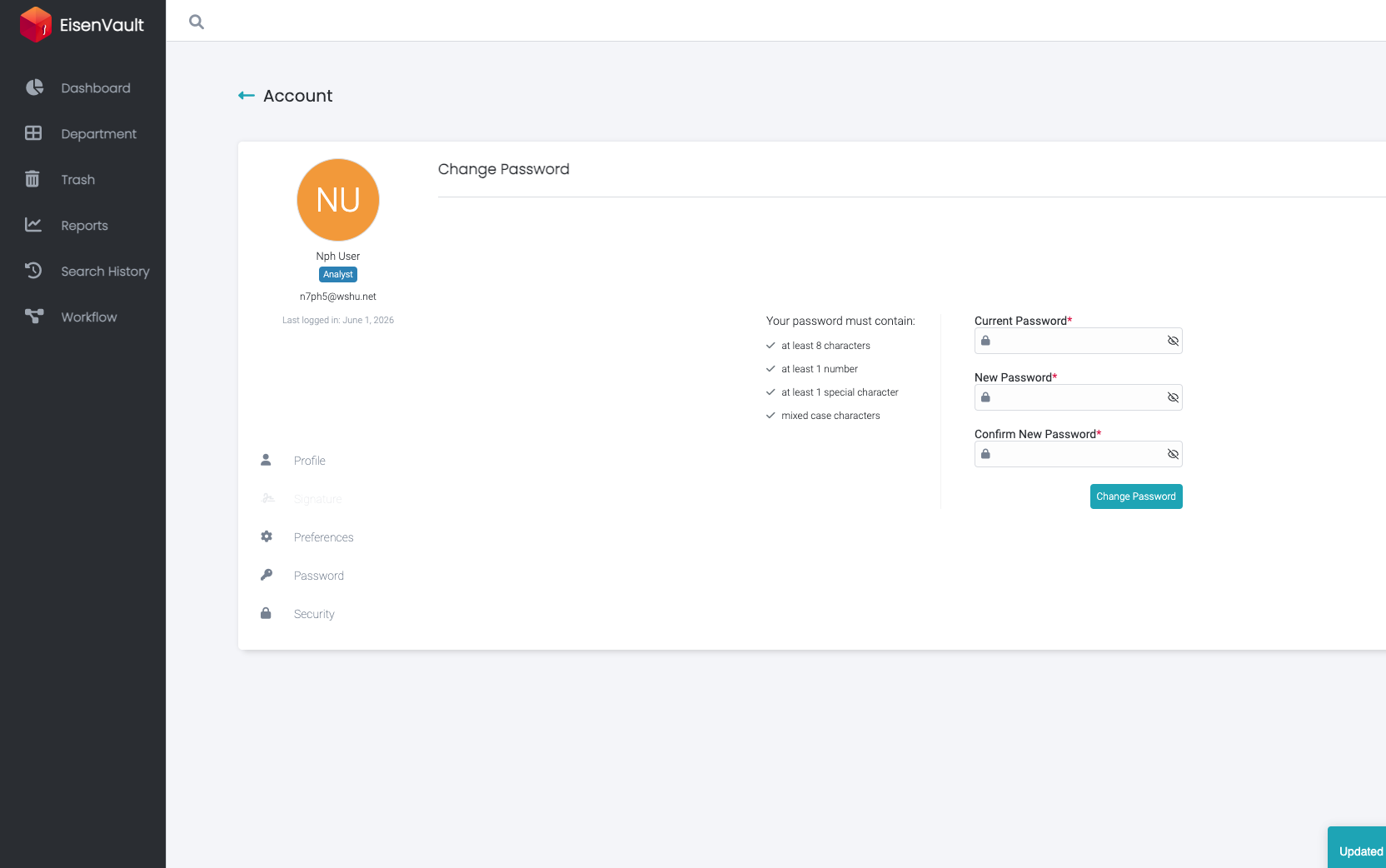
Click Change Password. EisenVault One saves the new password and shows a confirmation message. The form is cleared after a successful change.
Expected Result
- EisenVault One accepts your current password and the matching new password values.
- A confirmation message appears after the password is changed.
- You remain signed in and can continue using EisenVault One with your new password.