Manage Rules on a Department or Folder
Purpose
Set rules on a department or folder so that documents are moved or copied automatically when a workflow on them is approved or rejected.
Prerequisites
- You are signed in to EisenVault One.
- You can open the department or folder in the Explorer.
- You have permission to manage the location.
Before You Begin
Rules can be added only on departments and folders, not on individual files.
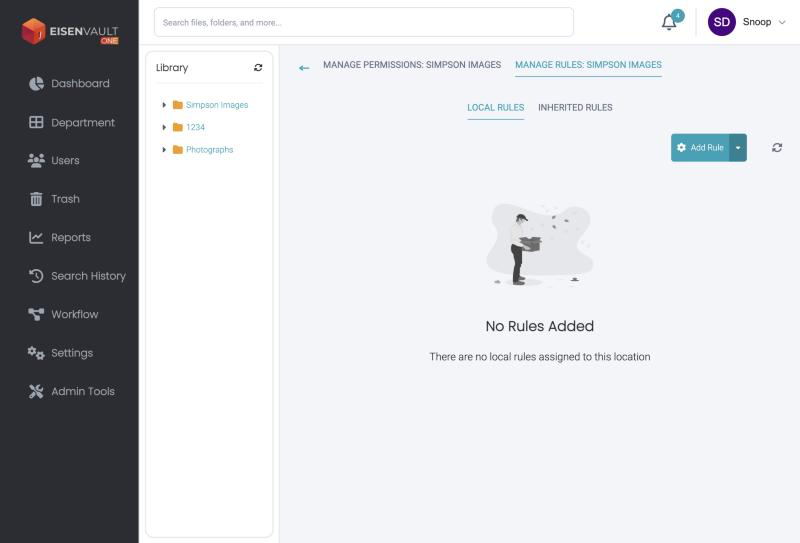
Each location has two tabs:
| Tab | What it shows |
|---|---|
| Local Rules | Rules you add directly on this location. |
| Inherited Rules | Rules applied automatically from parent folders or the department. To change them, edit the Local Rules tab of the parent location. |
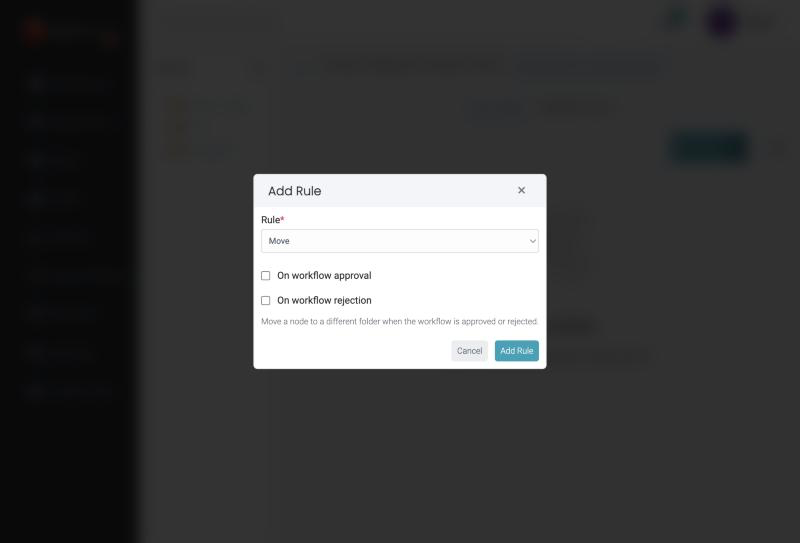
Two rule types are available:
| Rule | What it does |
|---|---|
| Move | Moves a document to a different folder when the workflow is approved or rejected. |
| Copy | Copies a document to a different folder when the workflow is approved or rejected. |
Add a Rule
- Open the department or folder in the Explorer.
-
Open the item's options menu and click Manage Rules.
-
On the Local Rules tab, click Add Rule.
-
In Rule, choose Move or Copy.
-
Tick On workflow approval, On workflow rejection, or both.
- Click Add Rule. A Rule saved message confirms it.
Edit or Remove a Rule
- Use the actions on a rule row to edit its parameters.
- To remove rules, select them and confirm. EisenVault One asks "Are you sure you want to remove the selected rules?" first.
- Click the refresh icon to reload the list.
Expected Result
- The rule appears under Local Rules on this location, and under Inherited Rules on child folders.
- When a workflow finishes with the chosen outcome, the document is moved or copied as the rule says.