The Approval Page
Purpose
The approval page is where you review a document and record your decision. It shows the document itself, its metadata, who has approved so far, everything that has happened on the request, and — if it is your turn — the controls to act.
Prerequisites
- You are signed in to EisenVault One.
- You are a participant in the workflow, or you hold permission to view all workflow runs.
Open the Approval Page
Reach it from any of:
- Workflow → Running Workflows → click a run.
- The Pending workflow approvals list → click a task.
- A bell notification or email link for an assigned approval.
What the Page Shows
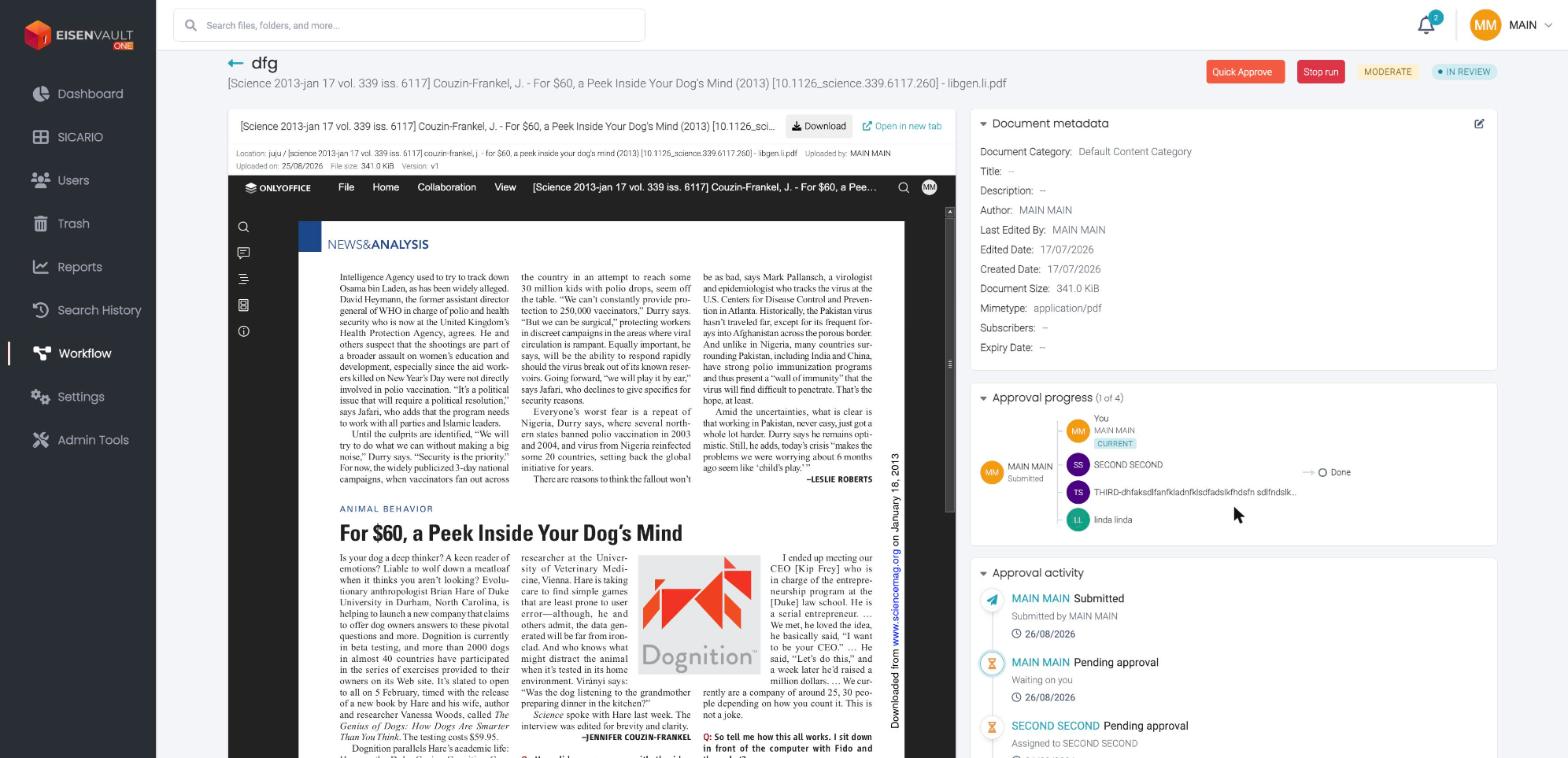
Header
The workflow name, the document beneath it, and on the right the priority badge (LOW, MODERATE, HIGH), the status badge (for example IN REVIEW), and the actions available to you — Quick Approve and Stop run.
Document preview
The left side previews the document, with Download and Open in new tab, and a Location line showing where it lives. If the format cannot be previewed it reads Preview is not available.
When a workflow covers more than one document, Previous / Next controls and a counter such as 1 of 2 appear above the preview, with a tab per document.
Document metadata
The document's own metadata — category, title, author, dates, size, MIME type, and so on.
You can edit this metadata only if you have permission to. The edit control appears when your role grants edit permission, or when the document's own permissions allow it. Without either, the panel is read-only.
Approval progress
The approval route, in order, with a counter such as (2 of 4):
- The requester is shown first, marked Submitted.
- Each approver follows, with their avatar and name.
- The approver whose turn it is carries a CURRENT badge, and your own row is labelled You.
- The end of the route shows Done.
Approval activity
A running record of everything that has happened: who submitted the request, who is pending, who has acted, and when. Each entry shows the person, the action, a supporting line, and the date.
Long Names
Approver names and document names can be long. The page shortens them so the layout stays readable:
- In Approval progress, a long name is truncated with an ellipsis. Click it to see the whole name, and click again to collapse it.
- In Approval activity, a long name is truncated on its line, and the supporting line beneath is limited to two lines. Hover to see the full text.
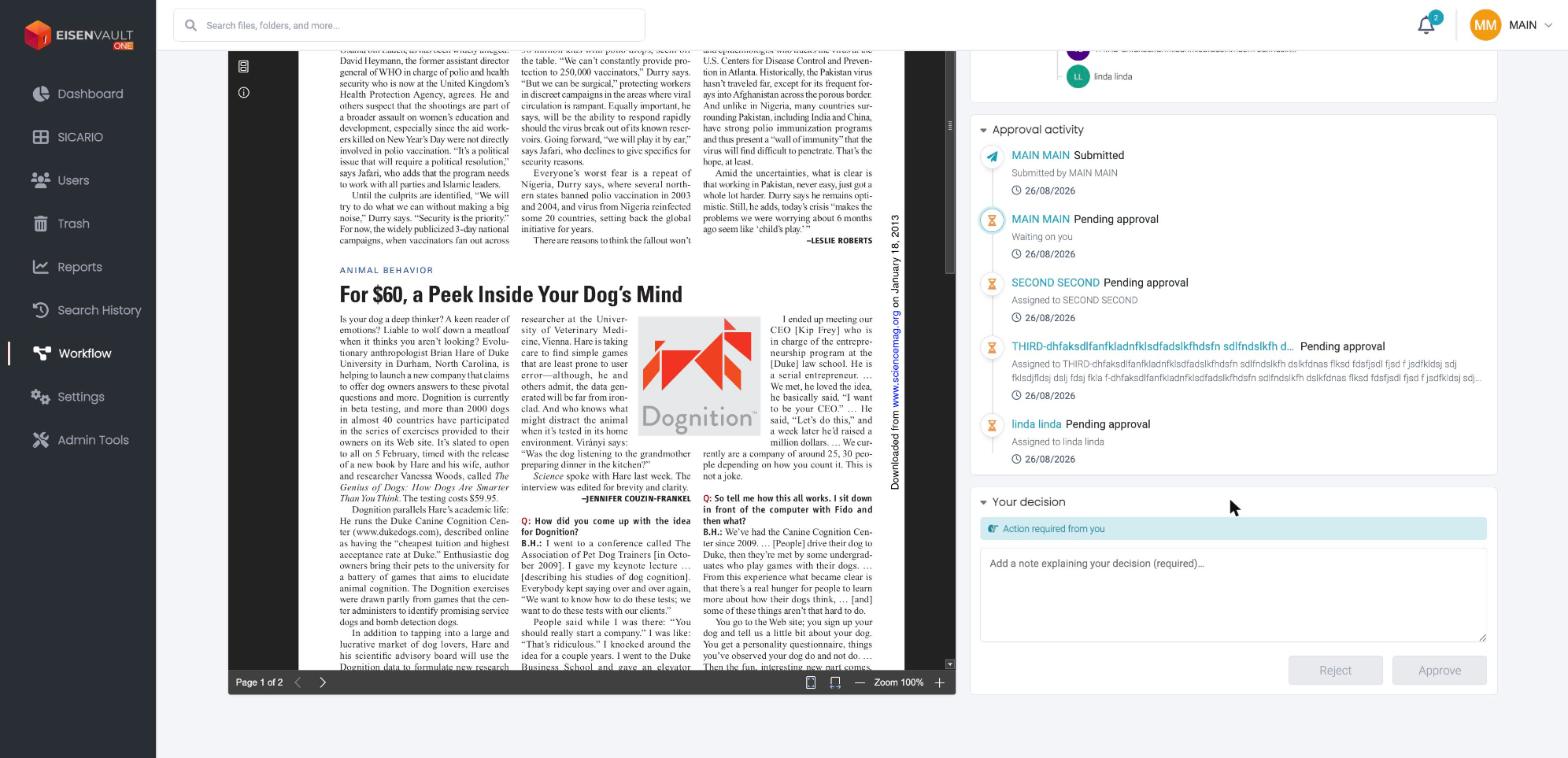
Record Your Decision
If it is your turn, a Your decision panel appears at the bottom of the right column, headed Action required from you.
- Review the document, the metadata, and the activity so far.
- Type a note in the box marked Add a note explaining your decision (required)…
- Choose your action. Approve and Reject are always offered; Quick Approve and Send back appear depending on the step and how the workflow was set up.
Approve, Reject, and Send back stay disabled until you have typed a note. Quick Approve does not require one — it is enabled straight away. See Approval Actions for what each action does.
Who Can See What
Not everyone sees the same set of workflow runs.
| You are | What you see |
|---|---|
| A participant | The runs you started, and the runs where you are named as an approver |
| A user whose role grants view all workflow runs | Every run in your organization |
| A root user | Every run, the same as above |
This is a permission, not a role — any role carrying it grants the wider view, whatever that role is called.
Note: A user without that permission is not blocked from the page. They simply see their own runs rather than everyone's, in the same way the trashcan listing widens for users who can view the entire trashcan.