Deletion Report
Purpose
Review documents that were deleted within a selected date range, including who deleted them and where the items were located before deletion.
Prerequisites
- You are signed in to EisenVault One.
- Your account has permission to view the Deletion Report.
- You can open Reports from the left navigation.
Before You Begin
The Deletion Report helps you audit trash and permanent deletion activity. Combine it with date range and department filters to narrow results to a specific period or content area.
Deleted items may still be recoverable from trash depending on your organization's retention rules and your permissions.
Run the Deletion Report
- Open Reports from the left navigation.
- Open the report type selector and choose Deletion Report.
- Set the Date Range at the top right for the period you want to review, then apply it.
- Optional: use the Department, Category, Extension, and Author filters under Filters.
- Review the results table. Deleted folders can be expanded to show the deleted items inside them. Attachments that were deleted are included. Use pagination when the list is long.
- Optional: click Export and choose Excel (.xlsx), PDF (.pdf), or CSV (.csv).
Example Walkthrough
Demonstration screenshots use redacted names and file titles from a staging tenant.
-
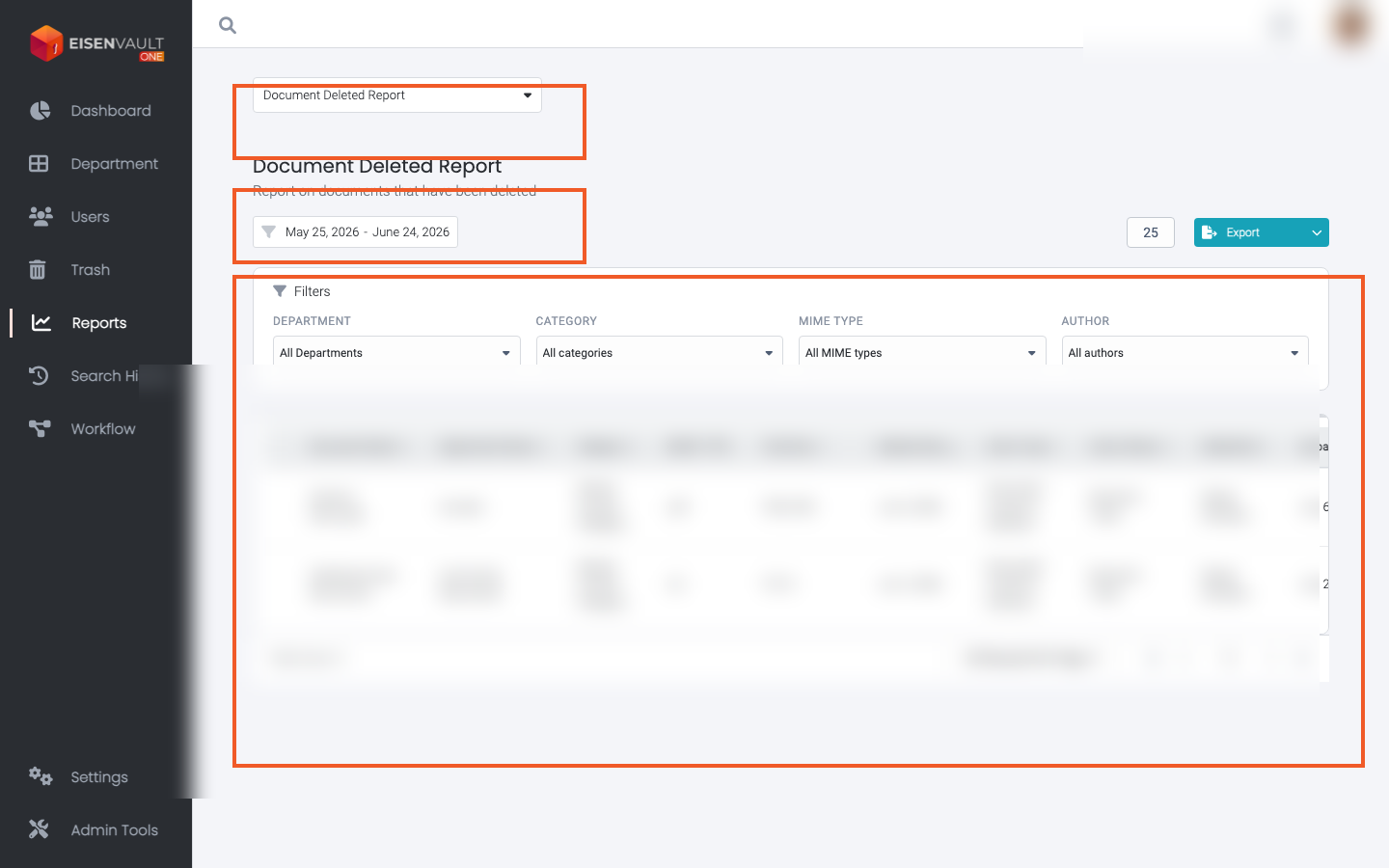
Open Reports and select Deletion Report. The report type selector, date range, and results table are highlighted.
Expected Result
- EisenVault One lists documents deleted in the selected date range.
- Filters and sorting update the table without leaving the page.
- Export produces an Excel, PDF, or CSV file when export is enabled for your role.