Search for User
Purpose
Find a user quickly on the Users page by name or email address.
Note: This action may require administrator privileges.
Prerequisites
- You are signed in to EisenVault One.
- You can open Users from the left navigation.
- You have permission to view users.
Before You Begin
The Users page lists users in a table with a Search by Name, Email box above it.
You can combine search with:
- Status — show Active, Inactive, and Archived users (all three are on by default)
- Two Factor and Forced Password Change — narrow the list by those settings
- Records-per-page — control how many rows appear at once
- Column headings (Name, Email, Status, Last Login, Created On) — click to sort
- Pagination — move through additional pages of results
Search for a User
- Open Users from the left navigation.
- Click Search by Name, Email above the table.
- Type part of the user's name or email address.
- Review the matching rows.
- Optional: clear the search field and refresh the list to return to the full set of users.
Example Walkthrough
-
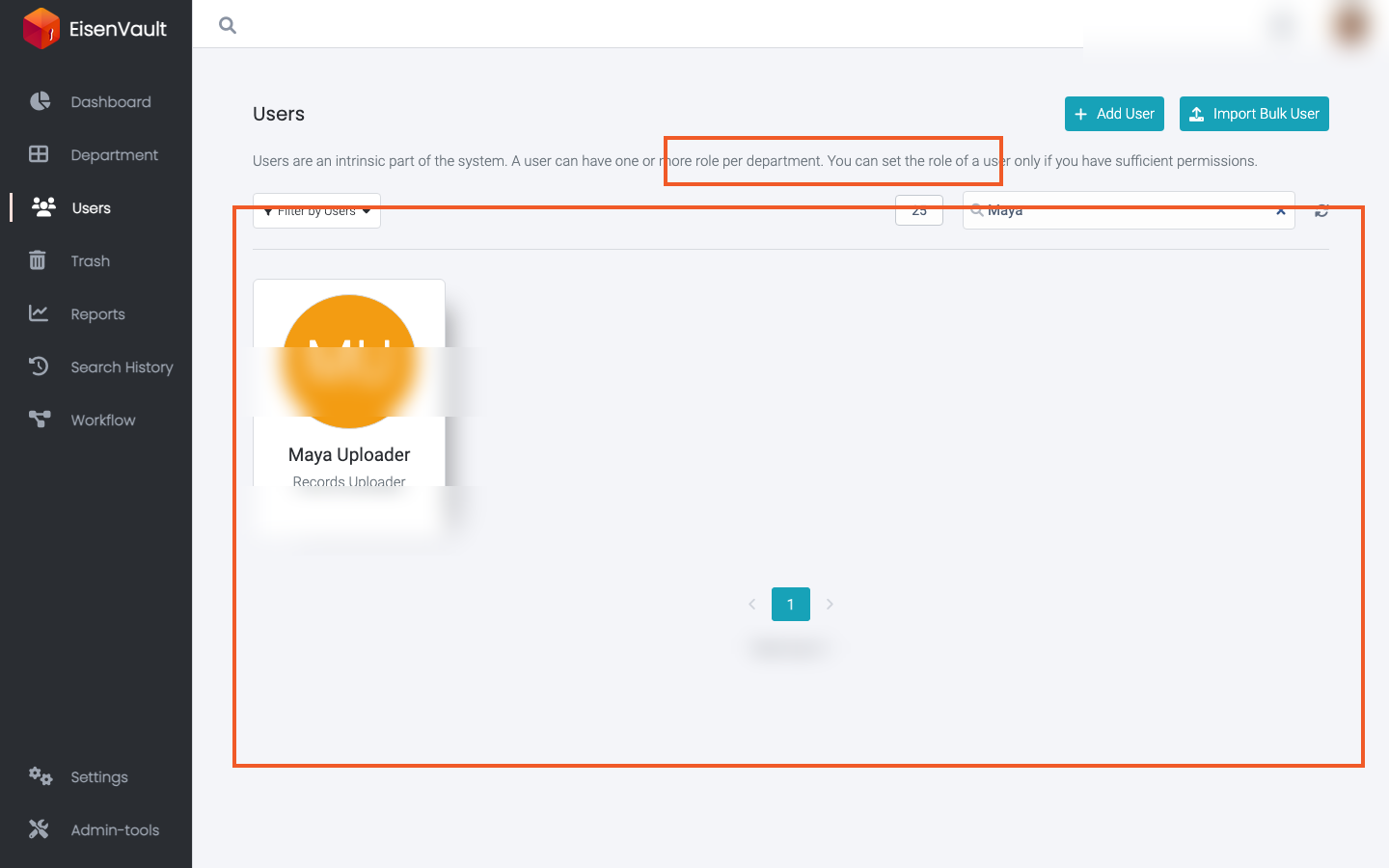
Open the search field and enter a name or email fragment. The table updates to show matching accounts.
-
Click a user's name to open their profile.
Expected Result
- Only user cards that match your search text remain visible.
- Clearing the search restores the broader list according to your current filters and pagination.