Email Alerts
Purpose
Understand how EisenVault One sends email notifications and which events you can control as a regular user.
Prerequisites
- You are signed in to EisenVault One.
- You can open your account Preferences page.
Before You Begin
Email alerts complement in-app notifications from the bell icon. They are delivered to the email address on your user profile.
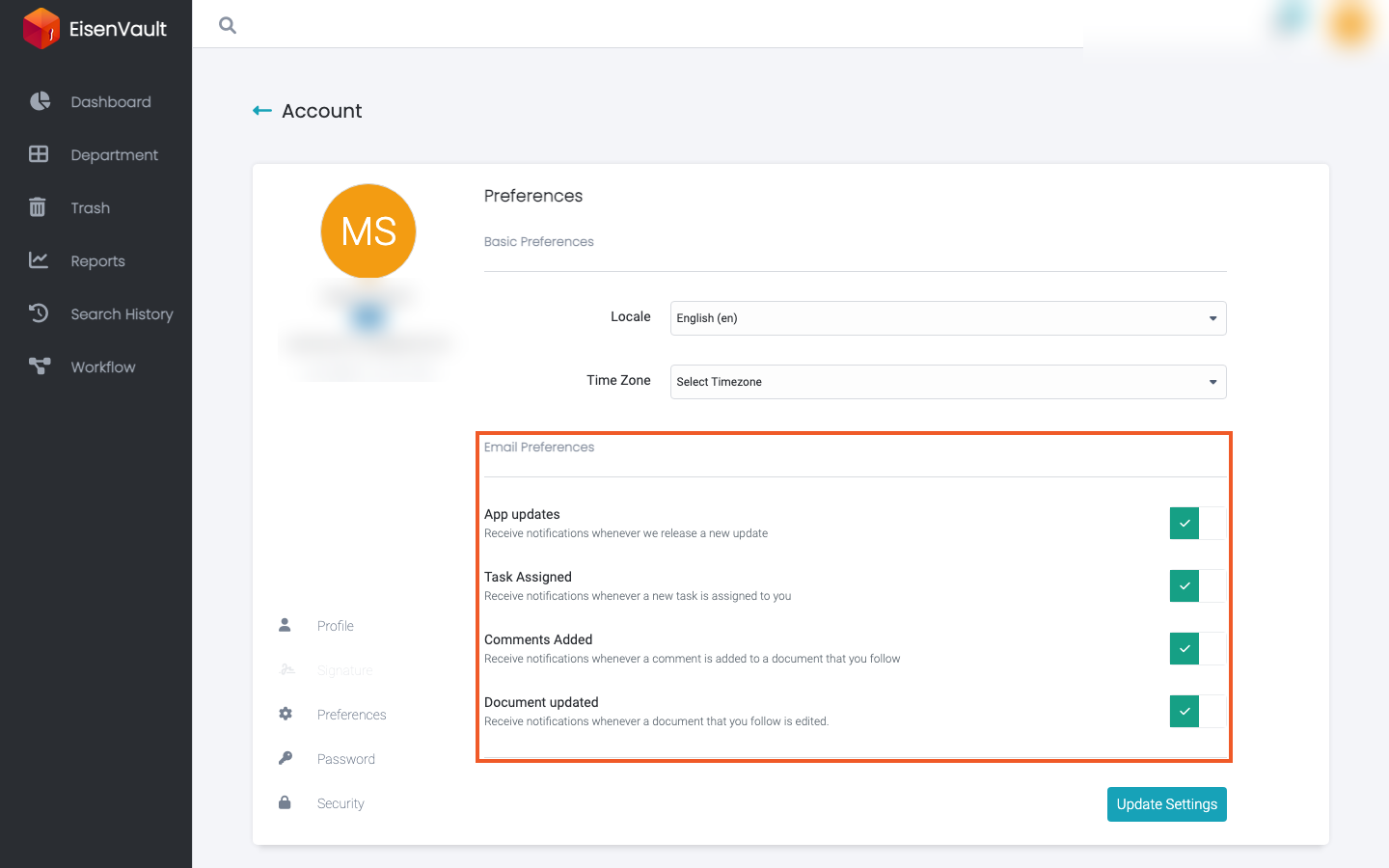
As a regular user, you control whether you receive email for these event types on your Preferences page:
| Preference | When email is sent |
|---|---|
| App updates | EisenVault One releases a new application update |
| Task Assigned | A new task is assigned to you |
| Comments Added | A comment is added to a document you follow |
| Workflow due-soon reminders (email) | An approval assigned to you is coming up on its due date |
| Workflow overdue reminders (email) | An approval assigned to you is overdue |
| Document updated | A document you follow is edited |
Your administrator may also configure organization-wide email timing such as As it happens, Expiry alerts, and Daily digest. Those settings control when emails are sent to subscribed users; they are not changed from the regular user Preferences page.
To receive document-related emails, you typically need to subscribe to the document or folder. See Subscribe.
Review Your Email Alert Settings
- Click your account avatar in the top-right corner.
- Click Edit Profile.
- In the account sidebar, click Preferences.
- Scroll to Email Preferences.
- Review the four notification switches and their descriptions.
Example Walkthrough
-
Open Preferences and review the Email Preferences section.
-
Note which switches are on. These match the read-only Email Notifications section on your main profile view.
Expected Result
- You understand which events can trigger email notifications for your account.
- Enabled switches on Preferences allow EisenVault One to send email for those event types when the activity occurs and your organization’s email settings apply.