Role Associations
Purpose
Role associations help you find where a role is currently used, so you can safely change or retire it.
Common uses:
- Understand which users are affected before changing a role.
- Identify what must be cleaned up before disabling or deleting a role.
Note: This action may require administrator privileges.
Open Role Associations
EisenVault One opens Role Associations when a lifecycle action is blocked because the role is still assigned.
- Open Admin Tools > Roles.
- Try to Disable or Delete the role.
- If the action is blocked, click the error message link to open Role Associations for that role.
You can also review associations proactively before changing permissions that users rely on.
What You Can See
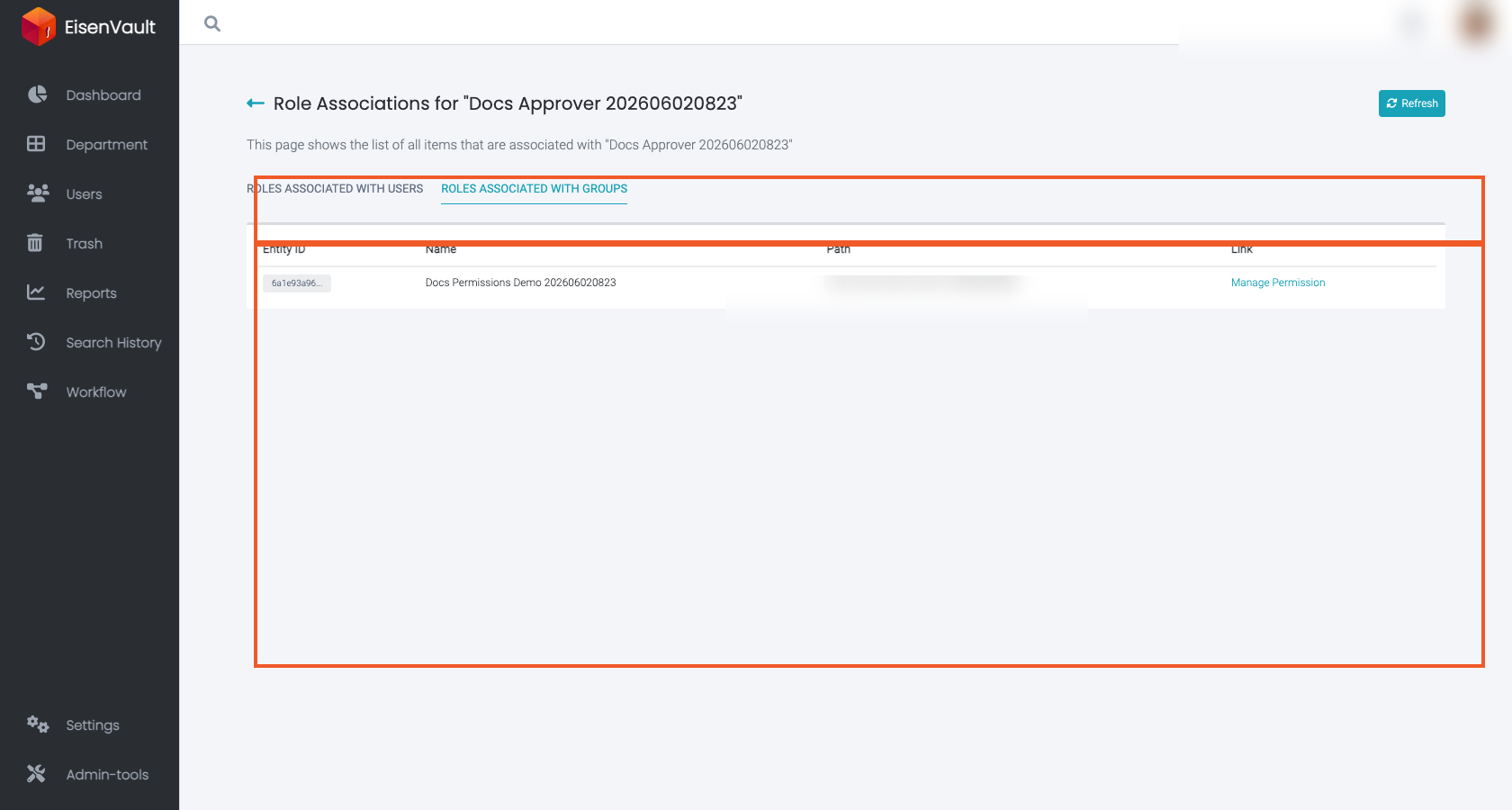
The associations screen shows where the role is currently used:
- Users Associated with this role — users who currently hold the role. Each row has a User Profile link.
- Items Associated with this role — content role assignments on departments, folders, or documents. Each row has a Manage Permission link.
Click Remove All Associations to remove every user and group association with the role in one step. EisenVault One asks you to confirm first.
Demonstration screenshots use redacted sample names and email addresses from a staging tenant.
Typical Workflow: Retire a Custom Role
- Open Role Associations for the role you want to retire.
- Review where it is used on both tabs.
- Confirm whether those assignments are still needed.
- Decide the replacement role (if any).
- Remove the role from all assignments using the linked management screens.
- Return to Admin Tools > Roles and disable or delete the role.