Two-Factor Login
Purpose
Sign in to EisenVault One when two-factor authentication is enabled on your account.
Prerequisites
- Your EisenVault One username and password are correct.
- Two-factor authentication has already been enabled on your account.
- You have access to your authenticator app or a valid backup code.
Before You Begin
When 2FA is enabled, EisenVault One verifies your username and password first. After that, it opens a separate verification page where you must enter either:
- the current code from your authenticator app, or
- one of your saved backup authentication codes
Login with Two-Factor Authentication
- Open the EisenVault One login page.
- Enter your email address and password.
- Click Login.
- On the Enter Verification Code page, open your authenticator app.
- Enter the current code shown for your EisenVault One account.
- Click Verify Token.
- Wait for EisenVault One to open your dashboard.
Example Walkthrough
The screenshots below show a real 2FA login using the user n7ph5@wshu.net.
-
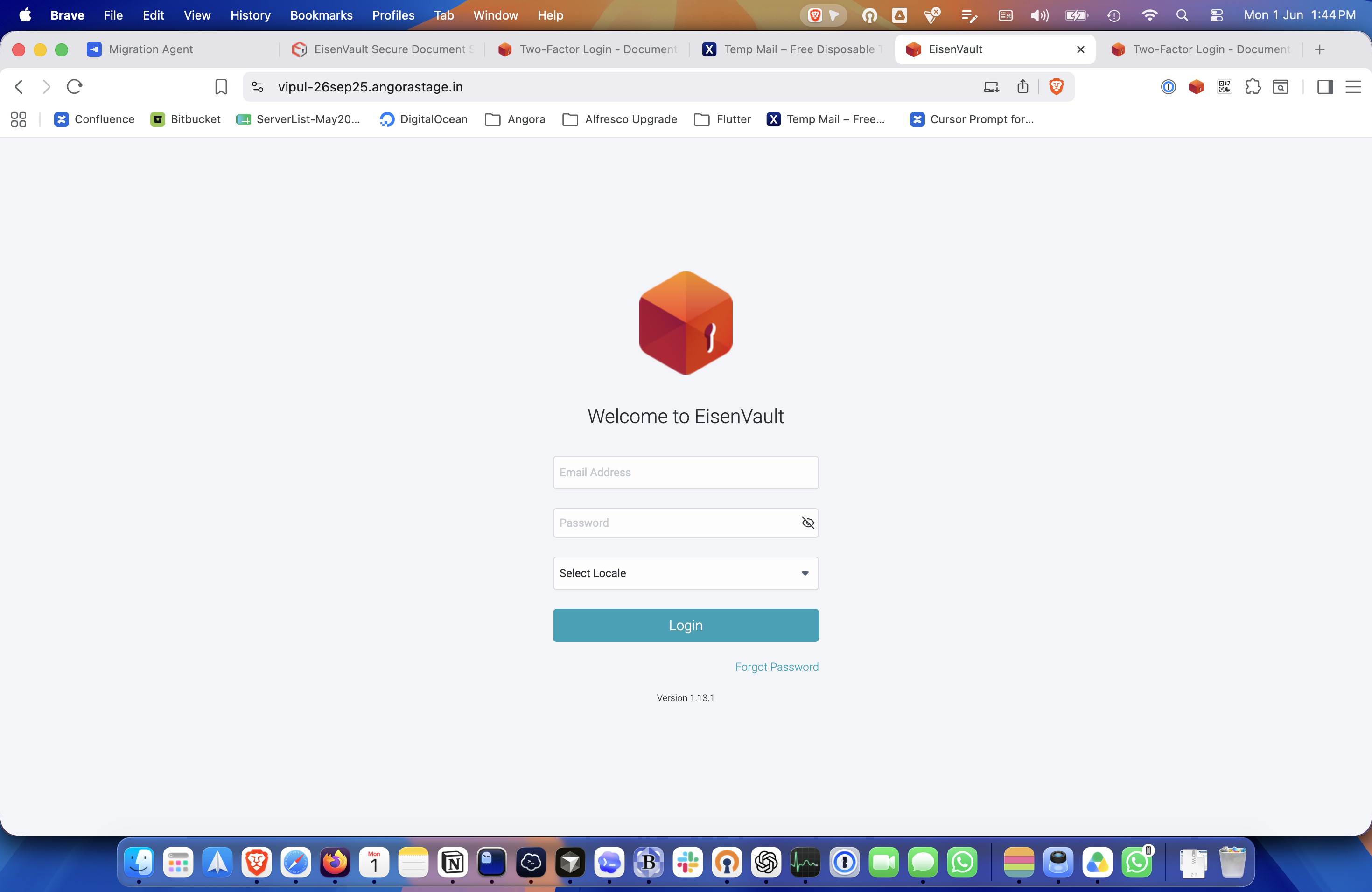
Start on the standard EisenVault One login page.
-
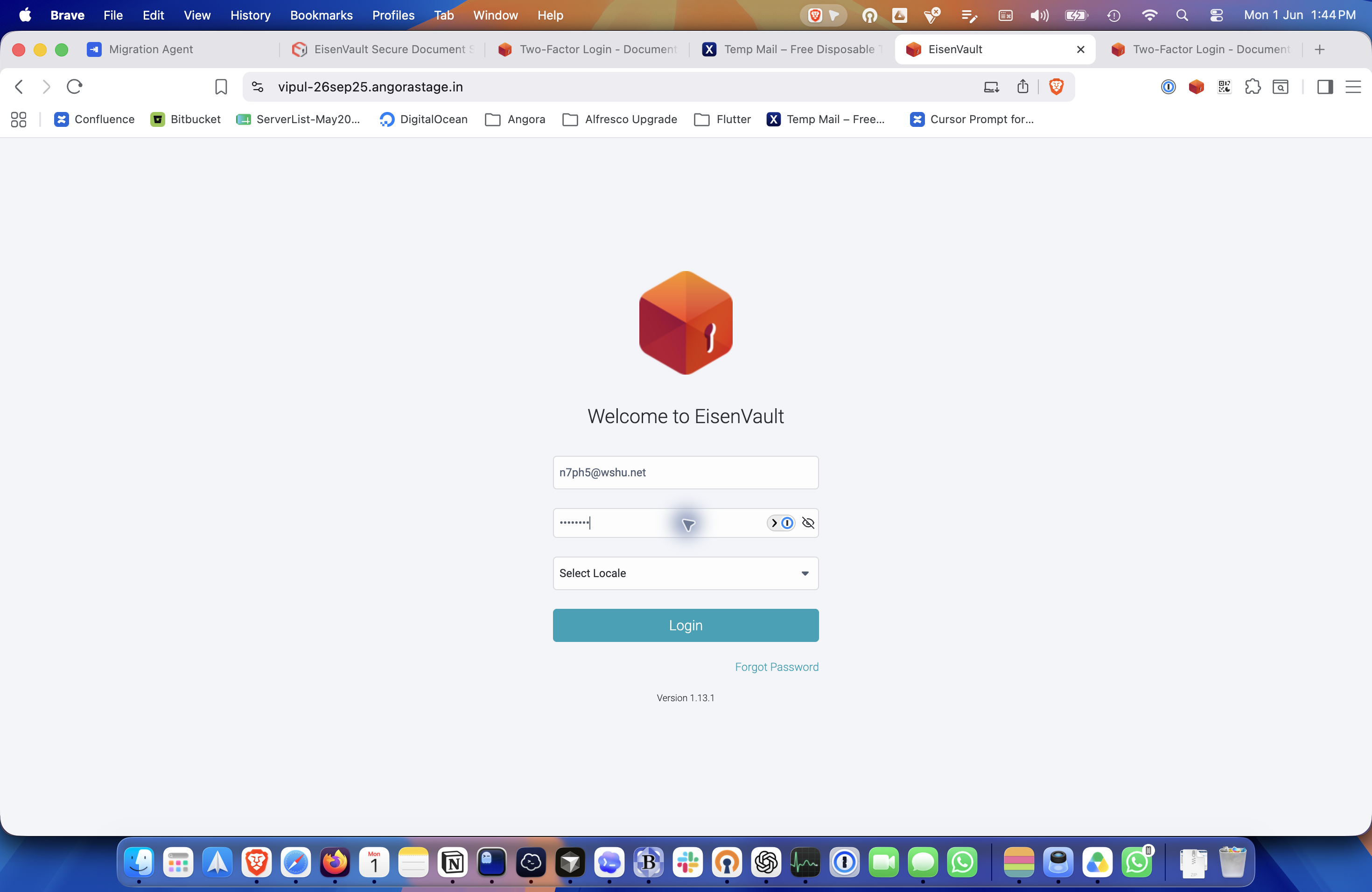
Enter your username and password, then click Login.
-
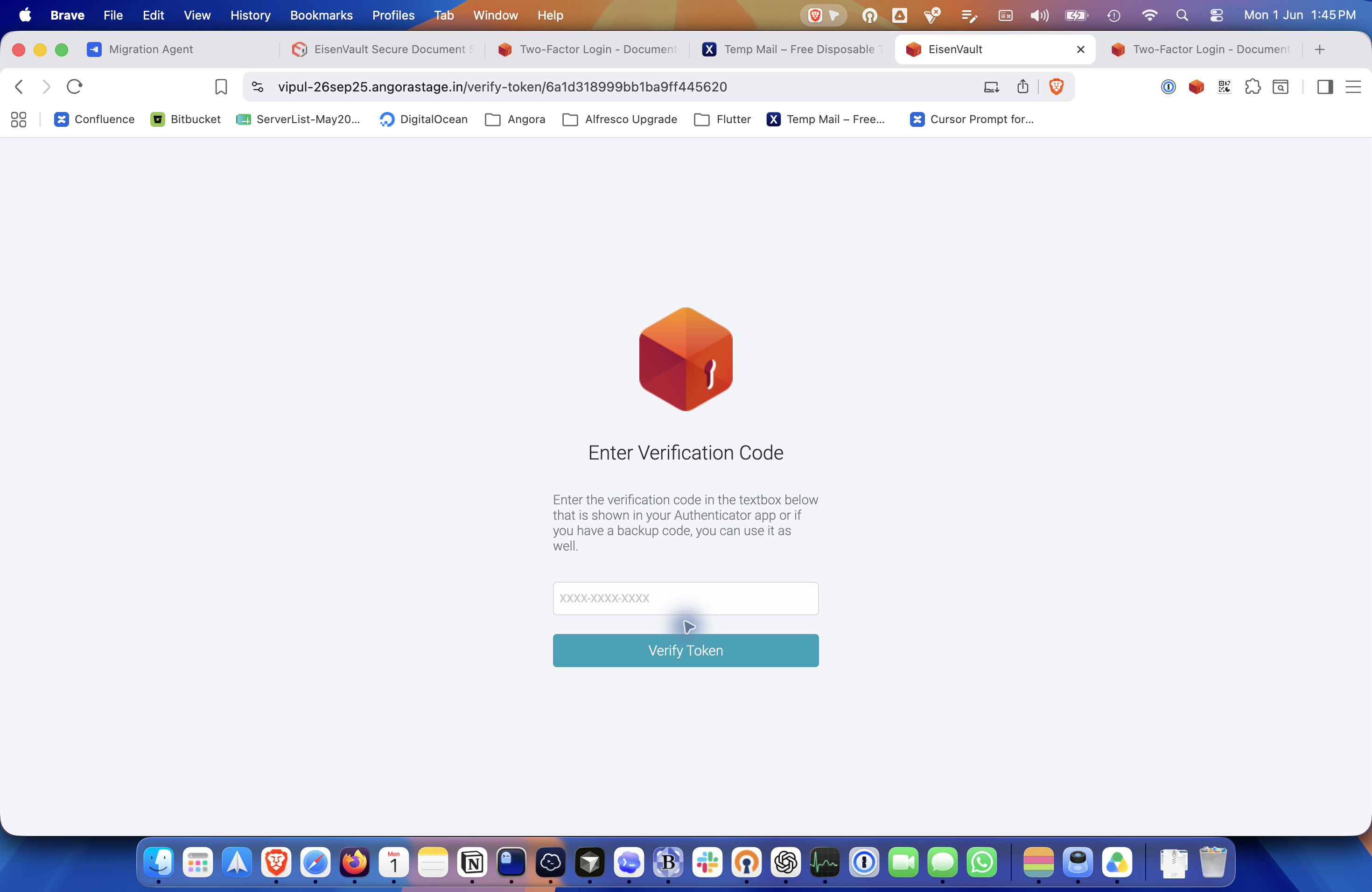
After the password is accepted, EisenVault One opens the verification page. Enter the current code from your authenticator app or a backup code, then click Verify Token.
-
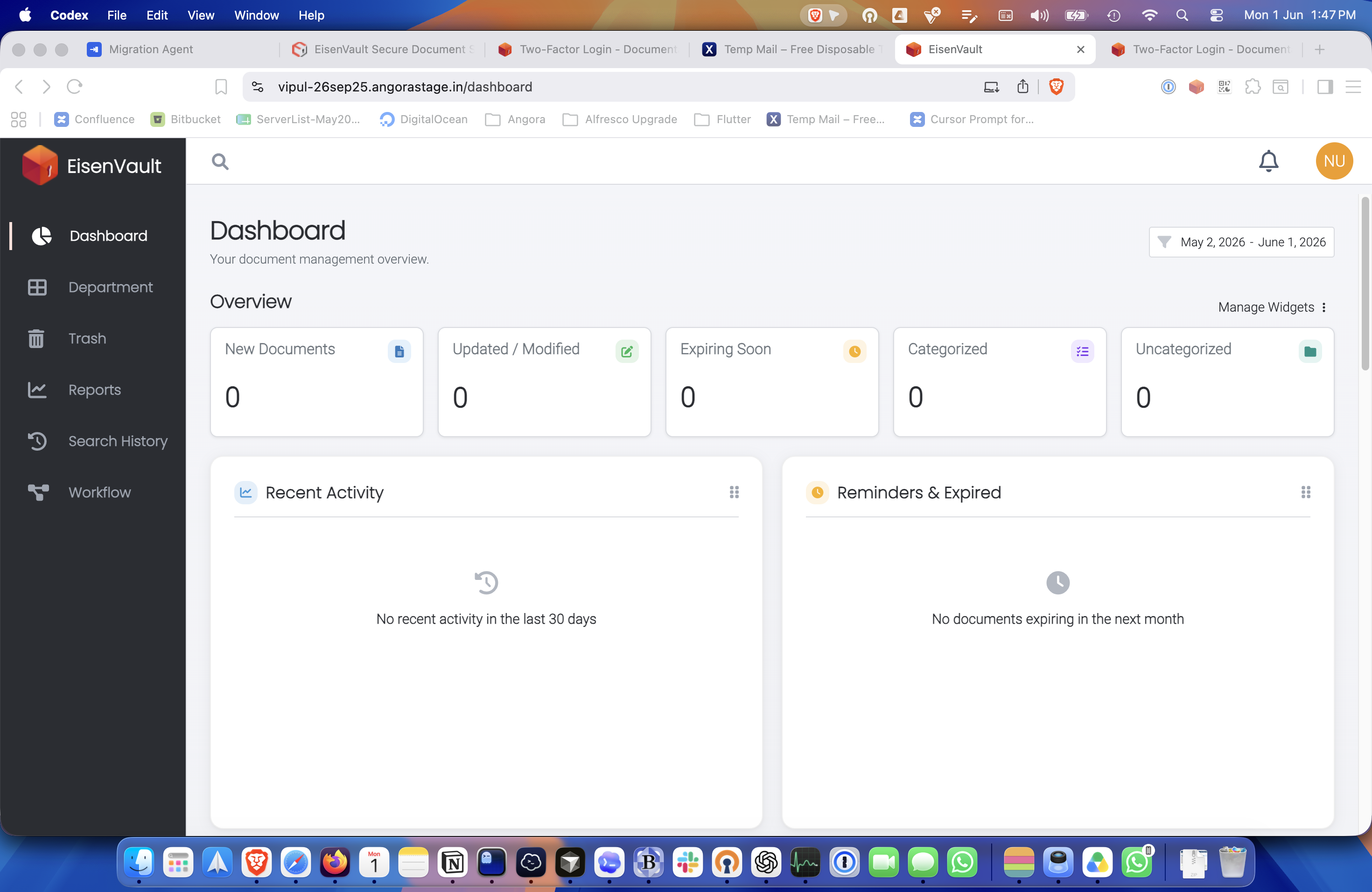
After the verification code is accepted, EisenVault One signs you in and opens the dashboard.
Expected Result
- EisenVault One accepts your password and 2FA code.
- Your dashboard opens successfully.
- You can continue working normally in the application.