View Users
Purpose
Browse users in your EisenVault One organization and open a user's read-only profile.
Prerequisites
- You are signed in to EisenVault One.
- Users appears in the left navigation when your account has the view_users permission.
If you manage users through administrative roles but do not see Users, ask your system administrator to review your global role assignments. The standard permission catalog uses permissions such as create_user and edit_user for user management tasks; view_users is the permission the UI checks before showing the directory.
Before You Begin
The Users page lists accounts in a table with Name, Email, Status, Last Login, and Created On columns. Click a column heading to sort.
- Add User and Import Bulk User appear in the page header but are available only when you have permission to create users.
- Use the Status, Two Factor, and Forced Password Change filters above the table to narrow the list.
- Use Search by Name, Email to find users by name or email.
- Change how many rows appear per page with the records-per-page control beside the filters.
- Click the refresh icon to reload the list.
To update your own profile, use Edit Profile from the account menu. See Main Profile.
View the Users List
- Sign in to EisenVault One.
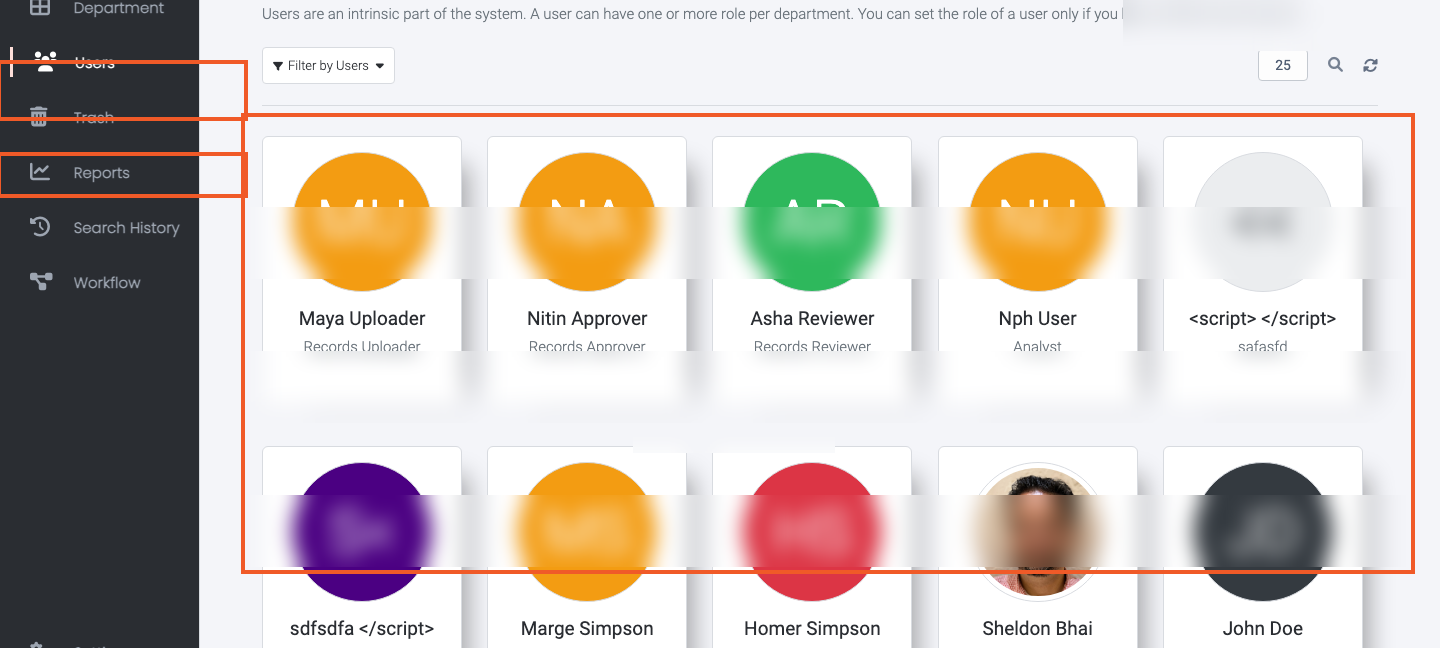
- In the left navigation, click Users.
- Review the users shown in the table.
- Optional: open the Status filter and select the options you want to include.
- Optional: type a name or email in Search by Name, Email and review the filtered rows.
- Optional: change the records-per-page value and press Enter to update the page size.
- Use the pagination controls at the bottom when more users exist than fit on one page.
Open a User Profile
- On the Users page, click a user's name in the table.
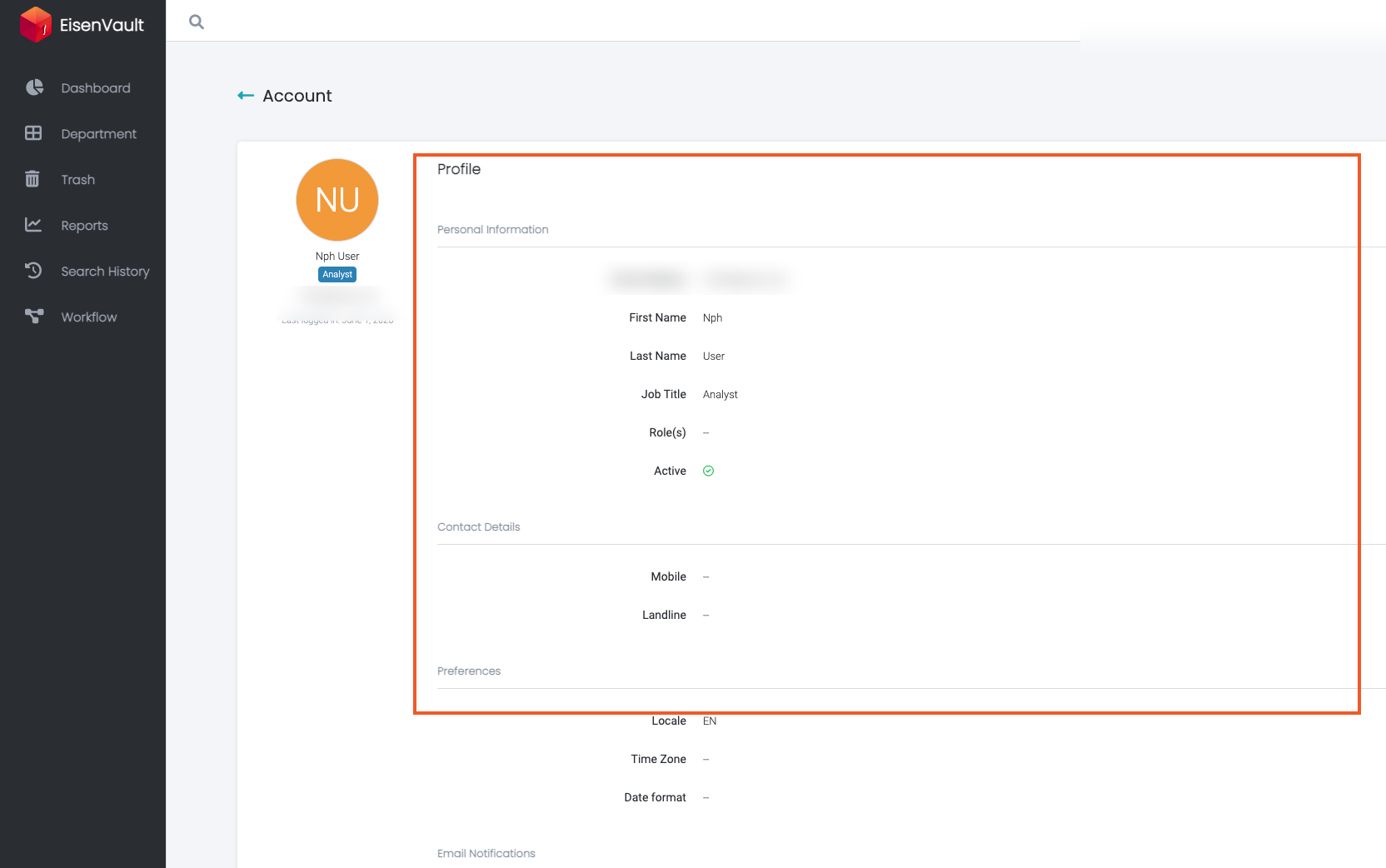
- EisenVault One opens the read-only Profile page for that user under Account.
- Review the profile sections:
- Personal Information — email, name, job title, roles, and active status
- Contact Details — mobile and landline numbers
- Preferences — locale, time zone, and date format
- Email Notifications — subscription status for app, task, comment, and document notifications
- Timestamps — when the account was created and last updated
- Signature — whether a signature image is on file
- Click the back arrow beside Account to return to the users list.
If you have permission to edit the selected user, edit links appear in the account sidebar. Without that permission, you can view other users but edit only your own profile.
Example Walkthrough
-
Open Users from the left navigation and review the users table.
-
Click a user's name to open their read-only profile.
Expected Result
- Users opens a table of accounts you are allowed to view.
- Filters, search, and pagination update which users are shown.
- Clicking a user's name opens their read-only Profile page.
- The back arrow returns you to the previous page.