Reports Overview
Note: This action may require administrator privileges.
Purpose
Reports give administrators visibility into document activity, storage usage, metadata, and user behavior across EisenVault One.
Before You Begin
Report availability depends on administrator permissions and deployment configuration. A system administrator usually has access to a broader report set than a regular user because the reports can include organization-wide information.
Use reports for operational review, audit support, and troubleshooting. Use audit trails for item-level history when you need to investigate a specific document, folder, or user action.
Open Reports
- Sign in to EisenVault One as a system administrator.
- Click Reports in the left navigation.
- Choose a report type from the selector at the top of the page.
Demonstration screenshots use redacted names from a staging tenant.
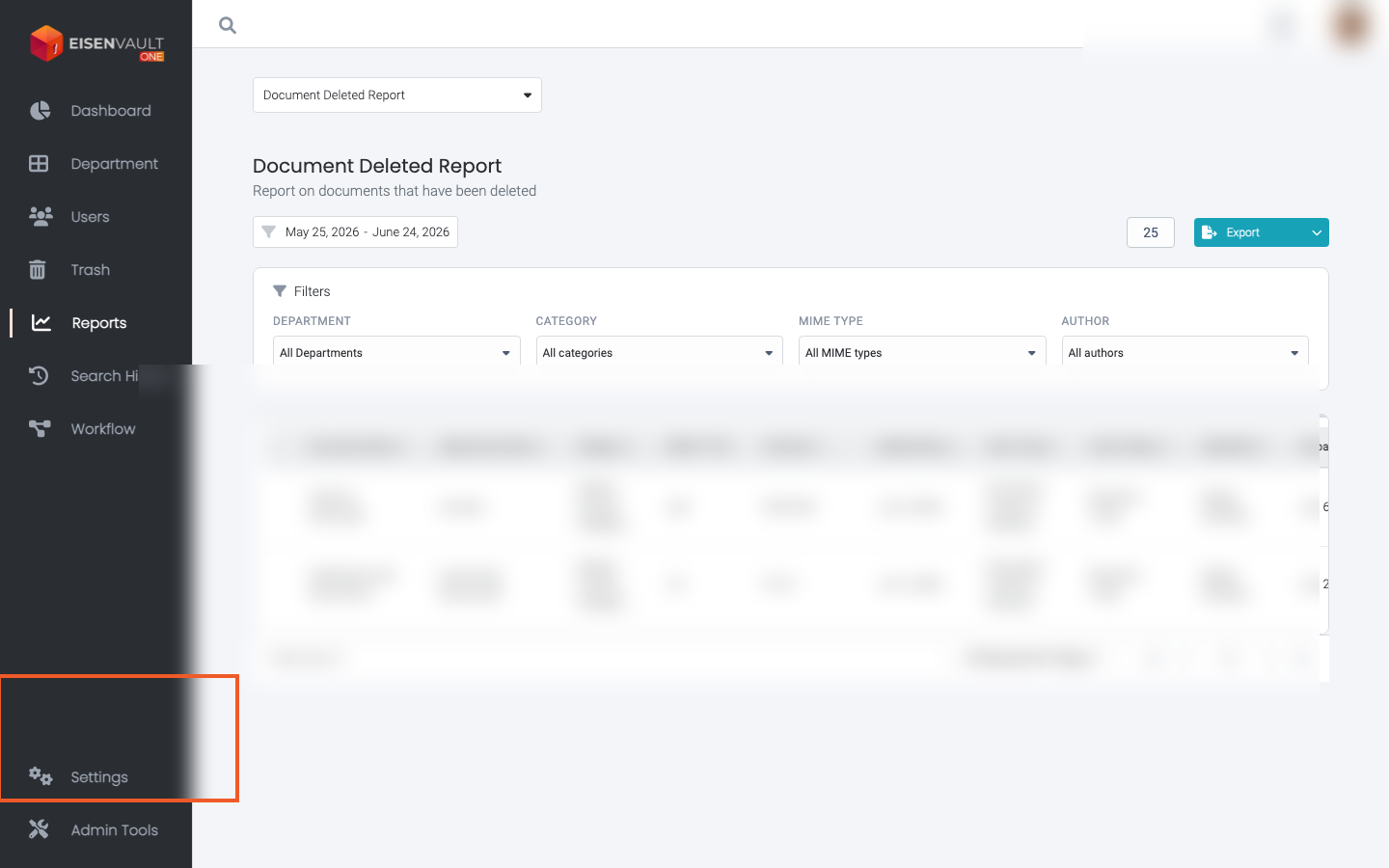
Available Report Types
| Report | Walkthrough |
|---|---|
| Deletion Report | Reviews deleted documents and related deletion details |
| System Storage Report | Summarizes document volume and storage usage |
| User Activity Report | Shows login and activity analytics |
| User Report | Reports on users and groups in the organization |
| Metadata Report | Finds documents by metadata category and field values |
Common Administrative Tasks
Administrators commonly use reports to:
- Review storage growth and usage.
- Investigate deleted document activity.
- Monitor user login and activity patterns.
- Review user and group activity.
- Export report data for compliance or operational review.
Filters and Export
Reports can include filters such as date range, department, category, file type, user, action, and metadata fields. Some reports also support export workflows for offline review.
When filters return no data, confirm the selected date range, department scope, and report permissions before treating the result as an error.