Document Attachments
Purpose
Attach supporting files to a document so they stay with it and can be previewed, searched, and audited alongside it.
Prerequisites
- You are signed in to EisenVault One.
- You can open the document's preview page.
- Your role grants the permission needed for each action (see the table below).
Before You Begin
The Attachments panel sits in the right-hand column of the file preview page, below Metadata and Workflow.
- A document can have at most 10 attachments. The paperclip icon is unavailable once the limit is reached.
- Attachments must be files. Folders cannot be attached.
- Attachment search hits open the parent document's preview.
| Action | Permission required |
|---|---|
| Preview an attachment | View Document |
| Download an attachment | Download Document |
| Rename an attachment or edit its metadata | Edit Document Metadata |
| Delete an attachment | Delete Document and Edit Document Metadata |
Add an Attachment
-
Open the document preview page and find the Attachments panel.
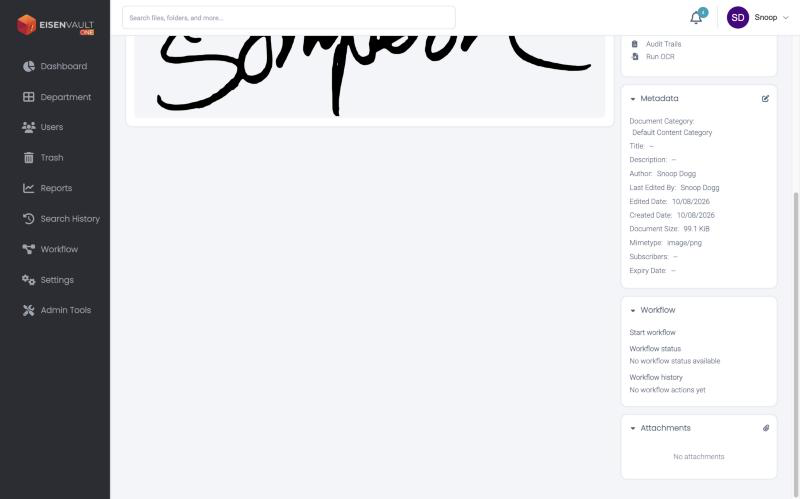
-
Click the paperclip icon at the top right of the panel.
- In Add attachment, drag your files into the box, or click Browse Attachments.
- The dialog shows how many slots remain. If you select more files than there are slots, none are added and a message explains how many you can add.
- Wait for the upload to finish. A message reports how many attachments uploaded and how many failed. The panel refreshes on its own.
Work with an Attachment
Open Attachment Actions on an attachment to:
- Preview Attachment: open it in the viewer.
- Rename Attachment.
- Edit Attachment Metadata.
- Download Original.
- Delete Attachment: moves it to the trash after you confirm.
Attachments Elsewhere in the App
- Search and explorer: attachments appear as file-like items and open on the parent document.
- Trash: deleted attachments show a paperclip icon, and upload messages say "attachments" rather than "files". Restore them from the trash like any file.
- Audit trails: attachment events are recorded, such as added, renamed, viewed, downloaded, metadata changed, moved to trash, restored, and permanently deleted. Where relevant the entry names the parent document.
- Deletion report: attachments are included. See Deletion Report.
Expected Result
- The attachment is listed under the document and counts toward the 10-attachment limit.
- Removing one frees a slot.