Dashboard Overview
Purpose
User administrators who also work as regular users land on the same Dashboard entry in the left navigation as everyone else. EisenVault One chooses the dashboard view from your permissions:
- Regular user dashboard — personal overview cards and widgets. See Dashboard Overview.
- System administrator dashboard — organization metrics and admin shortcuts when you have Sign in to Admin Portal. See Dashboard Overview.
Note: This action may require administrator privileges.
Prerequisites
- You are signed in to EisenVault One.
- You know whether your role includes system administrator permissions.
Before You Begin
User administrators typically manage users, groups, and roles from Users and Admin Tools, not from the dashboard itself. The dashboard remains the fastest way to monitor document activity and open drill-down lists.
If you only administer users and groups, start with:
Open the Dashboard
- Sign in to EisenVault One.
- Click Dashboard in the left navigation.
- Review the overview cards and widgets (regular user view) or organization KPIs (administrator view).
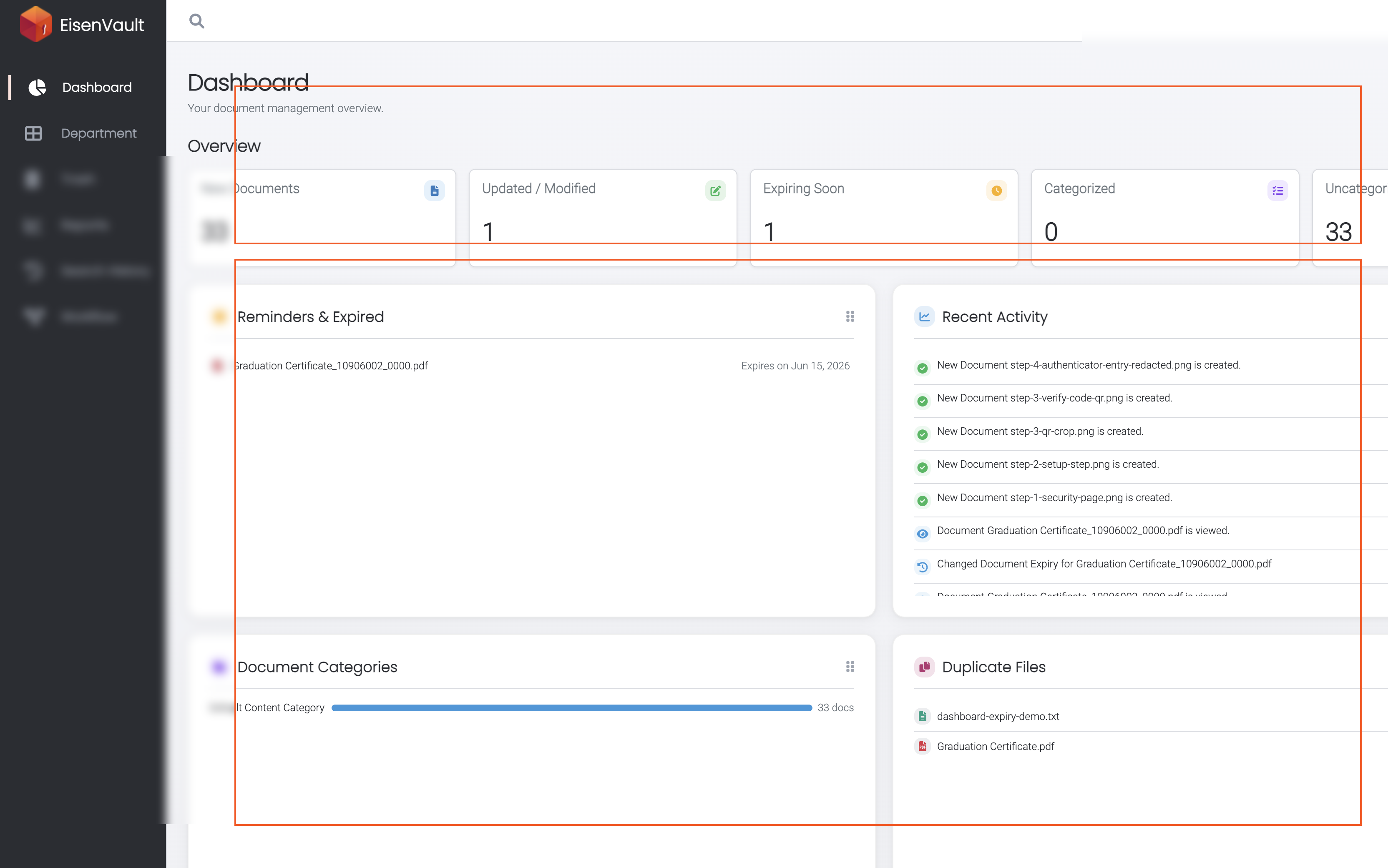
Expected Result
- EisenVault One opens the dashboard that matches your permissions.
- Overview counts and widgets reflect data you are allowed to see.
- Administrator-only navigation items such as Settings and Admin Tools appear when your role includes them.