Dashboard Overview
Purpose
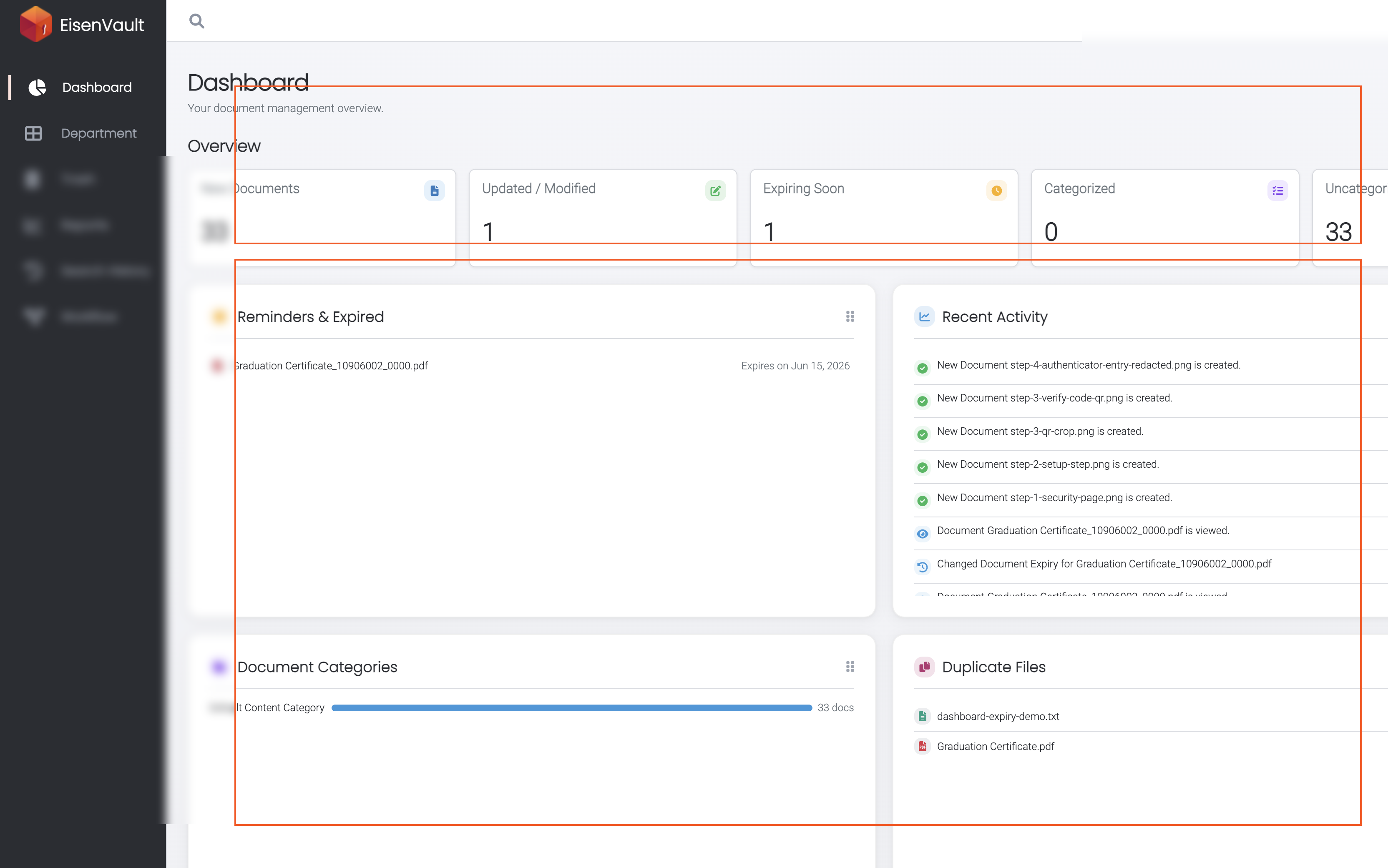
The dashboard is your home page in EisenVault One after you sign in. It summarizes document activity you can access and gives quick entry points to lists, previews, and personal widgets.
Regular users and system administrators both open Dashboard from the left navigation at /dashboard. EisenVault One shows the dashboard that matches your permissions:
- Regular user dashboard — personal metrics and widgets for documents you can view.
- System administrator dashboard — organization-wide metrics, charts, and admin shortcuts. See the System Administrator Dashboard Overview if you have the Sign in to Admin Portal permission.
Prerequisites
- You are signed in to EisenVault One.
- You can open Dashboard from the left navigation.
Before You Begin
The regular user dashboard has two layers:
Overview cards
The Overview row at the top shows five metric cards:
| Card | What it measures | Uses date range? |
|---|---|---|
| New Documents | Documents uploaded in the period | Yes |
| Updated / Modified | Documents changed in the period | Yes |
| Expiring Soon | Documents expiring in the next 30 days | No |
| Categorized | Documents with a custom category | Yes |
| Uncategorized | Documents on the default category | Yes |
Click a card to open its full list. Most overview counts follow the date range control in the dashboard header. Expiring Soon always uses a rolling next-30-days window (UTC).
Widgets
Below the overview row, widgets (also called dashlets) show live lists and summaries:
| Widget | Topic guide |
|---|---|
| Recent Activity | Recent Activity |
| Reminders & Expired | Reminders & Expired |
| Document Categories | Document Categories |
| Duplicate Files | Duplicate Files |
| Frequently Accessed | Frequently Accessed |
| Bookmarks | Bookmarks |
| My Subscriptions | My Subscriptions |
Some widgets (for example External Share, Workflow Activity, and Tags) may be hidden in production deployments.
Use Manage Widgets beside the Overview heading to show or hide widgets. See Moving Dashlets Around to reorder cards and widgets.
Open the Dashboard
- Sign in to EisenVault One.
- In the left navigation, click Dashboard.
- Confirm the subtitle Your document management overview.
- Optionally set the date range above the overview cards, then click Apply Filter. See Date Range Picker.
Example Walkthrough
The screenshots below use a demonstration tenant. Names, email addresses, and file titles are redacted.
-
After sign-in, EisenVault One opens the dashboard. The Overview row and widget grid summarize your accessible documents.
-
Use the date control when you want overview counts and date-driven lists to reflect a different period.
-
Click any overview card or a widget header (where supported) to open the matching detail page. Use Back on list pages to return here.
Expected Result
- The dashboard loads with overview counts for your selected date range (except Expiring Soon).
- Widgets show recent lists or empty states when no data exists in the window.
- Overview card order, widget order, and widget visibility persist for your user profile.
- Clicking cards and supported widget headers opens drill-down list pages.