Assign Permissions on Departments, Folders, and Documents
Purpose
Content permissions control access to departments, folders, and documents. These permissions are typically granted by assigning a content role to a user or group on a specific content item.
Note: This action may require administrator privileges.
Before You Begin
Content roles vs global roles
This page covers content permissions (department/folder/document). It does not cover global administrative roles assigned on user profiles.
Related topic:
Typical Assignment Pattern
- Decide whether access should be granted to an individual user or a group.
- Prefer groups for maintainability.
- Choose the role that matches the required actions.
- Apply the role on the correct content scope:
- Department for broad access.
- Folder for scoped access.
- Document for the most specific access.
Manage Permissions on a Content Item
- Navigate to the department, folder, or document. If you are documenting or testing a new workspace, create the department first and then open it.
- Open the item’s actions menu.
- Select Manage Permissions.
- Add users and/or groups and select roles.
- Save changes.
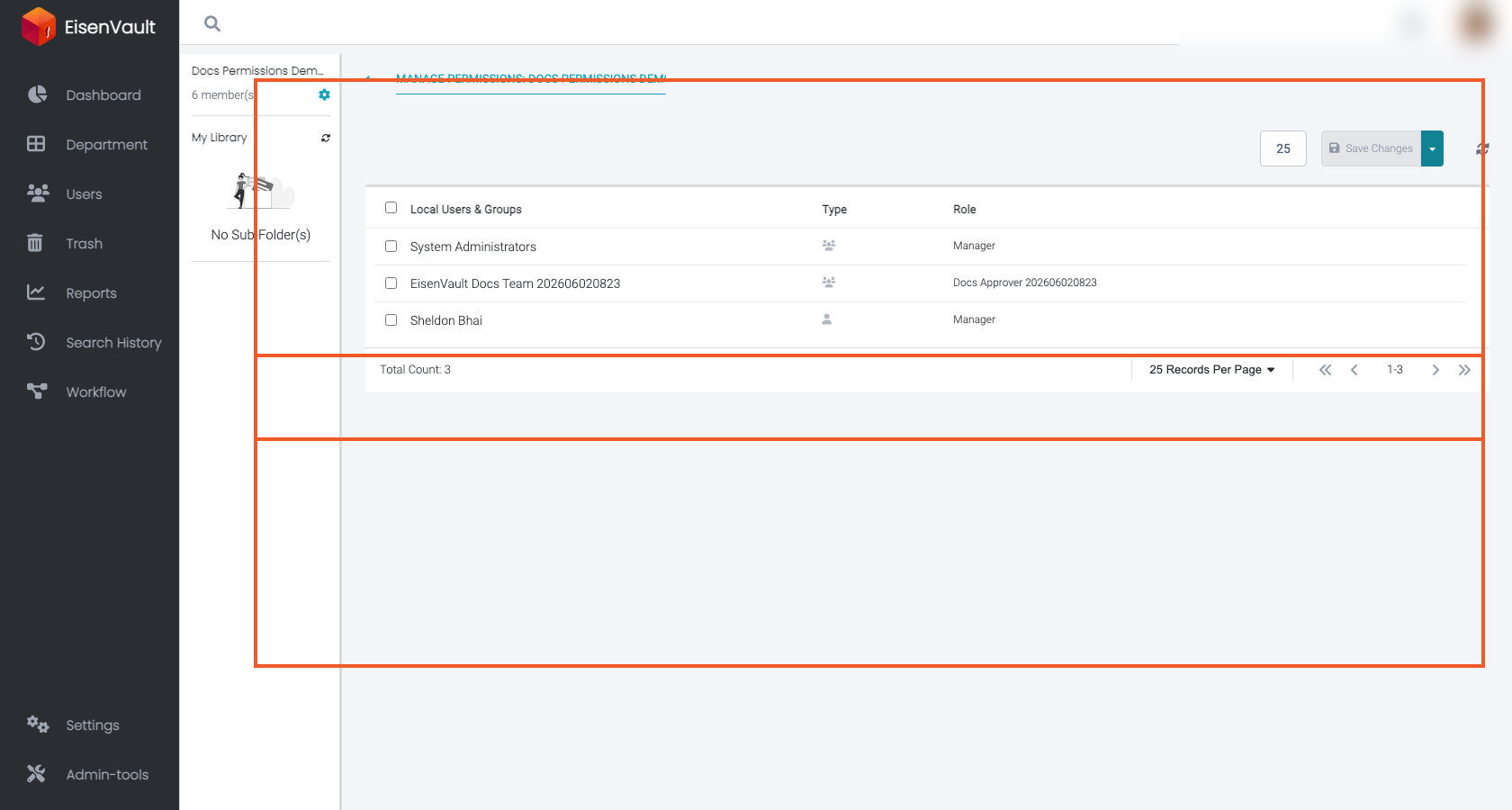
The example below shows a sample department where a sample group has been assigned a sample content role. This is the preferred pattern for department-level access because future user changes can be made in the group instead of on every department.
What to Watch For
Inheritance
Inherited permissions flow from parent items unless inheritance is disabled.
- If you disable inheritance on a folder/document, you must explicitly define permissions at that level.
Related topic:
Troubleshooting access
When access does not match expectations:
- Confirm the user’s group memberships.
- Confirm which groups/users are assigned on the content item.
- Confirm inheritance behavior.
- Confirm the selected role and its permission set.