View Document
Purpose
Open a document from a department folder and read it in the built-in viewer.
Prerequisites
- You are signed in to EisenVault One.
- You have permission to open the document.
- You can navigate to the folder where the document is stored.
Before You Begin
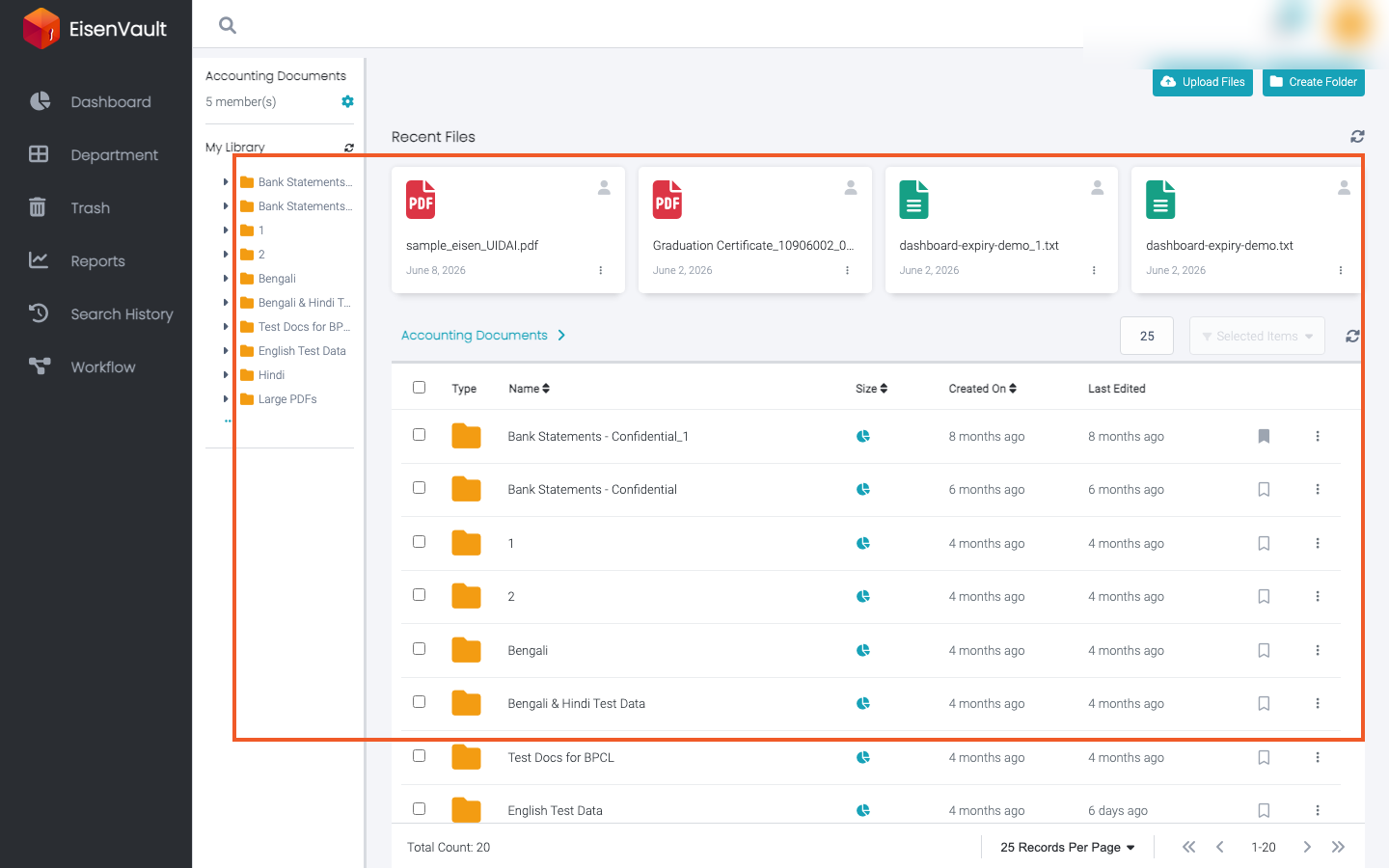
You can open a document from the file list or from Recent Files at the top of the Explorer. Clicking the document name opens its preview page.
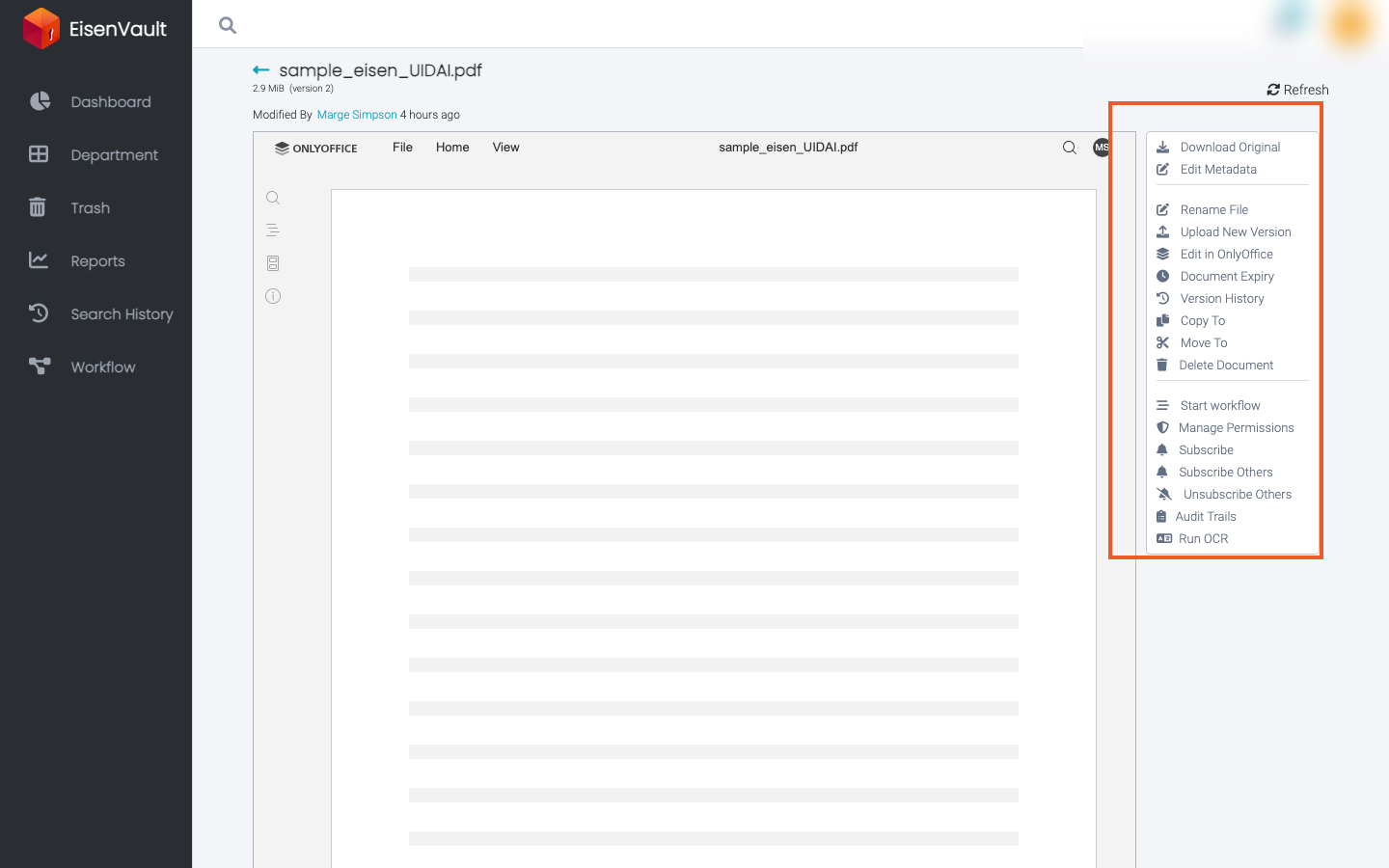
The preview page shows the document in the center and panels on the right:
- File Actions: Download Original, Share, Rename File, Upload New Version, Document Expiry, Version History, Copy To, Move To, Delete Document, Manage Permissions, Subscribe, Subscribe Others, Unsubscribe Others, Audit Trails, and Run OCR. Which actions you see depends on your permissions and your organization's settings.
- Metadata: the document's category and properties. Click the pencil icon to edit them.
- Workflow: start a workflow and see its status and history.
- Attachments: supporting files. See Document Attachments.
Very large PDFs (500 MB or more) open in the PDF.js viewer instead of being blocked.
View a Document
- Open Department and select the department that contains the document.
- Open the folder that contains the document.
- In the file list or Recent Files, click the document name.
- Wait for the preview page to load.
- Review the document in the viewer.
- Use the viewer controls to move between pages, zoom in or out, or fit the page to the available space.
- Use File Actions on the right when you need to download the original file or open a related task.
Example Walkthrough
The screenshots below show sample-document.pdf in Accounting Documents.
-
Open the folder and click the document you want to read.
-
The document opens in preview. The viewer appears in the center and document actions appear on the right.
Expected Result
- The selected document opens in preview.
- You can read the document without downloading it first.
- Document actions remain available from the right-side panel.